
Landing pages: publish a page with a lead form
What landing pages are
A landing page is a simple public web page that Enydea hosts for you at https://app.enydea.com/p/ followed by a name you choose, the slug. You build it from sections, optionally show one of your forms, and share the link in emails, social posts or ads. Submissions arrive under Forms -> Form entries.
Before you start
- To capture leads, build a form first (Forms).
- Images and videos are added as web addresses. Upload a file under Files and choose Copy URL in its menu to get one (Files and media library). For the animation section you can also pick a video you rendered in the Video Creator.
Build a page
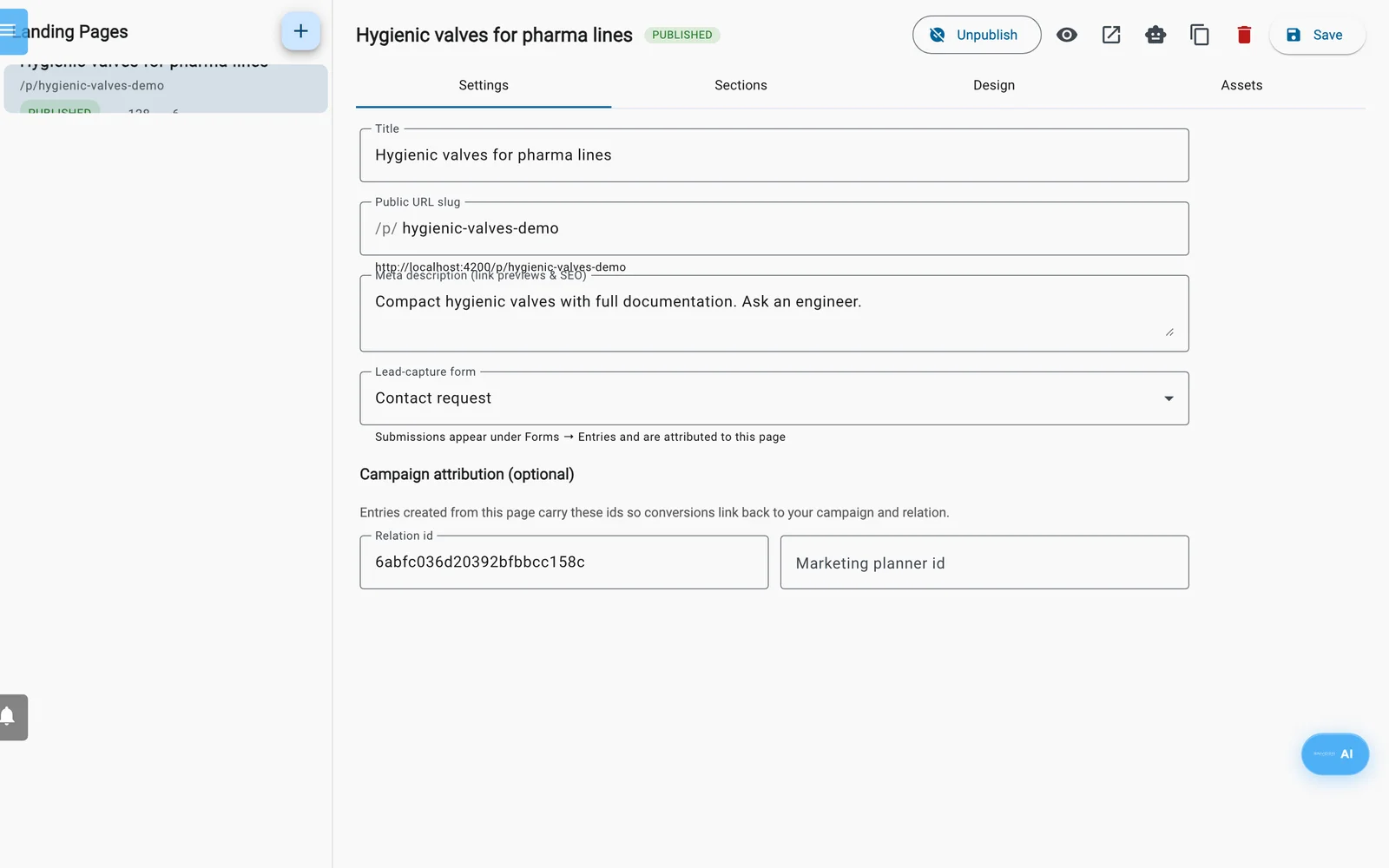
The Landing Pages editor. The tabs are Settings, Sections, Design and Assets.
- Click Landing Pages in the sidebar.
- Click the + button (New landing page). A draft appears with sample hero, specs and form sections.
- On the Settings tab, fill in the details:
- Title.
- Public URL slug: 3 to 80 characters, lowercase letters, numbers and single dashes. It must be unique across all of Enydea, or the page is not saved. Enydea creates the slug from the title once. Changing the title later does not change it.
- Meta description (link previews & SEO).
- Lead-capture form: one of your forms, or — No form —. Choosing a form fills an empty Relation id.
- Campaign attribution (optional): Relation id and Marketing planner id. Entries from this page carry them.
- On the Sections tab, click a button after Add section: to add a section. Use the arrows to reorder sections and the X to remove one.
- On the Design tab, set Background color, Text color, Highlight / button color, Font and Base font size.
- Click Save.
| Section | What you fill in |
|---|---|
| hero | Heading, Subheading, Hero image URL |
| animation | Video URL (mp4), Poster image URL, Caption. Skipped without a video address. The video autoplays muted, loops and has controls. |
| specs | A title, plus rows of label and value (Add spec) |
| gallery | A title and rows of Image URL and Caption (Add image) |
| text | Title and Body |
| cta | Heading, Button text, Button URL (empty scrolls to the form), Note |
| form | Section title and Submit button text |
The form section shows the fields of your lead-capture form. Without this section no form appears, even if you picked one. The page leaves out File upload, Hidden field and conditional fields, and uses its own submit button instead of the form's Button. Only email and number Input types are honoured. Other Input types appear as plain text boxes.
The Assets tab holds reference files (Add asset: File URL and Kind, which is Image, Flyer (PDF) or Video). The page uses them for one thing: the first image becomes the link-preview image when the hero has no image.
Preview, publish and share
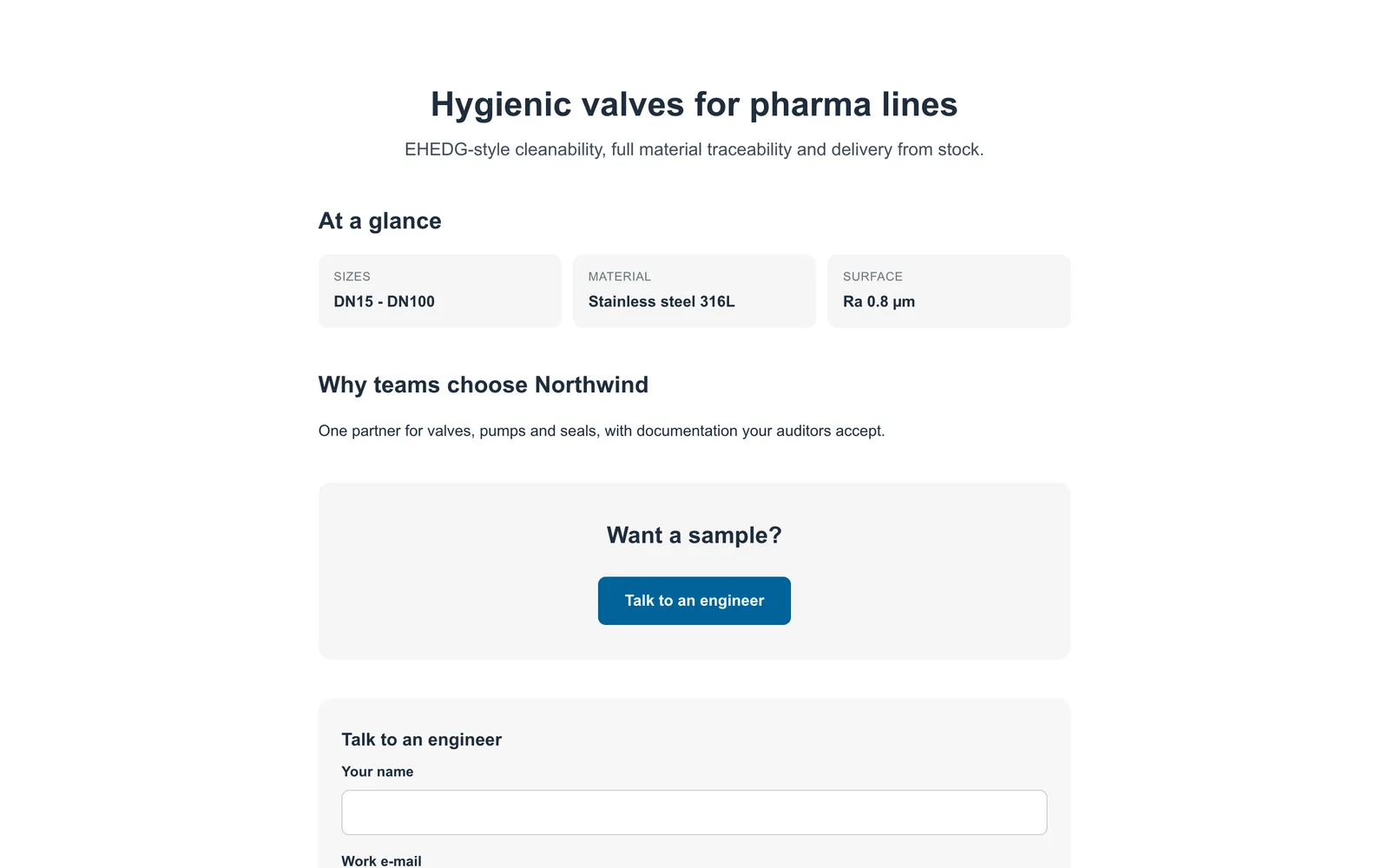
The same page as a visitor sees it at its public address.
- Click the eye icon (Preview (works for drafts)). Enydea saves the page and opens a preview in a new tab. The preview link works for 30 minutes and search engines are told to ignore it. Do not send it to customers.
- A draft preview cannot accept submissions. Only published pages do, so test the form after you publish.
- Click Publish. Enydea shows the public address. Unpublish returns the page to draft, and its address then shows "Page not found".
- Click Copy public URL to copy the address. Open public page opens it once the page is published.
- If your links carry UTM parameters (for example
?utm_source=newsletter), Enydea stores them with each entry together with the referring site.
What happens on the page
- Tracking: published pages load the Enydea tracker with your Company ID, so visitors see your consent banner there when consent is switched on. Draft previews do not load it (Website tracking and consent).
- Entries: each submission becomes an entry of the chosen form, tagged with the page. Your team is notified like for any form entry. Add submissions to CRM automatically does not apply to landing pages, so use Add to CRM on the entry (Forms).
- Spam protection: a hidden trap field catches simple bots, and one visitor address can send 5 submissions per 10 minutes per page.
- Link previews: shared links use your Title, Meta description and an image: the hero image, else the first Image asset, else the first gallery image, else the animation poster.
- List counts: the list shows Published or Draft, and the number of page loads (eye) and submissions (person). Page loads are not unique visitors.
Limits
- You enter web addresses. There is no upload button on this screen.
- Deleting a page (bin icon) removes it and its address for good.
- Ask AI about this page (robot icon) opens the AI Assistant with a prefilled question. The assistant can also draft landing pages, and it asks you to confirm before it publishes one.