
Tutorial: send a booking link and take a meeting
Goal
You will connect your Outlook calendar, create a booking link for a few days, test it with a second email address and send it to a customer. This takes about 15 minutes.
What you need
- A Microsoft 365 or Outlook calendar. Booking links do not work with Google Calendar.
- A second email address you can read, for the test.
- Permission to give Enydea access to your calendar. If your organisation blocks this, ask your Microsoft 365 administrator to approve calendar access.
Steps
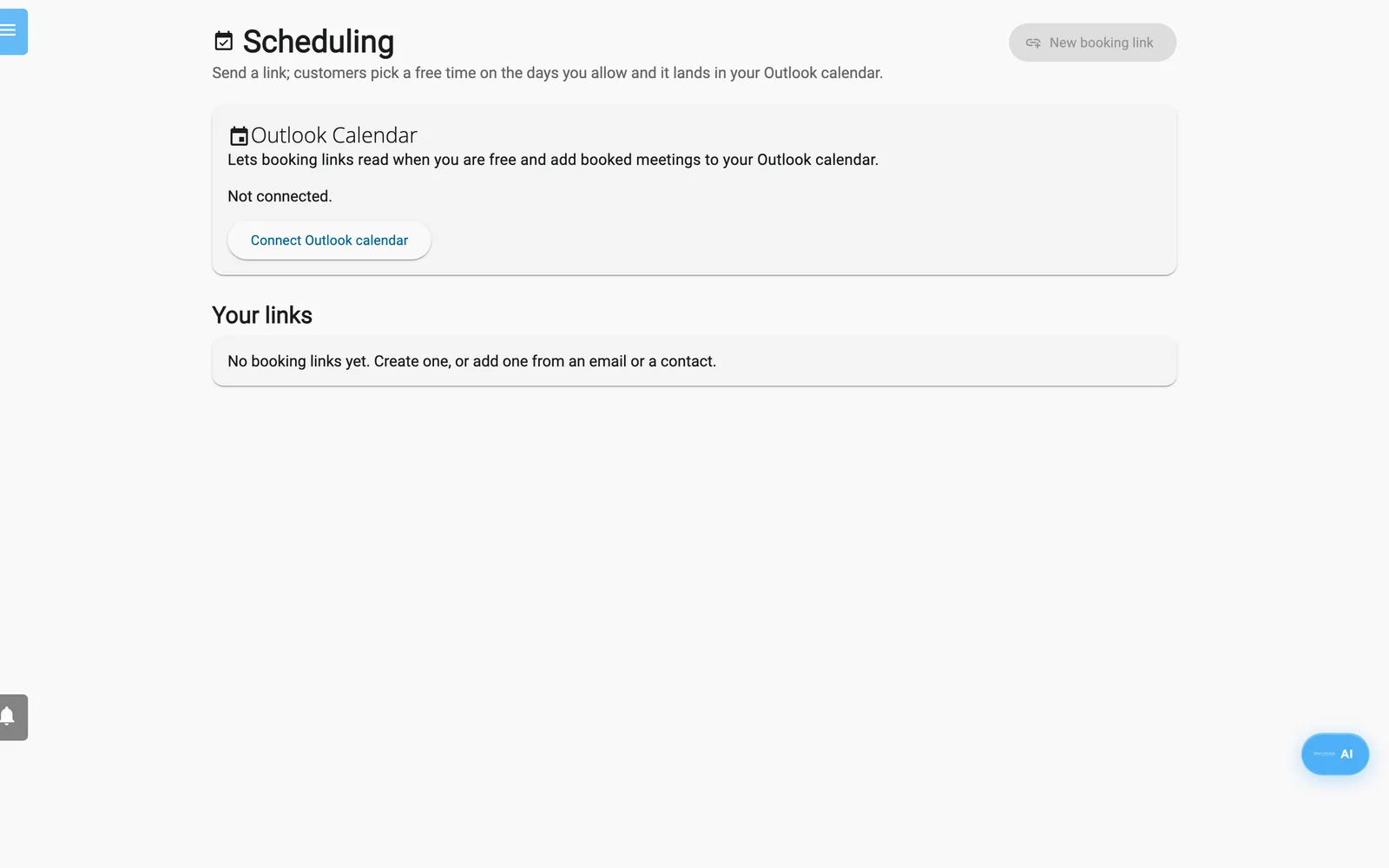
The Scheduling screen.
- Open Settings with the gear icon at the bottom of the side menu. Click the Email Integration tab.
- In the Outlook Calendar card, click Connect Outlook calendar. Sign in at Microsoft and give access. You come back to Enydea and the card shows Connected.
- Open Scheduling in the side menu and click New booking link.
- In Title (shown to the customer), type a name such as "Meeting".
- Under Which days can customers book?, click From – to and pick the first and last day. The days Mon to Fri are selected. Click a day button to switch a weekday off.
- Set From and Until, for example 09:00 and 17:00. Choose a Meeting length such as 30 minutes.
- If you want a video call, open More options and switch on Add a Teams online meeting.
- Click Create link. The message Link copied appears and the new link shows in Your links.
- Open a private browser window and paste the link.
- Click a highlighted day under Choose a day and a time under Choose a time.
- Enter Your name and your second Email address, then click Confirm booking. You see You're booked.
- Share the link with a customer. Open the customer's relation and click the three-dot menu, then Copy booking link, then Use an existing link and Copy link. Paste the link in your own email.
Check your work
- The meeting is in your Outlook calendar, and the second email address received a calendar invitation.
- On Scheduling, click the arrow (Bookings) on your link card. You see your test booking with the time, name and email.
- The test time is no longer offered when you open the link again.
To remove the test meeting, delete it in Outlook. The booking stays in the Bookings list, and the time stays taken.
Next steps
- Set a buffer, a minimum notice, a maximum number of bookings, meeting places and agenda topics. See Scheduling and booking links.
- Put the link in an email from Mailbox with the Booking link button in the composer. See Mailbox.