
Tutorial: Build and monitor a Google Ads campaign
Goal
Create a Google Ads campaign from Enydea, keep it paused until it is ready, enable it on purpose, and monitor it. Plan about 30 minutes.
Warning: Enydea works on your real Google Ads account. Enabling a campaign, or changing a budget, can spend real money. Enable and Pause act at once, with no confirmation. Use a low daily budget while you learn.
What you need
- A Google Ads account you can sign in to and are allowed to spend from.
- A marketing relation selected in Current Account in the sidebar.
- Optional: the tracking script on your website. See Tutorial: Install the website tracker.
Steps
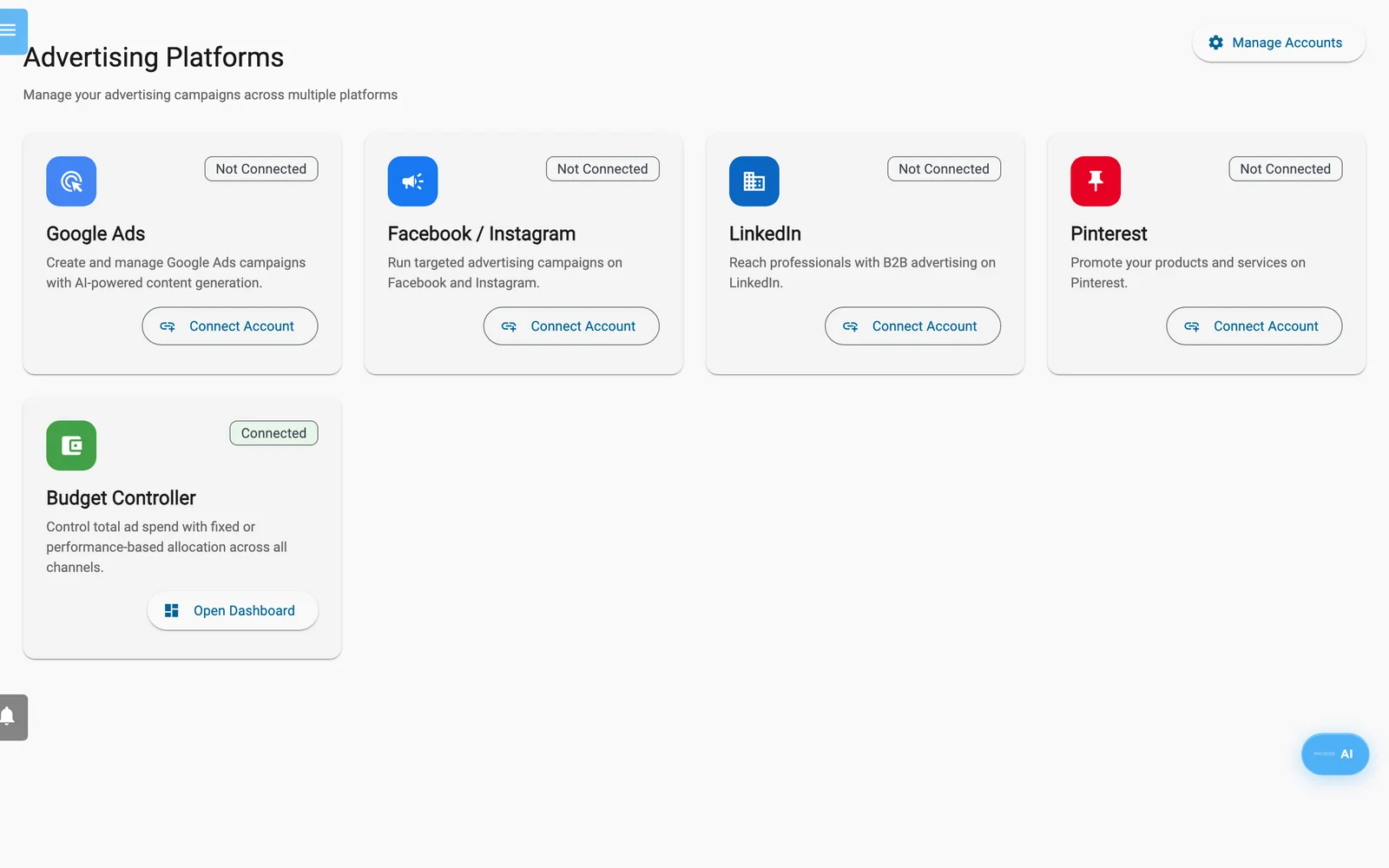
Advertising Platforms.
Connect
- Open Advertising, then select Manage Accounts.
- In the Google Ads section, select Connect with Google. Sign in and approve access.
- In Select Google Ads Account, choose the account to connect.
- If Configure Website Tracking opens, enter your Google Ads Conversion ID (like
AW-XXXXXXXXXX) and select Save & Enable Tracking. Or select Skip for Now.
Build
- Open Advertising, select Open Dashboard on the Google Ads card, then select New Campaign. Optional: the setup wizard at
https://app.enydea.com/google-ads/onboardingcollects your goals first. It only prefills the builder. - On Campaign Settings, enter a Campaign Name. Choose Campaign Type (start with Search), a low Daily Budget, a Bidding Strategy, Target Countries and Target Languages. Strategies marked Requires Conversion Tracking need your tracking set up first.
- Select Generate Keywords with AI and pick the keywords you want.
- On Ad Content, select Generate Headlines with AI and Generate Descriptions with AI, and select the ones to keep.
- On Preview & Launch, check the summary and select Create Campaign. Do not use Save as Draft: it saves nothing.
Enydea creates the campaign, its budget and the country and language targeting in Google Ads, with status PAUSED. It does not create the ads. Your headlines and descriptions stay in Enydea.
Review
- On the dashboard, find the campaign. Its status is PAUSED. Select it to open the campaign detail.
- Check Budget & Bidding and Targeting. Select New Ad Group if you want one, with a name and Max CPC.
- Go back and select Asset Review. Pick the campaign and language and read the headlines and descriptions with their policy scores. This is a checklist. Your approvals are not saved and nothing is sent to Google Ads.
- Open your account in Google's own Google Ads interface and add the ads the campaign needs. Enydea cannot do this for you.
Enable and monitor
- When you are ready, select the play icon on the dashboard, or Enable on the campaign detail. Spending can start now.
- Select Sync on the dashboard to import the latest numbers. Read Spend, Clicks, Conversions and ROAS. On the campaign detail, switch between Today, 7 days, 30 days and 90 days.
- Open AI Agent Hub. Check Hourly budget monitoring and set the Budget alert threshold (%). Optionally switch on Auto-pause campaign when budget is 100% exceeded. Select Save settings.
- To stop spending at any time, select the pause icon or Pause.
Check your work
- Before step 14, the campaign shows PAUSED in Enydea and in Google Ads.
- After step 14, the status is ENABLED. Numbers appear after a Sync.
- Under Agent Alerts, warnings appear when spend reaches your threshold.
Next steps
- Read the full reference in Google Ads and Advertising.
- Make sure visitors can consent to your tags. See Website tracking and consent.
- Ask the assistant about spend. See AI Assistant and AI Agents.