
Plans and billing: free trial, card, usage and refunds
What this page covers
This page describes how billing works inside the app: the free trial, what is charged and when, where you see your plan, card, usage and invoices, and how to cancel, replace your card or ask for a refund. It does not list prices or terms. For current plans and prices, see Pricing.
The 14-day free trial
When you create an account, Enydea starts a 14-day free trial of the plan you chose.
- A card is required, and nothing is charged to start. On the payment page of Mollie you enter a credit or debit card. Mollie verifies it with a payment of zero. Your bank may ask you to confirm in its app (3-D Secure). Enydea never sees the card number.
- The trial starts when the card is verified and runs for 14 days. You get an e-mail with the subject Your Enydea free trial has started. It states the date the trial ends and what will be charged then.
- Only usage is charged during the trial. The plan fee is not charged. Pay-per-use items such as AI generation, e-mails sent from your mailbox and translation are recorded as you use them and collected when the trial ends.
- A usage limit protects the trial. Plan & Usage shows how much trial usage you have used against the limit. When it is reached, paid features stop until you click Start my plan now or the trial ends.
- You can cancel at any time before the trial ends and pay no plan fee. Usage recorded up to the end of the trial is still charged once.
- Three days or less before the end you get an e-mail with the subject Your Enydea trial ends in N days.
Note: A company gets one free trial. If your company already had a subscription, or the same card was already used for a trial, the first payment is charged right away and no trial starts. The confirmation dialog on the plan page says so before you pay. That payment goes through the normal Mollie checkout, where more payment methods can be offered. Afterwards the subscription works like any other: it shows in Plan & Usage, can be cancelled, and the money-back guarantee applies to it.
What is charged when the trial ends
On the first billing run after the trial ends, Enydea charges your card once with:
- the plan fee for your term (monthly, or the whole year if you chose Yearly),
- the one-time services you selected, such as Professional Migration Support or Personalized Training Support,
- the usage recorded during the trial.
A discount code applies to this charge. The charge is made to the card you verified. After a successful charge the subscription is Active and renews on its term.
Billing runs once a day, so the charge can be up to a day after the 14 days are over. It is never made earlier.
If the charge fails
- Enydea tries the payment three times in total over about a week, and sends Payment Failed for Your Enydea Subscription after the first failure.
- While payments are failing, the status in Plan & Usage is Payment failed and paid features are paused. Update your card there and the payment is retried immediately.
- If the third attempt fails, the subscription is On hold. You are sent an e-mail, and signing in leads you to the payment page. Usage that could not be collected is added to your next payment. Your data is kept.
Where to see your plan, card and usage
Open Settings -> Account -> Plan & Usage. Only company admins see this card. See Team and roles.
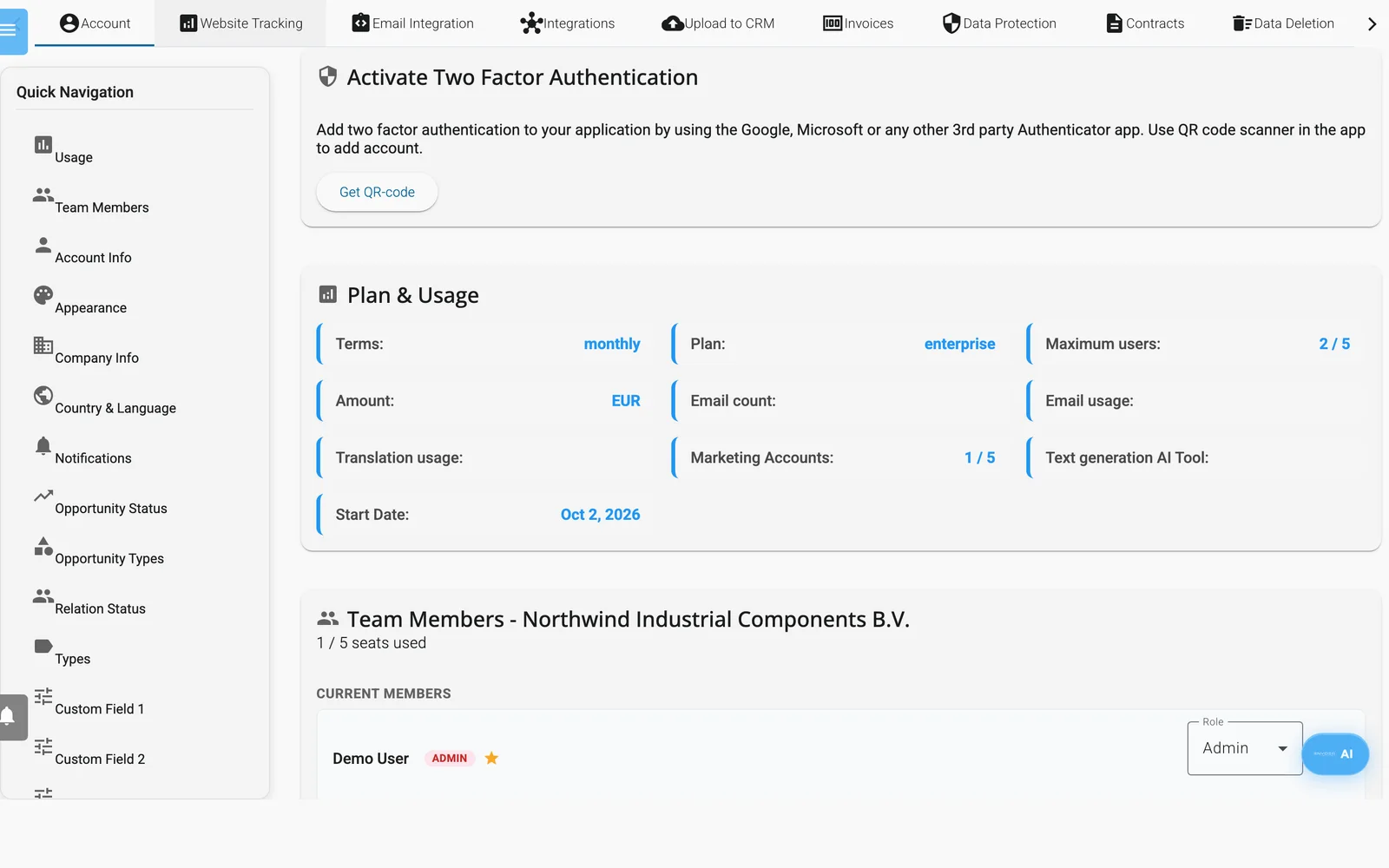
Settings, Account: the Plan & Usage block.
At the top of the block you see the status: Free trial, Active, Payment failed, On hold, Cancelled or Ended. During the trial it also shows the days left, what will be charged and when, and the usage against the trial limit. Below it, the card on file is shown by brand, last four digits and expiry date.
| Field | What it shows |
|---|---|
| Terms | monthly or yearly |
| Plan | The internal plan name: go is Starter and enterprise is Professional |
| Maximum users | Seats used, then seats your subscription includes |
| Amount | The amount and its currency |
| Email count, Email usage, Translation usage, Text generation AI Tool | Counters for your account |
| Marketing Accounts | Marketing relations in use, then marketing relations your subscription includes |
| Start Date | The subscription date |
Note: If you were invited as an Admin and the payment card on file does not appear, ask the person who signed up for the company. The payment card loads together with the subscription of the signed-in account.
Subscriptions that were created before the free trial existed show the same block, with the Cancel subscription button, but without trial, card or refund information.
What you can do in Plan & Usage
| Button | What it does |
|---|---|
| Update card | Opens the secure Mollie page to verify a new card. Nothing is charged. The new card replaces the old one. If a payment was failing, it is retried at once. |
| Start my plan now | Ends the trial today and charges the plan fee, one-time services and the usage so far. If the card is declined, your trial continues unchanged. |
| Cancel subscription | Ends the subscription at the end of what you have paid for: the end of the trial, or the end of the current period. No further plan fees are charged. You get a confirmation e-mail. |
| Request refund | Refunds the plan fee of your first payment. See below. It appears only while a refund is possible. |
Enydea has no screen for changing to another plan or for adding seats. Contact [email protected] about changes.
Money-back guarantee
You can ask for the plan fee of your first paid period back within 30 days of that first charge.
- Open Settings -> Account -> Plan & Usage.
- Click Request refund and confirm. The button shows until the last day of the 30 days.
- The plan fee is refunded to the card you paid with, a credit note is e-mailed, and the subscription ends.
Usage charges and one-time services are not refunded: usage passes on costs of third-party services such as AI providers, and one-time services have been delivered. Banks usually show the refund within 5 to 10 business days.
Which features need a verified card
Several features call paid third-party services, so Enydea requires a card it can charge for them while you are on the trial or paying by card. These are the AI assistant and agents, AI text, image, video and speech generation, finding contact e-mail addresses, contact discovery and the Leadfinder, web search for companies, translation, campaign sending and the AI replies in chat and on WhatsApp.
If a card is missing, expired, or the trial usage limit is reached, the feature answers with a message that points you to Plan & Usage. System e-mails such as invoices and password resets are never affected.
E-mails per month
Your plan includes a number of e-mails per month, plus 1,000 for every e-mail pack you added under Boost Your Email Power. Plan & Usage shows E-mails this month: x of y.
Every e-mail sent from Enydea counts: e-mails from your connected mailbox or the shared mailbox, batches sent by the AI assistant, and every recipient of a campaign. System e-mails such as invoices and password resets do not count.
- A send that would pass the limit is refused with the message that the monthly e-mail limit has been reached. A campaign is refused as a whole and is never sent in part.
- A scheduled campaign that does not fit is taken off the schedule and you get a notification. Reschedule it after the next billing date or after adding an e-mail pack.
- The count starts again with every billing period.
E-mails from your own mailbox are still billed per use, as before.
Find your invoices
- Open Settings -> Invoices.
- Click Load Invoices if the list is empty.
- Click the download icon next to a file to open the invoice as a PDF.
After each successful payment Enydea also e-mails the invoice. The subject is You have a new Enydea invoice followed by the invoice number, which starts with ENY-. A refund is documented by a credit note with the subject Your Enydea credit note. They go to the Billing Email in Settings -> Account -> Company information. If that field is empty, they go to your account e-mail address. Invoices use the billing details from the same card, so keep them up to date.
Seats and marketing accounts
Seats. The Team Members card shows how many seats are in use. Invitations that have not been accepted count too. When none is left, the invite form disappears and the message All seats are used. Upgrade your subscription to add more team members. appears. The server enforces the same limit, so an invitation sent another way is refused. See Team and roles.
Marketing accounts. Ticking Marketing Relation on a relation uses one marketing account. When your subscription has none left, the message Too many marketing relations appears and the box stays unticked. See Navigating Enydea.
What the plan picker offers
The plan picker appears when you create an account and when you renew. It shows:
- Two plans, Starter and Professional, with the seats and marketing accounts each includes, and the per-use rates for AI and e-mail.
- A currency choice: EUR or USD.
- Monthly or Yearly billing. Yearly saves 10% and is not available for Professional.
- A panel named Customize Your Plan - Add Power-Ups with these add-ons: Boost Your Email Power (additional e-mails per month), Expand Your Marketing Reach (additional marketing accounts), Build Your Dream Team (additional team members, shown for Professional), Professional Migration Support and Personalized Training Support.
- A line that says what you pay today and what is charged after the trial.
- A discount code field under Have a discount code?. After Apply, the field shows Discount applied! or Invalid code. A code that makes the subscription completely free skips the card step and the trial.
The plan picker shows the amounts that apply to your choices. This documentation does not repeat them.
How payment works
- A dialog titled Verify your card says what you pay today and what is charged when the trial ends, and that you will be redirected to the payment page.
- When you confirm, you go to a hosted checkout page of the payment provider, Mollie. You enter card details there, not in Enydea.
- After the verification you return to the Enydea sign-in page.
If the verification is cancelled or not completed, Enydea sends an e-mail with the subject Payment Cancelled. To try again, sign in with your e-mail address and password. You are taken back to the plan picker and the payment step.
If your subscription has expired
When your subscription is expired, unpaid or missing, Enydea shows one of these pages instead of the app:
| Title | Message |
|---|---|
| Subscription Expired | Your <plan> plan expired on <date>. or Your <plan> plan has expired. |
| Subscription Unpaid | Your <plan> plan has an outstanding payment. |
| Subscription Not Found | You don't have an active subscription. Please renew to continue using the platform. |
In these messages <plan> is the internal plan name, go or enterprise.
The page offers two buttons:
- Renew Subscription opens the plan picker. After you choose, a dialog titled Verify your card shows what will be charged, and you continue to the Mollie checkout.
- Sign Out signs you out.
If your account is disabled
The page Account Disabled says your account has been disabled by an administrator and asks you to contact support. It shows the address [email protected] and a Back to Login button.