
Action items: work through what needs you
What Action Items does
Action Items gathers work that is waiting for you from several parts of Enydea. The header shows chips with the number of emails, Tasks, Forms, Drafts, Chat and Follow-ups. Est. time adds up a rough time guess for every item. The New Task button creates a task. The refresh button reloads all tabs.
Before you start
- The first tab needs a connected mailbox. Connect one under Settings -> Email Integration. See Connect your mailbox.
- The Form Submissions tab shows the forms of the marketing relation you picked in Current Account in the side menu. Without one it stays empty.
- Find files & draft email searches OneDrive and SharePoint, so it needs an Office 365 mailbox with file access.
The six tabs
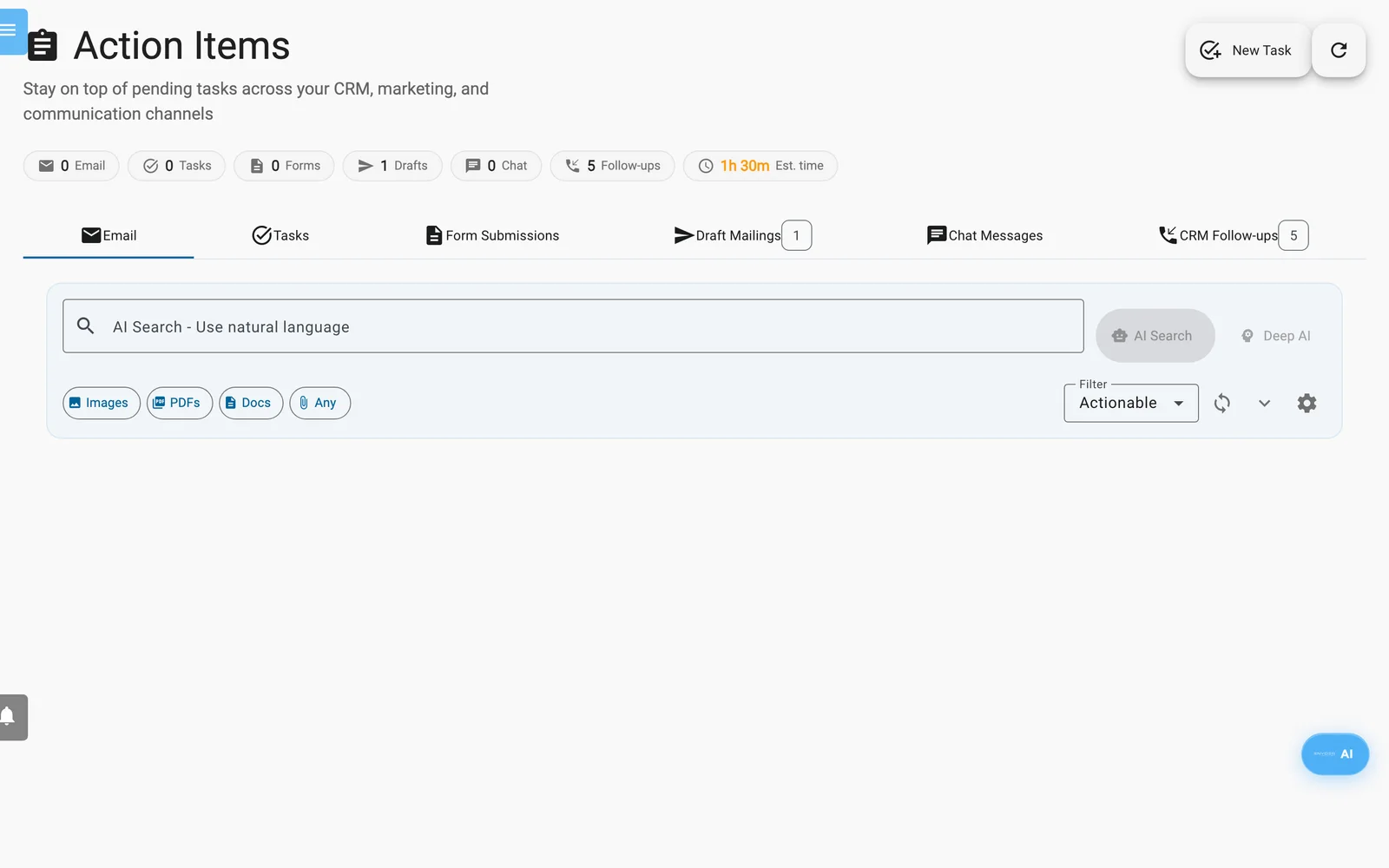
Action Items: the six tabs, the status chips above them and the AI search bar.
| Tab | What it lists |
|---|---|
| Office 365 Email, Gmail, IMAP Email or Email | The 50 newest messages in your inbox, with priority and category. |
| Tasks | Tasks you create yourself. |
| Form Submissions | Form entries that are not processed yet, up to 20 per form. |
| Draft Mailings | Mailings that are drafts or scheduled and not sent yet. |
| Chat Messages | Recent chat conversations with messages from visitors, up to 20 conversations. |
| CRM Follow-ups | Calls with an open follow-up or a callback date, and emails marked Ready to Send. |
To act on a form entry, open Forms. To answer a chat, open Chats. To handle a follow-up, open the relation and its Calls/Messages tab. See Forms and Relations (CRM).
In Draft Mailings, click Open & Send to open the draft in the compose window and send it from your mailbox. The delete icon (Delete draft) removes the draft at once, without asking.
Work through your email
- Open the first tab. The list shows Actionable messages by default.
- Pick another view in Filter: Needs Response, Informational, Spam or All Emails.
- Click the arrow on a message to read it. Click Load Full Email if you only see a preview.
- Click the sparkle icon (Generate AI Response). An AI Suggested Response appears.
- Choose what to do with it:
- Edit & Send opens the composer with the reply and the original message. You check and send it.
- Send As-Is sends the suggestion to the sender straight away. There is no confirmation step.
- Modify AI Response lets you type instructions, for example "Make it more friendly". Click Apply Changes.
- Translate offers Dutch, German, French, Spanish, Portuguese, Italian and English.
- Meeting Invite opens a calendar page in a new tab with the subject "Meeting:" and the message subject, the next full hour and 30 minutes. It opens Outlook on the web for Office 365 and Google Calendar for Gmail. For other mailboxes it downloads an .ics file. It does not use your booking links.
- Use the three-dot menu on a message for Compose Reply, Mark as Spam & Train AI, Not Spam & Train AI and Mark as Informational or Mark as Actionable. These move the message between the filters.
The check icon (Mark as Processed) hides a message from the list for this visit only.
Search your mailbox with AI
- In AI Search - Use natural language, type a sentence such as "emails with presentation from CompanyX".
- Press Enter or click AI Search. Click Deep AI for complex or partial questions.
- Read the line Understanding. It shows the keywords, senders, attachment types and date Enydea picked up.
- Open a result. It shows a match percentage and, under Why this matched, the reasons.
- Click Images, PDFs, Docs or Any to list emails with that kind of attachment.
- Click Clear Search to go back to your list.
Create a task
- Click New Task. The Create New Task panel opens in the Tasks tab.
- Enter Task Title and a Description. Type starts on Email and Priority on Medium. Other types are Call, Meeting, Follow-up, Research, Proposal and Other.
- Optional: search a relation in Link to Relation / Company and tick Contact Persons.
- Click Create Task & Research.
For tasks of type Email, Enydea starts the AI research at once. It searches your emails, contacts and CRM data. For other types, click the sparkle icon (AI Research & Prepare) on the task.
When the research is done, the task shows an AI Ready badge, the AI Research text and Suggested Actions. For email tasks, click Generate Email Draft, then Edit & Send Email. Regenerate Draft writes a new draft. Find files & draft email lets you pick files from OneDrive or SharePoint and adds their links to the draft.
When you are done, open the three-dot menu on the task and choose Mark Completed or Delete Task.