
Opportunities and quotes
What opportunities are
An opportunity is a deal with one of your relations. You find opportunities in the Opportunities tab of a relation. Each opportunity has a value, line items, a status and a follow-up plan, and it can be printed as a quote.
Before you start
- You need a relation. See Relations (CRM).
- The choices in Opportunity type and Opportunity status come from Settings -> Account. Look for Set Opportunity types and Set Opportunity status.
- To print a quote, your company details must be complete. See Print as Quote below.
Create an opportunity
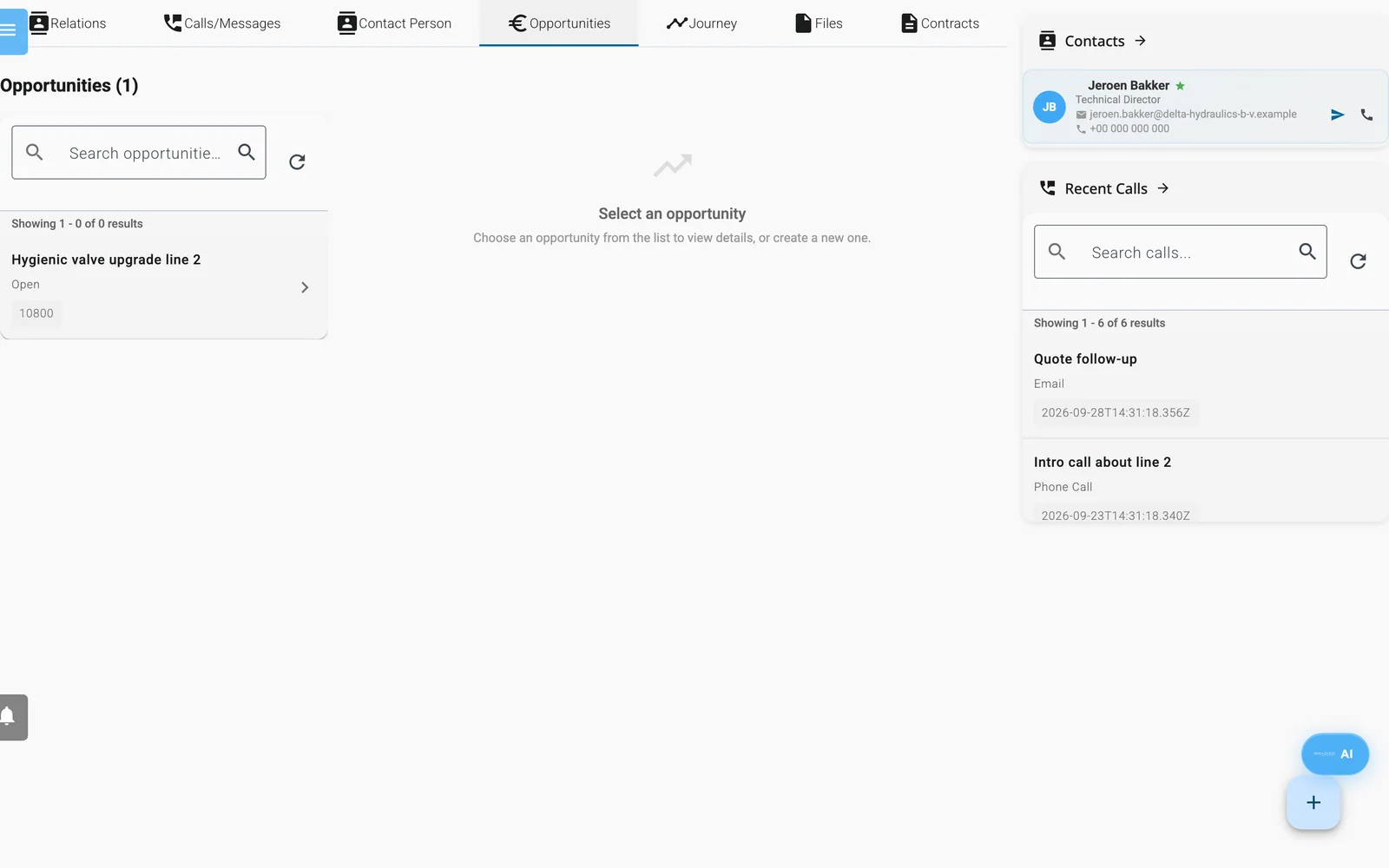
The Opportunities tab of a relation. Select an opportunity to edit its line items and follow-up.
- Open a relation and click the Opportunities tab.
- Click the round + button (Create new Opportunity).
- The new opportunity is titled New, uses EUR and takes the first status in your list. Change Title, Currency and Language as needed.
- Fill in Opportunity type, Opportunity status, Opportunity Date, Invoice Number and Email. Move the Success Rate slider (0 to 100 percent).
- Click Save. Enydea also saves when you leave a field.
Currency offers EUR, USD, GBP and CHF. Language offers English, Dutch, German and French.
Line items
- Click Add item for an empty line, or Add from Catalog (see below).
- Fill in Description, Qty, VAT % and Price. The line Total is quantity times price, before VAT.
- Check Subtotal and VAT under the lines.
When you have line items, Value is the sum of the line totals before VAT. The Total shown in the form is that same amount. The printed quote adds VAT on top.
Use the catalog
Click Add from Catalog to open Add Articles / Services. It has four tabs:
- Browse Catalog: search by name, SKU or description, filter by type, tick the rows, set Qty and click Add to Opportunity.
- New Article: enter Name (required) and optional SKU, description, type (Article, Service, Product), category, unit, price, VAT %, currency and stock. Click Create & Select Article.
- Import Excel: choose an .xlsx, .xls or .csv file with the columns Name, Description, SKU, Type, Category, Unit, Price, VAT, Currency and Stock. Check the preview, remove rows you do not want and click Import with the row count.
- From Website: paste the address of a product page and click Scrape. It reads schema.org product data, so it works best on web shop pages. Then import the products.
Decision makers, tasks and follow-up
- Decision Makers: type a contact person's last name in Add Decision Maker and pick from the relation's contact persons. Click the cross to remove one.
- Tasks/Notes: add small tasks you can tick off with Add task, and short remarks with Add notes.
- Follow up: tick Follow Up, choose a Follow-up Date and tick Done when finished.
Note: The follow-up fields are stored on the opportunity. They do not send a reminder and they do not appear in Action items.
Print as Quote
Print as Quote saves the opportunity and downloads a quote as a PDF. It does not email anything. Attach the PDF to your own email.
Before you print:
- Add at least one line item and choose a Currency.
- Set Language to English. The quote layout exists only in English.
- In Settings -> Account, fill in Company Name, Billing Address, Billing zipcode, Billing City, Billing Country, Billing Email, SWIFT and IBAN/Bank account under Company information.
- Make sure your company website is filled in. You can enter it as Website in the Company Profile step of the Setup Wizard. See Setup wizard.
- Upload your company logo in Settings -> Account under Appearance. The quote shows it at the top. The upload only appears once a marketing relation is selected in Current Account.
- Fill in the name and address of the relation. The quote prints them.
If something is missing, Enydea lists the missing company fields in a dialog. The PDF shows the relation's name and address, the quote number, the date, the lines, the total, the VAT amount, the total amount and your bank details.
The sales integration panel
Each opportunity shows a Sales integration panel at the top. Its buttons only work after you connect a sales system under Settings -> Integrations -> Connected systems. Without one, Enydea answers that no integration is configured.
With a system connected:
- Push lead creates or reuses the relation as a lead in that system.
- Create quote (or Recreate quote) builds a quote from the line items. It does not email anyone. It can write the value, currency, line items and status back to the opportunity.
- Send quote emails the quote PDF to the customer after you confirm. You cannot undo it.
- Schedule follow-up creates a CRM task after the number of days in Follow up in (days). It does not email anyone.
- Follow up now emails the customer a follow-up about the sent quote after you confirm.