
Website chat: add a chat widget to your website
What the Website chat does
A chat is a chat button you place on your website. You set it up in Conversations on the Website chat tab. When a visitor sends a message, Enydea opens a conversation that your team answers in the Inbox tab of Conversations. The same chat can also receive WhatsApp messages. An AI agent can reply automatically, but that is optional and off by default.
Before you start
- Select a relation in Current Account in the sidebar. A chat is stored under that relation, and without one Enydea shows "No relation selected".
- To show the widget on your website you need to edit the page's HTML, or ask your web developer.
Create a chat and get the code
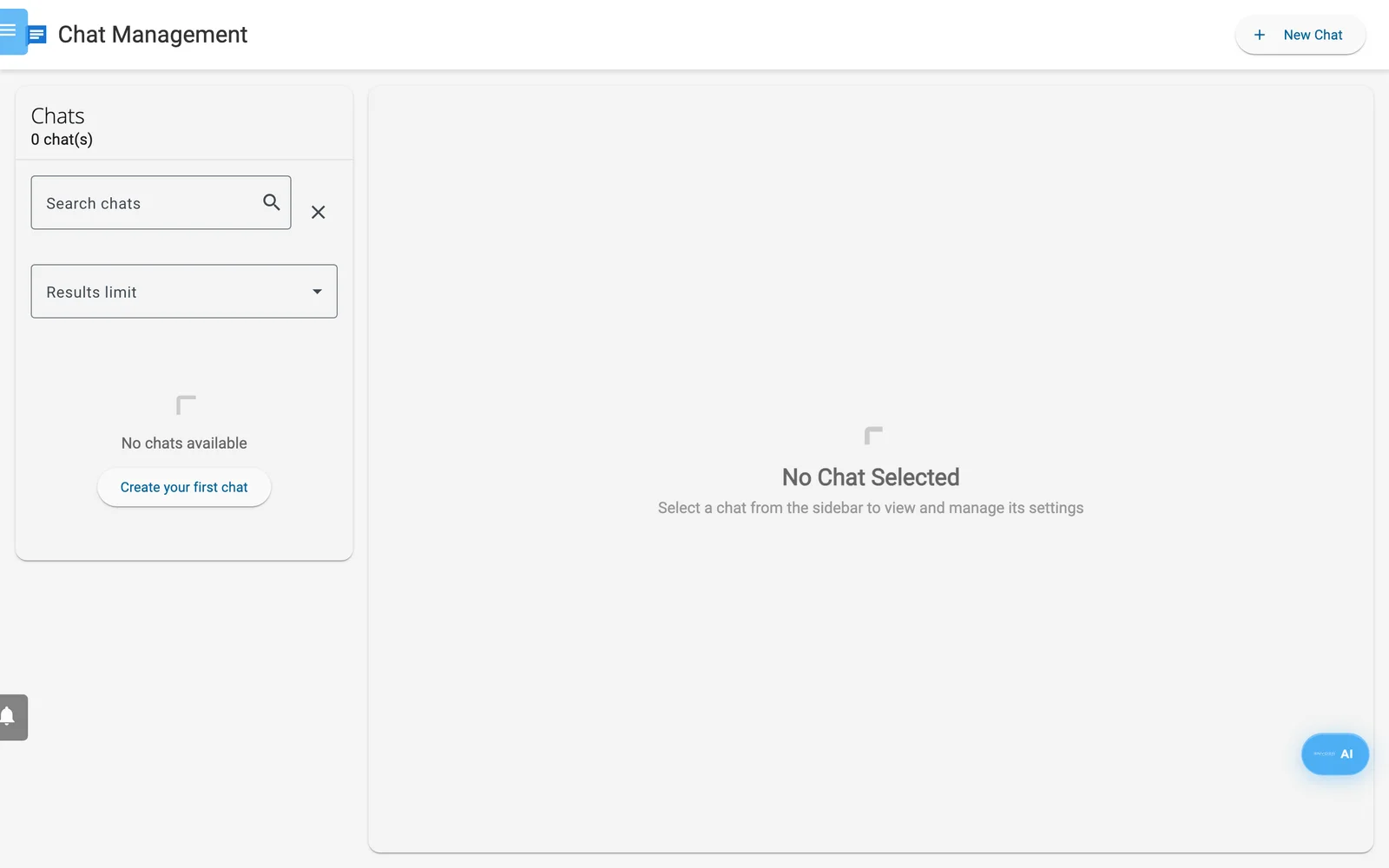
The Website chat tab. Pick a chat on the left. Its settings and the Get Embed Code button are on the right.
- Click Conversations in the sidebar, then the Website chat tab.
- Open the three-dots menu at the top of the chat and click New Chat (or click Create your first chat when the list is empty). The new chat is named "new".
- Type your own Chat Name under Basic Settings. Visitors see it as the title of the chat window.
- Click Get Embed Code. A dialog titled Embed Chat Widget opens.
- Click Copy Code.
- Paste the code into your page's HTML, just before the closing
</body>tag, on every page that should show the chat.
The code looks like this, with your own chat ID:
<!-- Enydea Chat Widget -->
<script src="https://app.enydea.com/widget/enydea-chat.js"
        data-chat-id="YOUR_CHAT_ID"
        data-name="Your chat name"
        data-color="#1976d2"></script>
data-name and data-color appear when the chat has them. Add data-position="left" to move the button to the bottom left. The window text follows your page's lang setting (English, Dutch, German or French).
Under Appearance Settings, Background Color is the widget's main colour. Text Color, Width, Height, Chat Avatar and Start Icon style the chat window you see inside Enydea. The website widget keeps its own size and icons. Embed Code Preview updates as you change settings.
Test the chat on your live site before you announce it. Send a message from your page. A new conversation with the tag Website chat should appear in the Inbox tab of Conversations (reload the page if it does not show yet). If the window opens but no conversation ever appears, the visitor sees no error, so contact support.
What visitors see
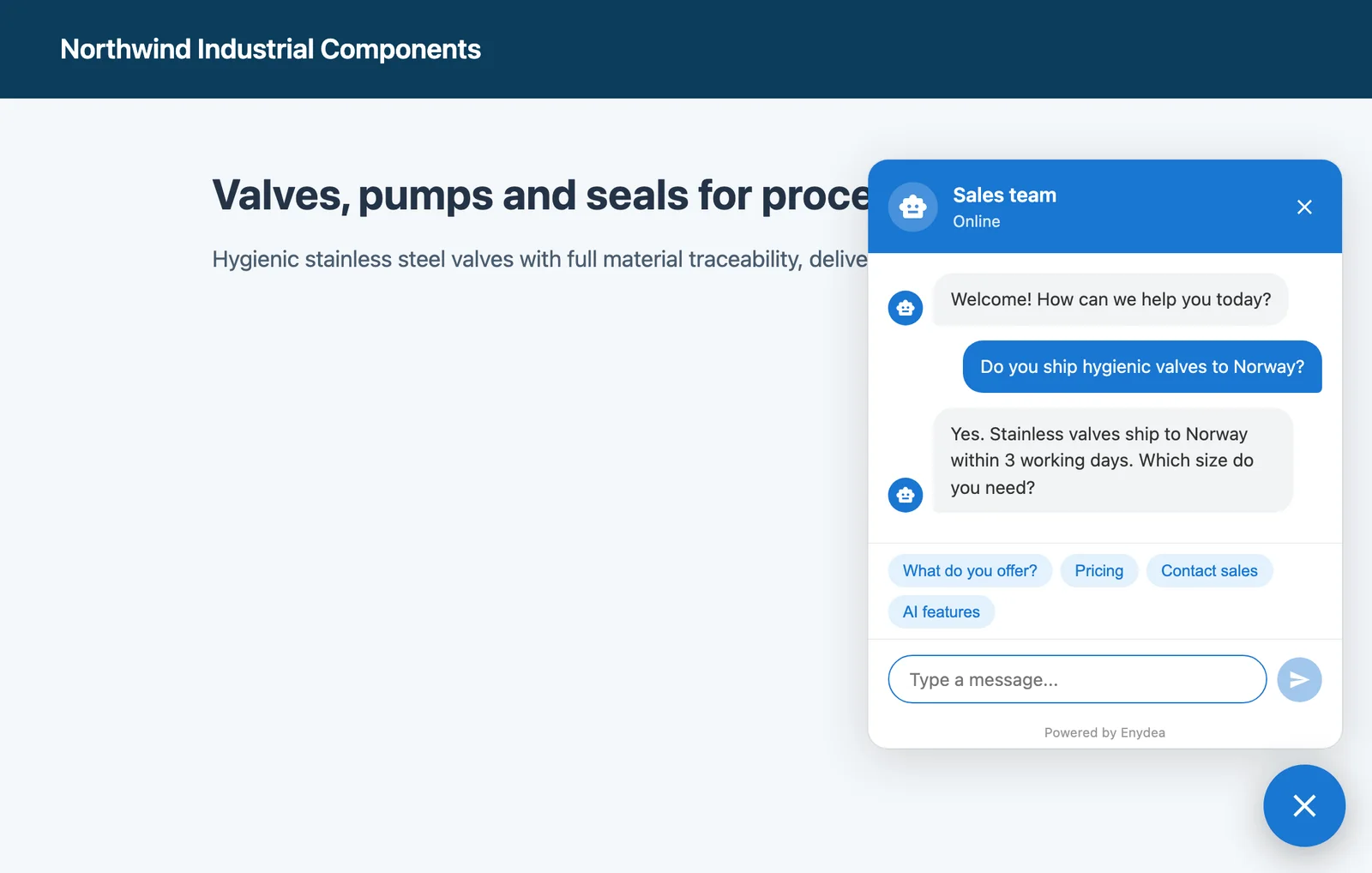
The chat window on a website.
- A round button at the bottom right. It opens a window with your Chat Name, an online or offline status, a welcome message ("Welcome! How can we help you today?") and a message box. You cannot change the welcome message on this screen.
- Four quick-reply buttons with fixed wording: "What do you offer?", "Pricing", "Contact sales" and "AI features". Clicking one sends that text as the visitor's message.
- A "Powered by Enydea" link at the bottom of the window.
Answer in the Inbox
The Website chat tab does not list visitors' conversations. They arrive in the Inbox tab of Conversations, next to your WhatsApp messages, with the tag Website chat (Tutorial: Answer customers in Conversations).
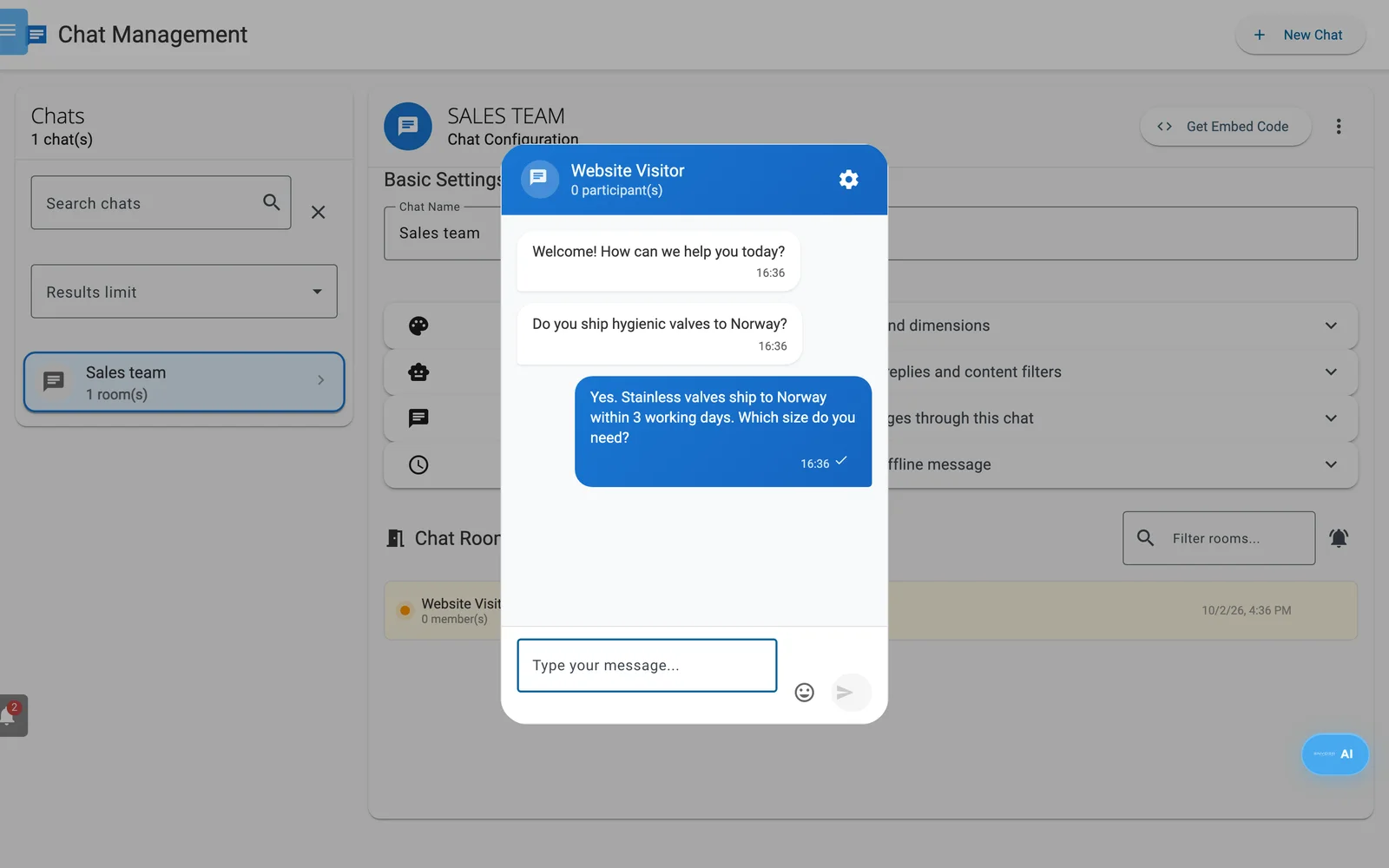
A website chat open in the Inbox. Type your reply in the box at the bottom.
- A website conversation carries the tag Website chat, and Needs reply when the visitor wrote last. The Website filter above the list shows only these, and the search box searches name, number and message.
- Click a conversation to open it, type your reply and press Enter. Your reply goes to the visitor in the chat window on your website.
- The person who created the chat gets a notification in the bell (Notifications) for every new conversation and visitor message. Clicking it opens that conversation. Ticking Chat notifications under Settings -> Account -> Notification Preferences adds push or email, as you set there.
AI Agent Settings (optional)
Tick Enable AI Auto-Reply to let the AI answer each visitor message. Your team still sees every message and can write in the conversation.
| Field | What it does |
|---|---|
| System Prompt | Instructions for the AI's personality and scope |
| Supported Languages | English, Dutch, German, French, Spanish, Portuguese, Italian. Empty means any language. |
| Include CRM Context | Lets the AI use company details, matching CRM records and opportunities. On for new chats. |
| Include Product Catalog | Lets the AI use products and services from your catalog. On for new chats. |
| Max History | Earlier messages the AI reads (20 for new chats) |
| Max Response Length | Characters. Longer replies are cut and end with "..." (500 for new chats). |
| Reply Delay | Milliseconds before the reply appears (1500 for new chats) |
Warning: AI replies go to the public. With Include CRM Context on, the AI can draw on your CRM when it answers. Switch it off if your CRM holds details visitors must not see.
If the AI service times out or is unavailable, the visitor gets a message that a team member will reply shortly.
Content filter
Enable Content Filter appears when AI auto-reply is on. It is on for new chats. Fill in Banned Words (comma-separated, wildcards with *), Banned Topics, or Allowed Topics (Whitelist). If you fill in the whitelist, only those topics are answered.
The filter works on AI replies only. If it blocks a visitor's message, the AI answers with a polite refusal. If it blocks the AI's own draft, a generic apology is posted. The visitor's message still reaches your team.
Office hours
Tick Enable Office Hours. Set Opening Time, Closing Time, Timezone and Working Days, and write an Offline Message. Outside those hours the window shows your message and the message box is disabled, so visitors cannot leave a message. Point them to your email or phone in the text. Empty fields mean 09:00, 17:00, Europe/Amsterdam and Monday to Friday. The window checks the hours when the page loads.
WhatsApp Integration
Tick Enable WhatsApp and enter the Phone Number ID and Business Account ID to route WhatsApp messages for that number through this chat. They appear in the Inbox as WhatsApp conversations. What you type in such a conversation goes back to the sender on WhatsApp, and AI auto-reply covers WhatsApp too.
If you connected WhatsApp through Meta's signup under Conversations -> WhatsApp setup (or Social Media -> WhatsApp Business), Enydea subscribes to your account's messages itself and fills these fields on that relation's first chat, if it exists (Social media and WhatsApp). The screen also shows a webhook address and Meta instructions, which that route does not need.
Answer website chats from your WhatsApp
On the Website chat tab of Conversations, the card Answer website chats from your WhatsApp lets you get website chats on your own phone and answer from there. It is a personal setting: you turn it on for your own number, and a colleague cannot set it up for you.
- Enter your WhatsApp number with country code and click Send me a code. Enydea shows a 6-character code. If the company has no WhatsApp number connected yet, the card tells you to connect one first.
- From your own phone, send that code to the company's WhatsApp number (Open WhatsApp with the code opens it for you). The code is valid for 30 minutes. The setting turns on by itself when WhatsApp receives it.
- From then on, when a visitor writes in the website chat, you get the message on your phone. Reply to the forwarded message in WhatsApp. Your answer goes to that visitor's chat and is shown as yours, and WhatsApp confirms it with "Sent to" and the visitor's name. If you do not quote a message, the answer goes to the latest chat.
Messages can only be forwarded while your own 24-hour window with the company number is open. The window opens when you write to that number. When it has passed, nothing is forwarded to your phone, the bell still rings in Enydea, and the card says so with a Write to it now button.
Send STOP to the company number, or click Turn off on the card, to switch it off.
Note: Only text is forwarded and answered.
Limits
- Your replies reach the visitor live over a WebSocket connection. If a visitor's network blocks WebSockets, they see your reply when they reload the page.
- The Chat widget switch in Settings -> Website Tracking is a separate, simpler bubble. It does not create conversations in Conversations. Leave it off when you use this widget (Website tracking and consent).