
Tutorial: Connect Claude or ChatGPT to Enydea
Goal
Connect Claude or ChatGPT to your company's Enydea data, try three requests, and understand when the assistant must ask you first. This takes about 10 minutes.
What you need
- An Enydea account with a verified email address and an active subscription. Have your authenticator app ready if two-factor is on.
- For Claude: a Pro or Max plan for a personal account. On Team or Enterprise, an Organization Owner must add the connector first.
- For ChatGPT: a Plus, Pro, Business, Enterprise or Education plan, on the web, with developer mode.
Note: Claude and ChatGPT sometimes rename their menus. If a name below does not match, look for the nearest equivalent. The panel in Enydea always shows the current wording.
Steps
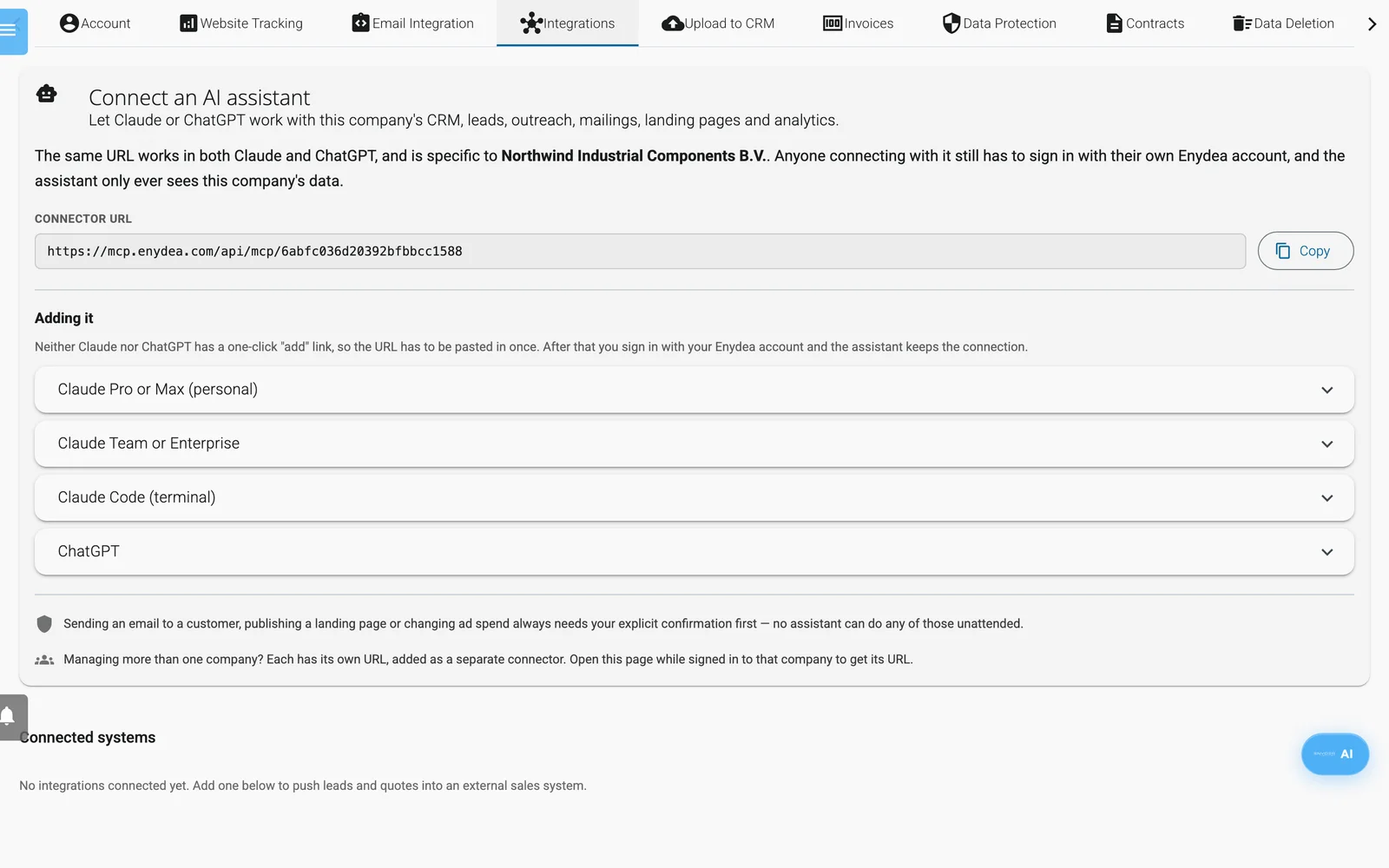
Settings, Integrations.
Copy your URL
- In Enydea, select the gear icon at the bottom of the sidebar to open Settings. Open the Integrations tab.
- In Connect an AI assistant, find the Connector URL. It is specific to your company.
- Select Copy.
Add it in Claude
- In Claude, open Customize -> Connectors.
- Select +, then Add custom connector.
- Paste the URL and select Add.
- Select Connect. A page called Connect to Enydea opens. Enter your Enydea email and password and select Sign in and connect. If asked, enter the Authentication code and select Verify and connect.
On Claude Team or Enterprise, an Organization Owner first opens Organization settings -> Connectors, selects Add, hovers Custom, picks Web, pastes the URL and selects Add. Everyone else then does steps 4 and 7 with their own Enydea account. For Claude Code, the Integrations tab shows a command to copy.
Or add it in ChatGPT
- Open Settings -> Security and login and turn on Developer mode. On Business or Enterprise, an admin turns it on under Workspace settings -> Permissions & roles.
- Open Settings -> Apps & connectors and select Create.
- Give the connector a name, paste the URL as the MCP server URL, and create it.
- Sign in with your Enydea account when prompted, then review the tools it found.
Try three requests
- Ask: "Which company and account am I connected to?" The answer should name your company.
- Ask: "Show me what the CRM has on Acme Ltd, including contacts and open opportunities." Replace Acme Ltd with a company in your CRM.
- Ask: "How did my last mailing campaign perform?" You get open and click rates for sent campaigns. If you have not sent one yet, it says so.
Understand the confirmation step
Some actions go out to real people or change live spending: emailing a quote, sending a campaign to a list, publishing a landing page or a post, sending a WhatsApp message, and changing Google Ads. For these, Enydea refuses to act until the assistant repeats the request with your approval. A good assistant tells you what will happen and waits for you. Do not approve something you did not read.
Scheduling a mailing or a post for later does not have this step. Check Mailings and Social Media in Enydea for scheduled items.
Check your work
- The Enydea connector shows as connected in Claude or ChatGPT.
- Your first request names your company.
- If sign-in fails, compare the message on the page with the table in Connect AI assistants.
Next steps
- Read what an assistant can do, and its limits, in Connect AI assistants.
- Try Enydea's own assistant in AI Assistant and AI Agents.
- To add another company, repeat the steps with that company's URL.