
Mailbox: read, reply and link email to your CRM
What the Mailbox does
The Mailbox is an inbox inside Enydea. It shows the mailbox you connected, so you can read mail, reply, and tie each conversation to a relation in your CRM. It is for one-to-one mail. For bulk email use Mailings and campaigns.
Before you start
Connect a mailbox first: Settings -> Email Integration -> Your Personal Mailbox. See Connect your mailbox. Until you do, the Mailbox shows Not Connected - Setup in Settings. When it is connected, the top of the screen shows Connected with your address. The Mailbox syncs when you open it; the sync icon (tooltip: Sync emails) runs it again.
Find your way around
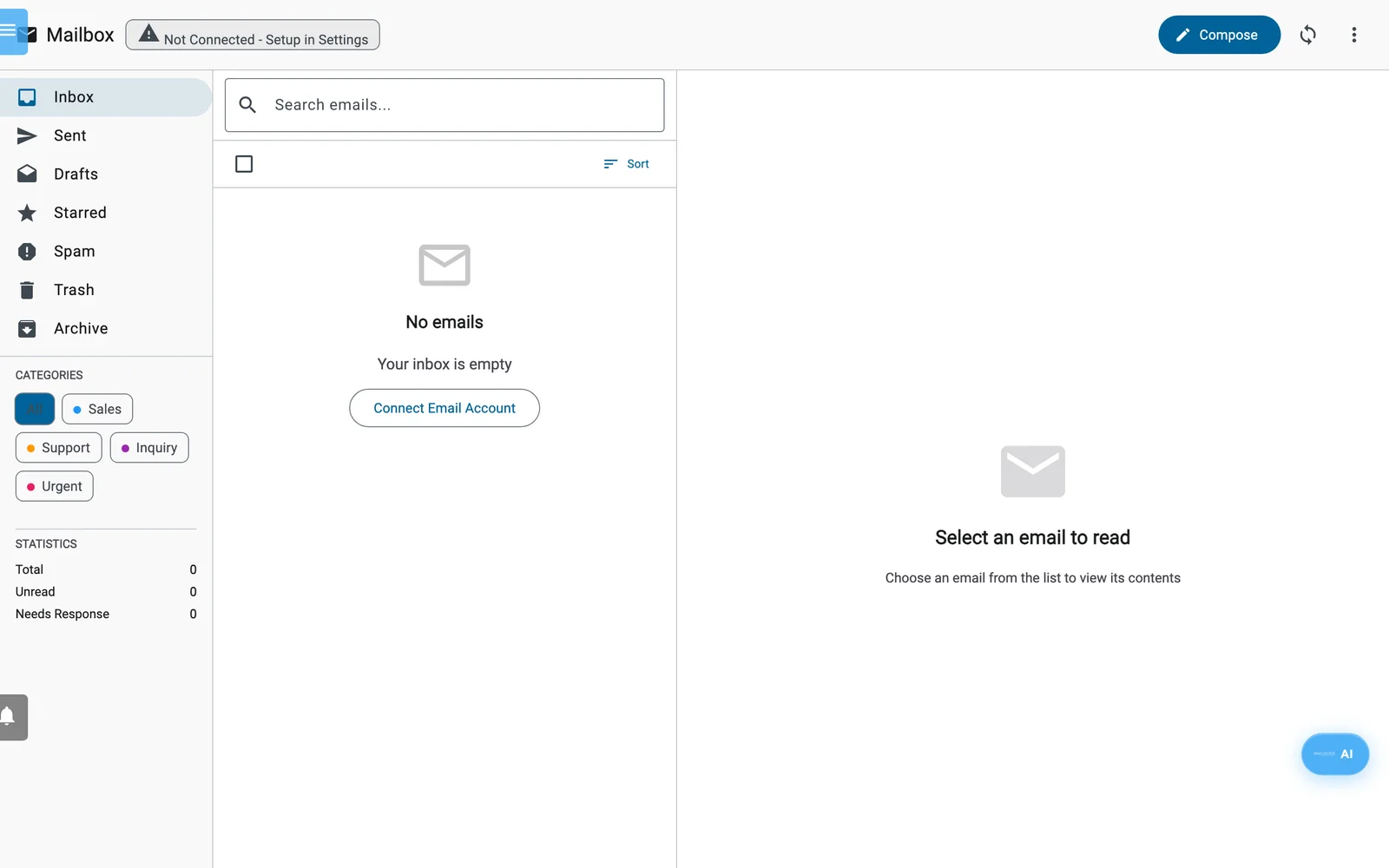
The Mailbox before an e-mail account is connected. Connect one in Settings, Email Integration (see Connect your mailbox).
- Folders on the left: Inbox, Sent, Drafts, Starred, Spam, Trash and Archive, with unread counts.
- Categories (your own mailbox only): All, Sales, Support, Inquiry, Urgent. Statistics shows Total, Unread and Needs Response.
- Search emails... searches all folders. If it finds fewer than 10 messages in what Enydea has already synced, it also searches the full mailbox at your provider.
- Sort offers Newest first, Oldest first and Subject A-Z. Lists show 50 messages per page.
- Tick several messages to mark them read or unread, star, archive or delete them together.
- Badges on a row show attachments, high importance, the AI category, Needs reply, a link icon when the message is tied to a relation, and sentiment.
Read and handle a message
Click a message to open it. The toolbar offers Reply, Reply All, Forward, Archive and Delete. The more menu has Mark as spam, Star, Mark as Actionable or Mark as Informational, Move to Inbox and Move to Archive. Below the message you see Attachments, the Conversation with other messages in the thread, and Keywords.
Work with a message in your CRM
These buttons sit above the message:
| Button | What it does |
|---|---|
| Link to CRM | Links the message to a relation. Choose Search Existing, or Create New to fill a new relation from the email and click Create & Link. Once linked, the button shows the relation name; Open in CRM and Unlink appear. |
| Create Task | Opens Create Follow-up Task with Task Title, Due Date and Notes. The task is saved in the CRM, on the linked relation if there is one. |
| AI Suggestions | Shows reply drafts with a match score. Use this suggestion opens a reply with the text filled in. |
| Add to Action Items | Gathers earlier correspondence, drafts an AI reply, logs the message as an action item and marks it as needing a reply. |
| Log as CRM Activity | Visible once the message is linked. Saves it as an email activity on that relation. |
Warning: Add to Action Items creates a relation for the sender if no relation has that email address (status contacted, type prospect, source email). Extract Contacts from Emails (in the more menu at the top) does the same for senders in your 200 most recent inbox messages, without asking, and skips free-mail domains such as Gmail and no-reply addresses.
Write and send
Click Compose, or reply or forward from a message.
- If a shared mailbox is connected, choose the sender in From. Otherwise your own address is used.
- Fill in To (it suggests your contacts and relations), Subject and the body. Add Cc, Bcc, Attach or Signature from the top bar.
- Optional: pick a relation in Link to CRM relation (optional).
- Optional: use the AI row. Suggest writes text from context. Enhance improves grammar, tone and structure. Translate offers languages including English, German, French and Dutch. Enhance and Translate need text in the body. Review the proposal and click Accept or Discard.
- Optional: Insert adds your catalog products, services or articles. It only appears when your catalog has items.
- Optional: Booking link opens the booking-link window; click Insert link to add a link where the customer picks a time. It needs an Outlook calendar connected. See Scheduling and booking links.
- Click Send. Send needs a recipient and a subject. More -> Save draft keeps it for later.
Mail you send here is recorded in your CRM as an email activity, and Enydea adds open and click tracking. Your Sender Settings (from name, reply-to, default Cc and Bcc, footer) are applied to mail you send from your own mailbox. If the connection has expired, a message offers Reconnect.
Use the shared mailbox
A company admin can connect one shared Office 365 mailbox for the whole team. Once it exists, a drop-down at the top of the Mailbox switches between your own mailbox (mine) and the shared one (shared). The shared mailbox has no Categories. If your admin made it the team default, the Mailbox opens on it.
More actions
Scan Business Card in the more menu at the top opens the Business Card Scanner, which reads a photo of a card with AI.