
Answer customers in Conversations: WhatsApp and website chat
Goal
You connect a WhatsApp Business number, find a customer message in Conversations, answer it, and know what to do when a message is not delivered, the 24-hour window has closed, or a customer replied STOP. This takes about 15 minutes.
What you need
- A relation selected in Current Account in the sidebar. WhatsApp and templates belong to that relation.
- A Meta (Facebook) Business account, and a phone number you can verify for WhatsApp Business.
- Optional: a website chat, if you also want visitors in the same inbox (Put a chat widget on your website).
Note: The labels on the Conversations screen are in English in every language of the app.
Steps
Connect WhatsApp
- Click Conversations in the sidebar, then the WhatsApp setup tab.
- Click Connect WhatsApp Business, then Connect with Meta. Enydea opens Meta's own sign-up window.
- In the Meta window, log in to your Meta or Facebook Business account, select or create a WhatsApp Business Account, and add or verify your phone number.
- Back in Enydea, the number appears under Connected Phone Numbers with the chip Sends from here.
- If a box titled Setup is not finished appears, read what it lists and click Finish setup. Two-step PIN (optional) is only for a number that already has a PIN.
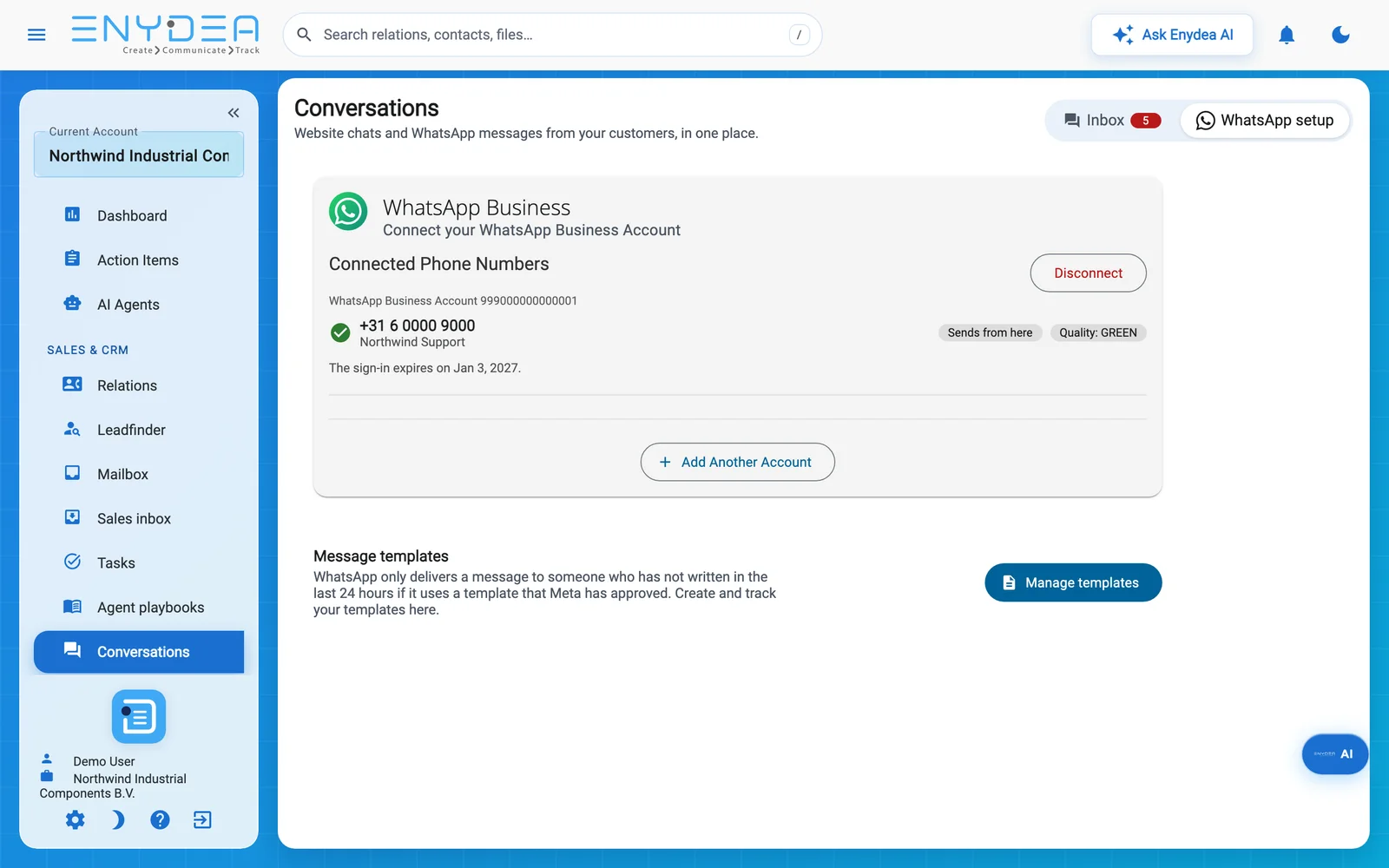
The WhatsApp setup tab. Manage templates opens the template manager, where you create and track your message templates.
Read the list
- Click the Inbox tab. Website chats and WhatsApp messages are in one list, newest first.
- Use All, WhatsApp and Website to filter, or type a name, number or message in the search box.
- Read the tags under each name. Needs reply means the customer wrote last. A WhatsApp row also shows Replies open for and the time left, Template needed, or Replied STOP. A website chat shows Website chat.
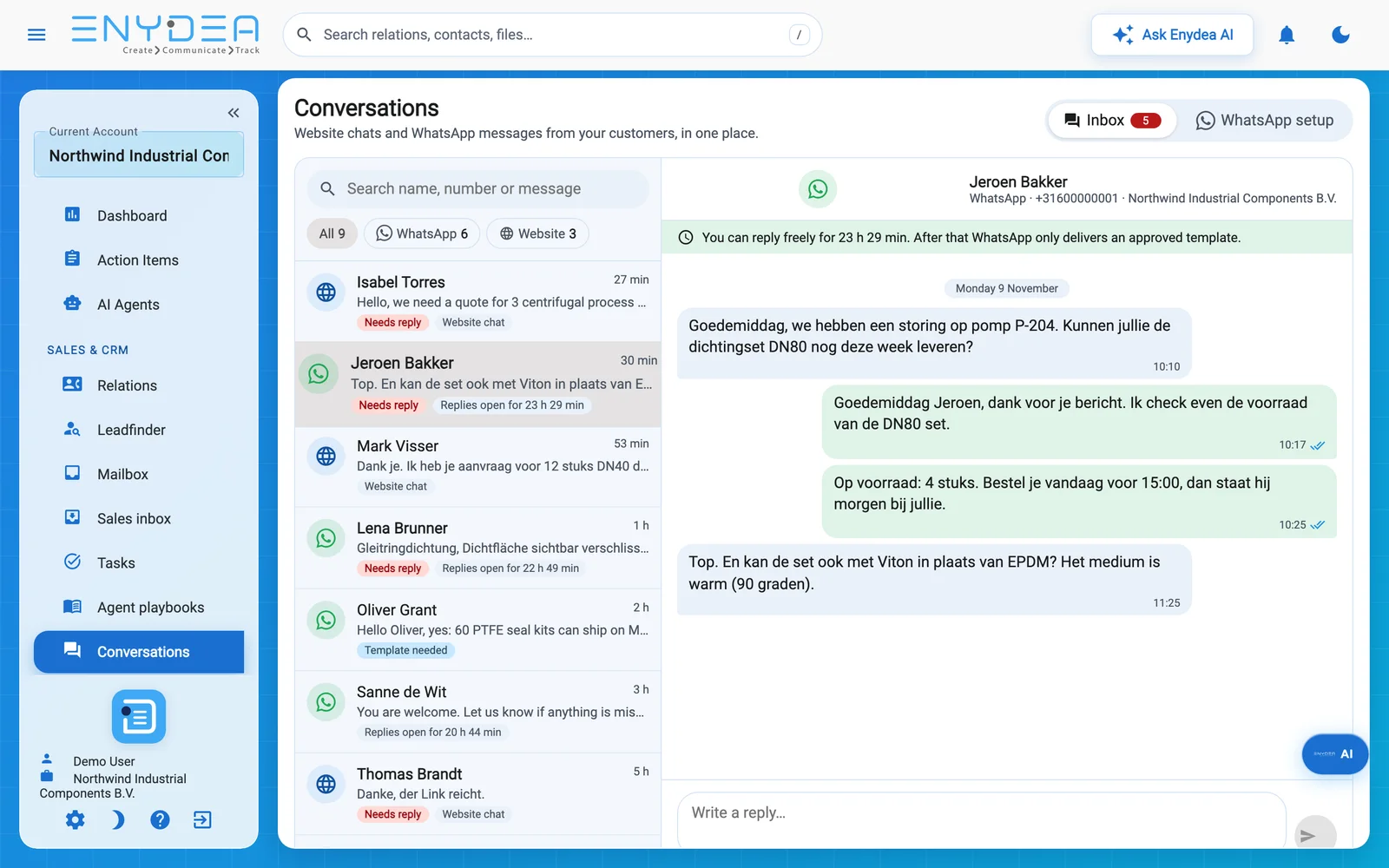
The Inbox tab. The list is on the left and the open conversation on the right.
Answer inside the 24-hour window
- Click a conversation. A green banner says how long you can reply freely.
- Type your answer under Write a reply... and click the send button. Enter also sends it.
- Watch the tick under your message: Sending, Sent, Delivered or Read. Hover over the tick to see its name.
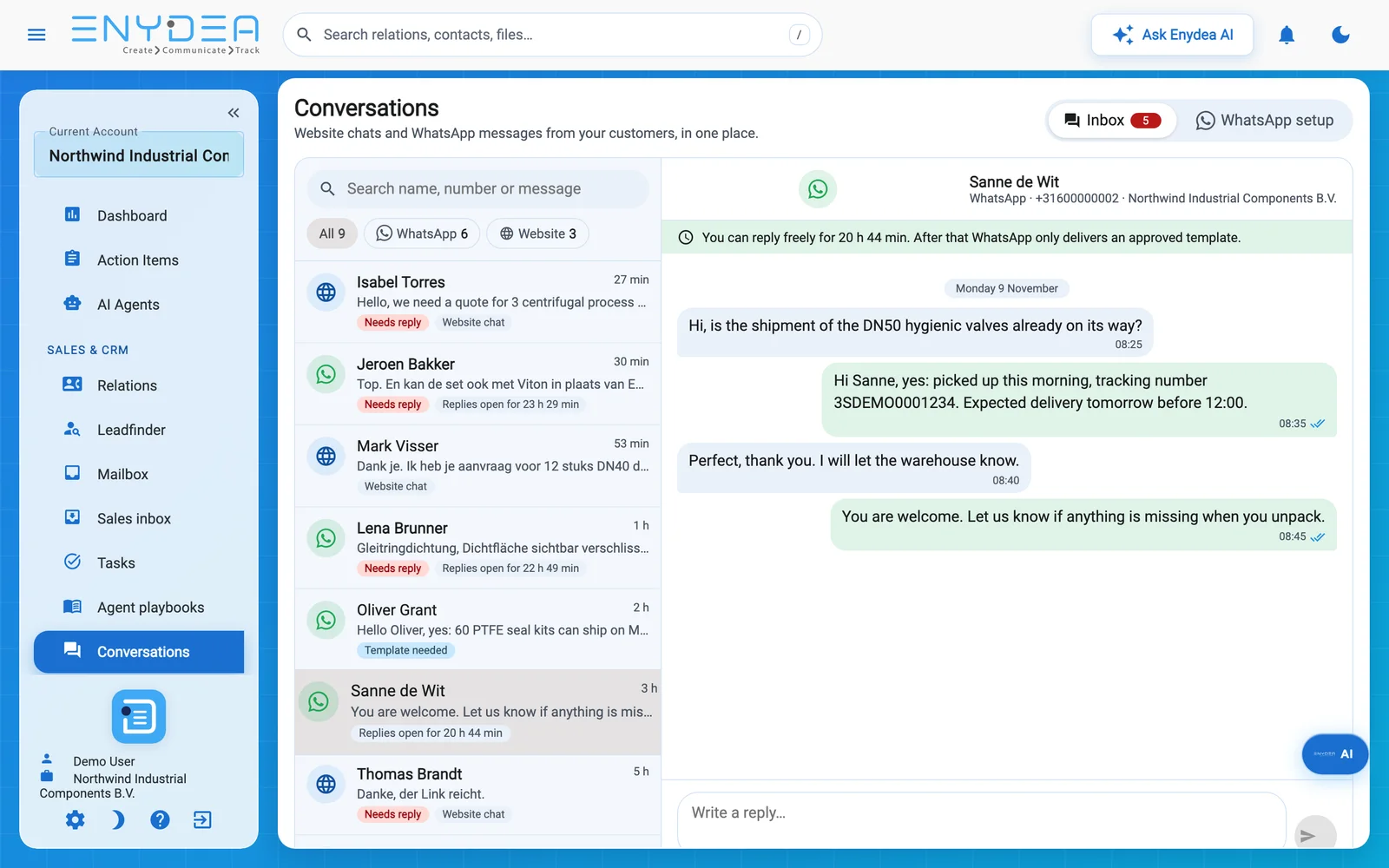
An open conversation. The double blue tick under a reply means the customer has read it.
When the window is closed
WhatsApp delivers a free-text message only for 24 hours after the customer last wrote. After that the banner says The 24-hour reply window is closed and the box for typing is replaced by a template picker.
- Choose an approved template under Template.
- Fill in the Value for fields. The Preview shows the message as it will be sent.
- Click Send template.
If there is no approved template yet, Enydea says so and offers Create a template, which opens the WhatsApp setup tab. A marketing template is refused for a person who has not agreed to marketing messages; the screen shows the reason.
When a message is not delivered
A message that WhatsApp could not deliver shows a red tick named Not delivered and a line underneath that starts with Not delivered. and gives the reason. The usual reason is that the window had closed. Send an approved template, as above.
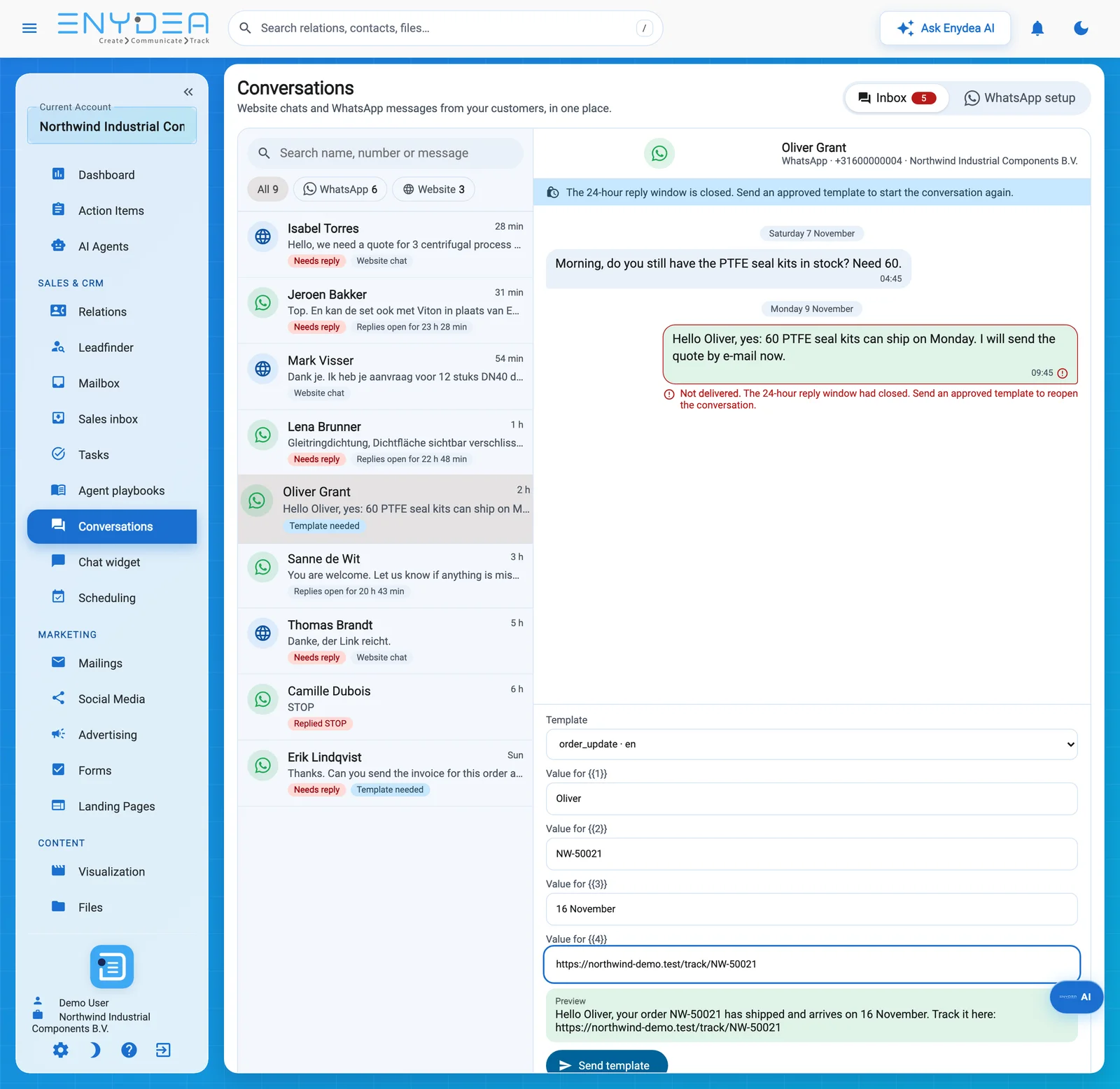
A reply that could not be delivered because the window had closed, with the template picker open.
A customer who replied STOP
The row shows Replied STOP and the conversation shows a red banner. The composer says that replies are switched off for this customer. Do not look for a way around it: they can write to you again whenever they want.
Website chats
A website chat opens in the same screen. Your reply goes to the visitor in the chat window on your website. There is no 24-hour window, tick or template for these. If the chat has AI auto-reply on, the AI's messages carry the tag AI assistant. Chat settings, embed code and office hours are on the Website chat tab of Conversations (Website chat).
Check your work
- Your number appears under Connected Phone Numbers on the WhatsApp setup tab.
- Send a WhatsApp message to your number from your own phone. A row for it appears in the Inbox tab, tagged Needs reply.
- Your answer shows a tick under it, and after a short time Delivered.
- To test the closed window, open a conversation whose last customer message is more than 24 hours old: the template picker should appear instead of the text box.
Next steps
- Create and track templates (Social media and WhatsApp).
- Turn on AI auto-reply or office hours for your website chat (Website chat).
- Disconnect a WhatsApp account with Disconnect on the WhatsApp setup tab. Messages and templates already stored stay.