
AI assistant connector for Claude and ChatGPT
What the connector is
The Enydea connector lets Claude or ChatGPT work with your company's Enydea data and actions. It is a remote MCP server (Model Context Protocol over Streamable HTTP). You paste one URL into the assistant as a custom connector. You then sign in with your own Enydea account, and the assistant keeps the connection.
The same URL works in Claude and in ChatGPT. For a step-by-step guide, see Tutorial: Connect Claude or ChatGPT.
The connector URL
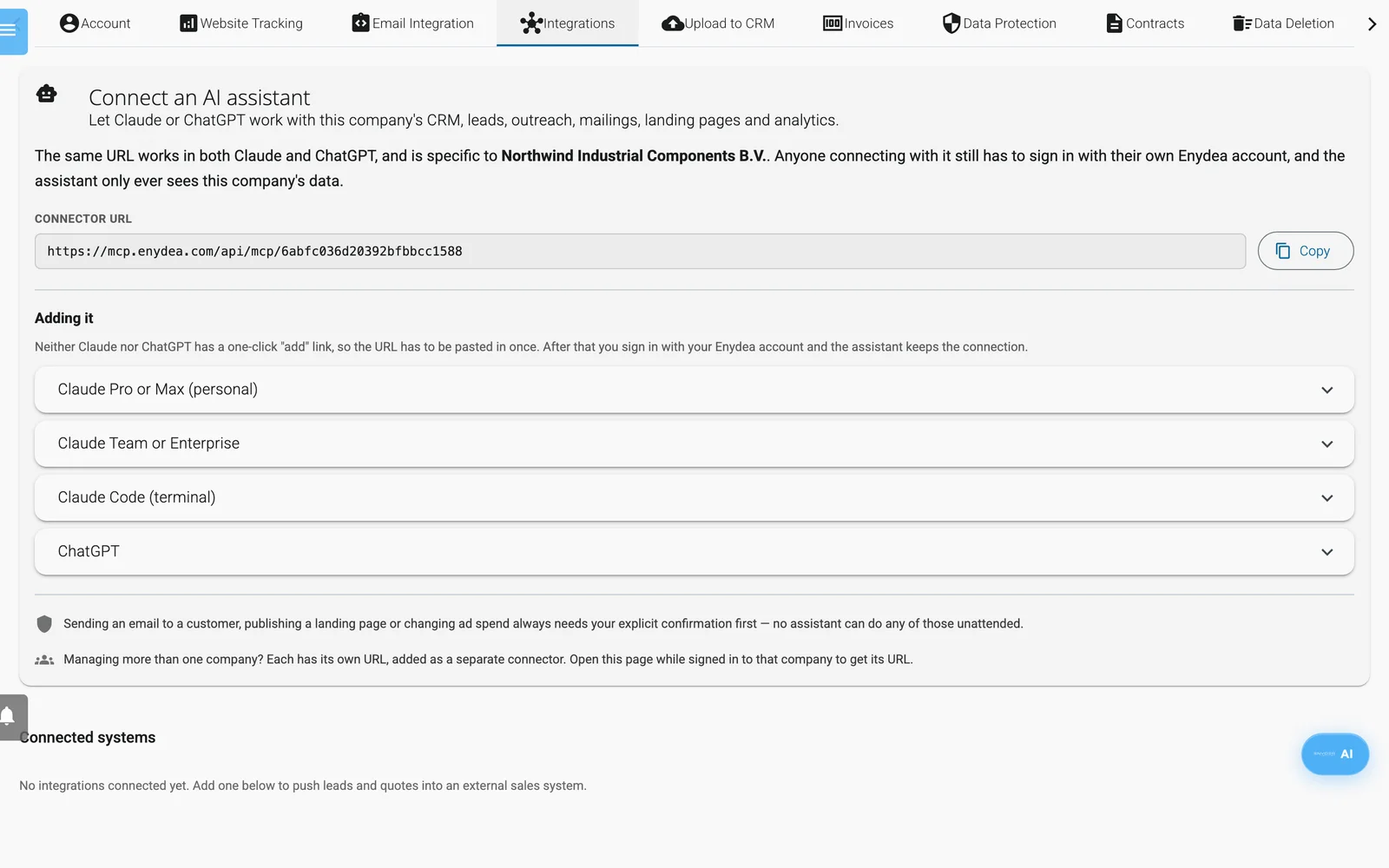
Settings, Integrations: the connector URL is at the top, with steps for each client below it.
- Company URL:
https://mcp.enydea.com/api/mcp/<company id>. Copy it from Settings -> Integrations -> Connect an AI assistant. The company id in the URL is checked against the account that signs in. - Base endpoint:
https://mcp.enydea.com/api/mcp. It has no company id and uses the company of the account that signs in. - Each company has its own URL. If you manage more than one company, add one connector per company, and open the page while signed in to that company.
Supported clients and requirements
| Client | Who can add it | Steps |
|---|---|---|
| Claude Pro or Max (personal) | The account owner | Customize -> Connectors, +, Add custom connector, paste the URL, Add, then Connect |
| Claude Team or Enterprise | An Organization Owner adds it once, then each person connects | Owner: Organization settings -> Connectors, Add, Custom, Web, paste the URL. Everyone: Customize -> Connectors, Connect |
| Claude Code (terminal) | Anyone with the tool | claude mcp add --transport http enydea <connector URL> |
| ChatGPT | Plus, Pro, Business, Enterprise or Education, on the web | Turn on Developer mode (Settings -> Security and login; on Business and Enterprise an admin does it under Workspace settings -> Permissions & roles). Then Settings -> Apps & connectors, Create, paste the URL as the MCP server URL |
The vendors' menu names can change. The panel in Enydea shows the current wording.
To sign in, an Enydea account must have a verified email address, be active, belong to a company and have an active subscription. Team members use the company subscription.
Sign-in
Each person signs in on a page called Connect to Enydea, with Email and Password, then Sign in and connect. If two-factor is on for the account, a second step asks for the Authentication code and shows Verify and connect. The page has no social sign-in buttons.
If you created your Enydea account with Google, Facebook, LinkedIn or Microsoft, it has no password you know. Set one first with Forgot Password? on the Enydea sign-in page. See Sign in and manage your account.
The assistant gets an access token that lasts 1 hour. It renews it with a refresh token that lasts 30 days.
What an assistant can do
By area:
- Your company: shows which company and account it is connected to. Searches customers, contacts, landing pages and opportunities and reads one in full. ChatGPT research mode can cite these.
- CRM: looks up companies, contacts, opportunities, activities and tasks. Creates and updates companies and contacts, creates opportunities, creates and completes tasks. Adds a list of target companies in one go, skipping ones already in the CRM.
- CRM clean-up: merges duplicate relations, writes every country name one way, and removes contacts whose address no campaign should reach, such as no-reply and recruitment inboxes. Each starts as a dry run that only reports.
- Mailbox and files: searches email and documents, analyses threads, and creates drafts and reply drafts in your own mailbox. Drafts are not sent.
- PowerPoint files in OneDrive: reads a deck slide by slide, saves an edited copy next to it, and shows slides as pictures. The assistant never receives the file itself. See PowerPoint files in OneDrive below.
- Lead discovery: web search, directory crawls, trade-show exhibitor crawls into a list of prospects, which it moves into the CRM when you ask, and LeadFinder jobs (market research, source discovery, research to leads, CRM enrichment). Saves lead sources, such as an exhibitor list or a conference programme, as recipes it can run again.
- Contact discovery: finds decision-makers for one company or many at once, reads addresses a company publishes on its own pages, and looks up missing job titles.
- Email address verification: scores each contact address on evidence, checks whether mailboxes exist before a send, shows or runs the nightly address clean-up, and sets the send gate that can hold back unconfirmed addresses. Company admins change the clean-up settings and the send gate. See Email address verification.
- Market signals: saves a signal profile (what you sell and which public event makes a company a buyer), scans announcements and news in the background, and lists the signals found, best fit first. See Market signals.
- Lists and segments: mailing lists, imports, dynamic lists from CRM rules, mail templates.
- Campaigns: turns a short brief into a campaign plan and applies it, creates and edits campaigns, adds follow-ups that go out after an open or a click, sets up A/B subject tests, sends tests, schedules and sends. Sends a few messages at a time from your Office 365 mailbox. Reads analytics and a per-recipient report of opens, clicks, website visits and bookings. Adds and verifies sending domains and creates inbound mail routes.
- Landing pages: lists and creates pages (draft first), publishes, and reads submissions. Lists your rendered videos to embed on a page.
- Google Ads: lists campaigns, reads performance, prepares campaign material from a website, changes status or budget, and launches a campaign.
- Social media and WhatsApp: lists accounts, creates drafts and scheduled posts, publishes, reads analytics, lists and syncs WhatsApp templates, sends a WhatsApp message.
- Brand kit: reads and changes your brand kit, and adds or removes its files. The assistant is told to read it before it writes marketing content.
- Website tracking: sessions, email opens and clicks, visitors.
- Website and company setup: lists your website chats and creates one, reads and changes the website tracking settings (banner text, theme, privacy link), changes your company's website, phone and address, and deletes a relation that was made by mistake, as long as it has no data attached. Company admins only.
- Calendar: checks availability and creates events. It cannot create booking links; do that under Scheduling.
- Sales systems: search stock, push leads, create and send quotes and follow-ups. These only work after you add a system under Connected systems on the same settings page.
- Scheduled agent tasks: lists them and creates new ones.
- Delegation: hands an open-ended task to Enydea's own agent. Only a delegated task can use tools from MCP servers your company added for that agent. The assistant cannot call them directly. Actions that need your approval come back to the assistant instead of running; see Delegated tasks below.
Connecting a LinkedIn, Meta or Google account needs a sign-in in your browser. The assistant can only tell you to do that in Enydea.
Confirmation rules
For these actions Enydea refuses the call unless the assistant repeats it with an explicit approval, and the assistant is told to ask you first.
| Action | Needs approval |
|---|---|
| Email a quote or a follow-up to a customer | Yes |
| Send a campaign to a whole mailing list | Yes |
| Schedule a campaign for a later time | Yes (clearing a schedule does not) |
| Send a mailing in small batches from your Office 365 mailbox | Yes (a dry run does not) |
| Publish a landing page, or create one with the publish option set | Yes (unpublishing, or a draft, does not) |
| Change a Google Ads campaign's status or budget, or launch one | Yes |
| Create or delete an inbound mail route | Yes |
| Publish a social post now | Yes |
| Send a WhatsApp message | Yes |
| Create a calendar event with attendees | Yes (an event with no attendees does not) |
| Create a scheduled agent task | Yes |
| Change the send gate to hold addresses back, or switch it off | Yes (switching it to warn mode does not) |
| Check more than 25 mailboxes on your lists at once | Yes (it first reports how many it would check) |
| Send a test email to an address other than your own | Yes |
| Change the brand kit, or add or remove one of its files | Yes |
| Create a website chat, change the tracking settings or the company details, or delete a relation | Yes (company admins only) |
Warning: Creating a social post with a future date has no such step: the post goes out by itself on that date. Check Social Media in Enydea for scheduled posts.
Delegated tasks
When the assistant hands a task to Enydea's own agent, that agent carries out none of the actions above. It cannot approve them itself either. It returns each one to the assistant as a held action that names the exact change, for example the campaign and its new budget. The assistant shows it to you and, once you approve it, carries it out exactly as shown, with a separate approval step. You can also approve or skip it in Enydea: the AI panel shows it as a card. A held action can be approved for 3 days, and only by the account that started the task.
PowerPoint files in OneDrive
The assistant can work on a PowerPoint (.pptx) file in your own OneDrive without downloading it. Enydea opens the file on its server and gives the assistant the text and layout of the slides. The assistant sends back the changes, and Enydea applies them. Decks of up to 250 MB can be used.
| Tool | What it does |
|---|---|
inspect_office_file | Lists every slide, or the slides you name, with its layout, and each text box and table with its text, position, size and font size. |
edit_pptx_copy | Saves an edited copy next to the original. It can replace the text of a text box or a table cell, find and replace words, delete a shape, add a text box or a table, and duplicate, move or delete slides. |
render_office_file | Shows up to 6 slides per request as pictures, made by Microsoft's own PowerPoint conversion, so the assistant can check its work. |
Ask in your own words, for example: "Find our company presentation in OneDrive, translate slides 2 to 5 into German and save it as a copy." The assistant finds the file, reads it, saves the copy and then looks at the slides of the copy.
What to expect:
- The original is never changed or replaced. The copy must have a different name and is saved in the same folder. If a file with that name already exists, OneDrive gives the copy another name.
- The design, layouts, pictures and fonts stay as they are. Replaced text keeps the bullets, font, size and colour of the text it replaces.
- If one of the changes cannot be made, no copy is saved.
- Enydea does not ask for your approval before it saves a copy. Delete a copy you do not want in OneDrive.
- Only .pptx files can be read and edited. The assistant cannot add pictures or charts.
- Very large or complex decks can fail to render as pictures. The text can still be read.
- The assistant receives the slides as images. Enydea's own AI Assistant can use the same tools but does not get the images.
Reconnect Microsoft once
The tools use the Microsoft connection of your personal mailbox in Enydea. Reading needs access to your files; saving a copy also needs permission to change them. A connection made before 14 October 2026 can only read, so each person reconnects once:
- Open Settings -> Email Integration.
- Under Your Personal Mailbox, click Disconnect and confirm.
- If it is not selected already, choose Microsoft Office 365 in Select Provider. Click Connect Account.
- Sign in to Microsoft and approve the permissions it lists, which include access to your files.
The Temporary connection (no admin approval) gives no access to OneDrive. With a personal Microsoft account (not a work or school account), saving works for about an hour after you connect. After that Enydea renews the connection with read access only, and you reconnect to save again.
Data scope
Every action runs against the company of the account that signed in. No request can name another company. A wrong company id in the URL is refused. Mailbox and calendar actions use your own mailbox and calendar. What the assistant reads becomes part of your conversation with Claude or ChatGPT, under that vendor's terms.
Limits and known gaps
The assistant cannot do everything the app can. It works with the areas above.
These paths have not been confirmed with live accounts:
- Sending a campaign through the connector from start to finish.
- Adding and verifying a sending domain, sending a test email, and running a lead-discovery job.
- Creating inbound mail routes.
- Publishing a social post, sending a WhatsApp message, and submitting or syncing WhatsApp templates through the connector.
Market signals, the nightly address clean-up and the send gate have no screen in Enydea. Ask the assistant for their status and results.
Try small, reversible steps first and check the result in Enydea. The assistant keeps the list of actions from when it connected. After a change, reconnect or start a new chat.
Revoke access
To disconnect an assistant yourself, remove the connector in Claude or ChatGPT. Enydea has no list of connected assistants and no revoke button in Settings.
Enydea also re-checks the account behind every connection, so access ends when the account no longer qualifies:
- A team member is removed. Remove from Team disables their account.
- The account is disabled, deleted, or moved to another company.
- The subscription lapses.
The assistant gets an error on its next request, usually within a minute, and cannot renew its connection. A short database outage never disconnects anyone; Enydea checks again on the next request.
Troubleshooting
| Message | What it means and what to do |
|---|---|
| Verify your email address before connecting. | The account's email is not verified. Use the activation email. |
| That account has been disabled. | The account is blocked, or the person was removed from the team. Contact support. |
| That account no longer exists. | The account was deleted. The connection cannot be renewed. |
| This connection was made for a different company than the account now belongs to. | The account moved to another company. Reconnect with the connector URL of the new company. |
| temporarily_unavailable | Enydea could not check the account just now. Wait a minute and try again. |
| That account is not linked to a company. | The account has no company. Sign in with a company account. |
| That account has no active subscription. | The subscription is expired or unpaid. Renew it in Enydea. |
| Those credentials were not accepted. | Wrong email or password. Reset the password on the sign-in page. |
| That authentication code was not accepted. | Enter the current code from your authenticator app. |
| This connector belongs to a different company than the account you signed in with. | Use the connector URL of your own company. |
| This connector is for company X, but you are signed in to Y. | Sign out in the assistant and reconnect with an account of company X. |
| Enydea can read your OneDrive but may not save files there. | Your Microsoft connection can only read files. Reconnect it as described under Reconnect Microsoft once. If the message stays after you reconnected, contact support. |
| Enydea is not allowed to read your OneDrive files. | Your Microsoft connection has no access to your files. Reconnect as described under Reconnect Microsoft once. |
| No access token available | Your personal mailbox in Enydea is not connected through Microsoft Office 365. Connect it as described under Reconnect Microsoft once, from step 3. |
| No such file in your OneDrive. | The assistant used a wrong file id, or the file is not in your own OneDrive. Ask it to search for the file again. |