
Website tracking and consent settings
What website tracking does
After you add one snippet to your website, Enydea records visits and links them to your CRM where it can. It tracks page views, clicks, scroll depth, form interactions, file downloads, UTM parameters and device and browser. If visitor identification is on, it also keeps the visitor's IP address and looks up an approximate location and company from it (see Visitor identification). It also shows a consent banner. With the default settings nothing is recorded until the visitor accepts.
What the tracker stores and sends
- Before the visitor answers the banner: the page asks Enydea for your tracking settings, so it knows what banner to show. That is the only request. Nothing is written to the visitor's browser and no session code exists.
- After the visitor accepts: the events listed above, a random session code kept in the browser tab (it ends when the tab closes) and the visitor's choice, kept in the browser.
- Addresses: page addresses are stored without their query string, except campaign parameters (
utm_*,gclid,gbraid,wbraid,fbclid,msclkid,ref,lang). A referrer is stored as site and path only. Search terms, tokens and e-mail addresses in links are never stored. - Forms: only the fact that a form was shown and submitted, which form it was and how many fields it has. What the visitor typed is never read or stored. The one exception is the address typed into the email capture banner, which is sent because the visitor typed it in order to be contacted.
- Clicks: the visible text of the link or button, and for links its address under the same rule.
- Browsers that send Global Privacy Control or Do Not Track: these are treated as a standing "no". The tracker shows no banner, sends nothing and stores nothing, and Enydea ignores anything that still arrives.
Before you start
- You need to edit your website's HTML, or have a WordPress admin login.
- Update your privacy notice to match what you switch on here. This page says what the tracker does. It is not legal advice.
- All settings are under Settings (the gear icon at the bottom of the sidebar) -> Website Tracking.
Add the tracking code
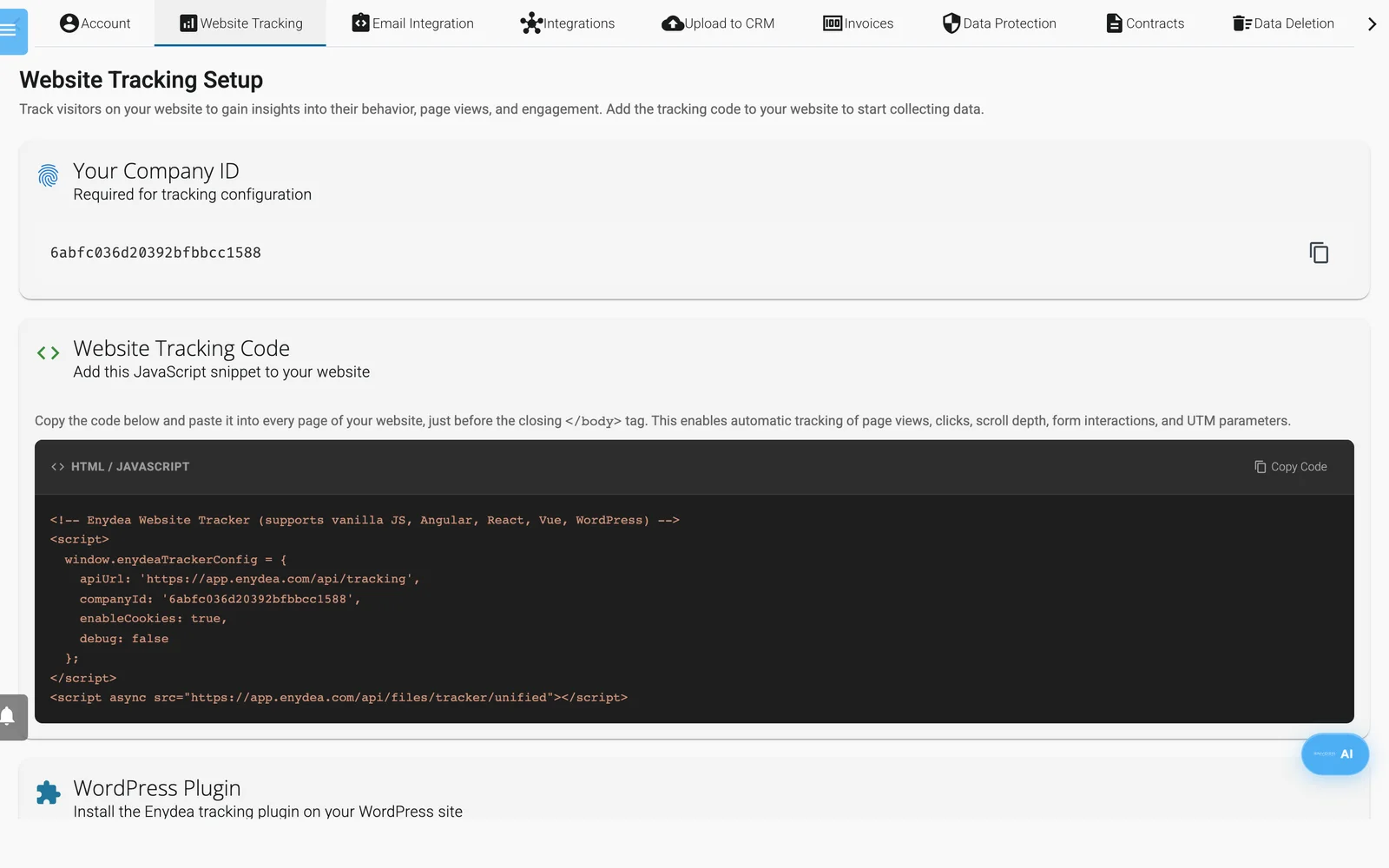
Settings, Website Tracking: copy the code from here.
- Open Settings -> Website Tracking.
- Under Website Tracking Code, click Copy Code. The code already contains your Company ID, which is also shown under Your Company ID.
- Paste it into every page of your site, just before the closing
</body>tag.
The code looks like this:
<script>
  window.enydeaTrackerConfig = {
    apiUrl: 'https://app.enydea.com/api/tracking',
    companyId: 'YOUR_COMPANY_ID',
    enableCookies: true,
    debug: false
  };
</script>
<script async src="https://app.enydea.com/api/files/tracker/unified"></script>
Instead of the first block you can put data-company-id="YOUR_COMPANY_ID" on the second script tag.
Warning: use the code from this screen. A script address that ends in
assets/js/enydea-tracker.jsdoes not work. If your site has one, replace the whole snippet.
WordPress
- Click Download WordPress Plugin. The ZIP file has your Company ID built in.
- In WordPress, go to Plugins -> Add New -> Upload Plugin, install the ZIP and activate it.
- Open Settings -> Enydea, check the Company ID and save. The plugin tells you whether the connection worked.
The plugin does not track logged-in administrators unless you untick Exclude administrators. Debug logging writes tracker activity to the browser console.
Choose what is collected
Under Tracker behaviour -> What is collected, switch these on or off: Page views, Clicks, Scroll depth, Forms, Downloads, Video and Time on site. Time-on-site ping every (seconds) accepts 5 or more. Scroll milestones (%) is a comma-separated list. Click Save. The screen confirms that visitors pick up the change within 5 minutes.
Set the consent options
Under Tracker behaviour -> Consent:
- Ask visitors for consent is on by default. While it is on and the visitor has not accepted, Enydea records nothing, loads none of your tracking integrations, and tells Google Consent Mode that consent is denied.
- Banner text, Privacy policy link and Banner theme (Light or Dark) shape the banner. The link starts as
/privacy, so enter the address of your own privacy policy. If your site has several languages, put{lang}in the link, for examplehttps://example.com/{lang}/privacy: it becomes the language of the page. - The banner shows Reject and Accept buttons in the language of the page: English, Dutch, German or French, and English for any other language. It shows the text you wrote for that language in Banner text in Dutch, Banner text in German or Banner text in French. A language whose box is empty gets the Banner text. Other languages can be set through the Enydea assistant. The banner does not list cookie categories or the services you use. Name those in your own privacy policy.
- Reject and Accept look the same. Declining is as easy and as visible as accepting.
- The visitor's choice is kept in their browser and logged with the page address (without query string) and the time. A rejection or withdrawal is logged without a session code.
- Let visitors withdraw consent later and Let visitors request deletion of their data are saved and sent along with each decision. See Let visitors change their mind.
- Keep visitor data for (days) is saved with your settings. Enydea does not delete tracking data by itself yet, so do not rely on it. See How long data is kept.
If you switch Ask visitors for consent off, Enydea records at once and does not load the integrations below. Do this only when your site has its own cookie banner. Global Privacy Control and Do Not Track are still honoured.
If your site has its own cookie banner
When your site already has a banner, let that banner be the only one. Add hostManagedConsent: true to the configuration and pass on the visitor's choice. Enydea then shows no banner of its own, keeps no consent record of its own and records nothing until you say accept:
<script>
  window.enydeaTrackerConfig = {
    apiUrl: 'https://app.enydea.com/api/tracking',
    companyId: 'YOUR_COMPANY_ID',
    hostManagedConsent: true,
    consent: 'accept' // or 'reject', or leave it out while the visitor has not chosen
  };
</script>
When the visitor chooses later, call window.enydeaTracker.setConsent('accept') or setConsent('reject'). When they withdraw, call window.enydeaTracker.withdrawConsent(). Global Privacy Control and Do Not Track still win over what you pass on.
Let visitors change their mind
The banner has no permanent button. Add a link to your site, for example "Cookie settings" in the footer, that calls the tracker:
<a href="#" onclick="window.enydeaTracker.openConsentPreferences(); return false;">Cookie settings</a>This shows the banner again. If a visitor who had accepted now chooses Reject, that counts as withdrawing consent: collection stops at once, the session's data is deleted from Enydea, the browser's tracker data is cleared and the withdrawal is logged. A site that builds its own button can call window.enydeaTracker.withdrawConsent() (withdraw and delete), forgetSession() (delete only) or getConsent() ('accept', 'reject' or nothing yet).
Tags from Tracking integrations that were already loaded on the current page cannot be removed from it. They are told that consent is denied, and they are not loaded on the next page.
Visitor identification
Visitor identification decides whether the tracker may recognise who is visiting. It covers:
- storing the visitor's IP address and browser details with the visit,
- looking up an approximate location, internet provider and company from the IP address, which sends the address to an external IP-lookup service,
- linking a visit to the person who clicked a link in one of your mailings, and
- matching a visit to a relation in your CRM.
Switched off, none of this happens. The visit is still counted, but only as an anonymous session: no IP address, no browser string, no location, no matching and no link to a recipient. An identify() call from your own site is ignored too.
It is on for companies that never made a choice, because that is how the tracker has always worked, and off for tracking settings created through the Enydea assistant. To change it, switch Identify visitors on or off under Tracker behaviour -> Consent and click Save. The Enydea assistant can do it too, with a company admin's approval. If you switch it on, say so in your privacy notice, including the IP-lookup service.
How long data is kept
Keep visitor data for (days) is saved with your settings, but Enydea does not yet delete older tracking data automatically. Do not rely on it, and do not state a retention period in your privacy notice on the strength of it. What is deleted today is a visitor's own session when they withdraw consent. The record of consent choices is kept, because it is the proof of the choice and holds no IP address.
Extras
Switch an extra on under Extras to configure it. Turn on one at a time and check it on your live site.
- Chat widget: a simple chat bubble with Position, Header colour, Header text, Opening message and Input placeholder. It is separate from Chats. Visitor messages are recorded as tracking events and do not create rooms in Chats. For live conversations use Chats.
- Email capture banner: a sign-up banner with Position, Button text and Banner text. The address a visitor types is recorded with the visit. This is the only place where something typed by a visitor is sent, and it is sent only after consent.
- Surveys: a popup with one fixed English question, "How likely are you to recommend this website?", answered from 0 to 10. You set Show after (seconds), Position, How often and whether to also show it when the visitor moves to leave.
- Lead scoring: points per action (page view, click, phone number click, scroll milestone, form submission, download, video play, chat started). An empty box uses the standard value shown inside it.
- Debug logging writes what the tracker decides to the browser console.
Tracking integrations
Enter IDs under Tracking Integrations. Boxes save when you leave them, or click Save Tracking Configuration. An ID in the wrong format shows a warning and is not loaded. A common mistake is an account number in the Google Tag Manager box.
| Service | ID looks like | Loaded by the tracker |
|---|---|---|
| Google Analytics 4 | G-XXXXXXXXXX | Yes |
| Google Ads | AW-XXXXXXXXXX | Yes |
| Google Tag Manager | GTM-XXXXXXX | Yes |
| Meta / Facebook Pixel | Pixel ID | Yes |
| LinkedIn Insight Tag | Partner ID | Yes |
| Hotjar | Site ID | Yes |
| TikTok Pixel, Pinterest Tag, HubSpot | IDs | No |
"Yes" means loaded after the visitor accepts. TikTok, Pinterest, HubSpot and Custom Tracking Scripts are saved but not run. To use those tools, add them inside your Google Tag Manager container, which Enydea loads after consent.
Email tracking
Mailings sent from Enydea carry open tracking and link click tracking with UTM parameters and campaign attribution. You need no extra setup.
Where the data appears
- Dashboard: click Add Dashboard Components -> Add unified tracking for sessions and page views per day.
- Relations -> a relation -> Journey tab: first and last touch, website visits and email interactions. Enydea matches a visit to a relation when it can, for example when the visitor arrived through a link in one of your mailings. Not every visit is matched. The tab shows "No Journey Events Yet" until data exists.
Landing pages built in Enydea load the tracker automatically (Landing pages).