
Put a chat widget on your website
Goal
You add a chat button to your website, send yourself a test message as a visitor, and answer it from Enydea. This takes about 15 minutes.
What you need
- A relation selected in Current Account in the sidebar. Chats are stored under it.
- Permission to edit your website's HTML, or a web developer who can.
Steps
Create the chat
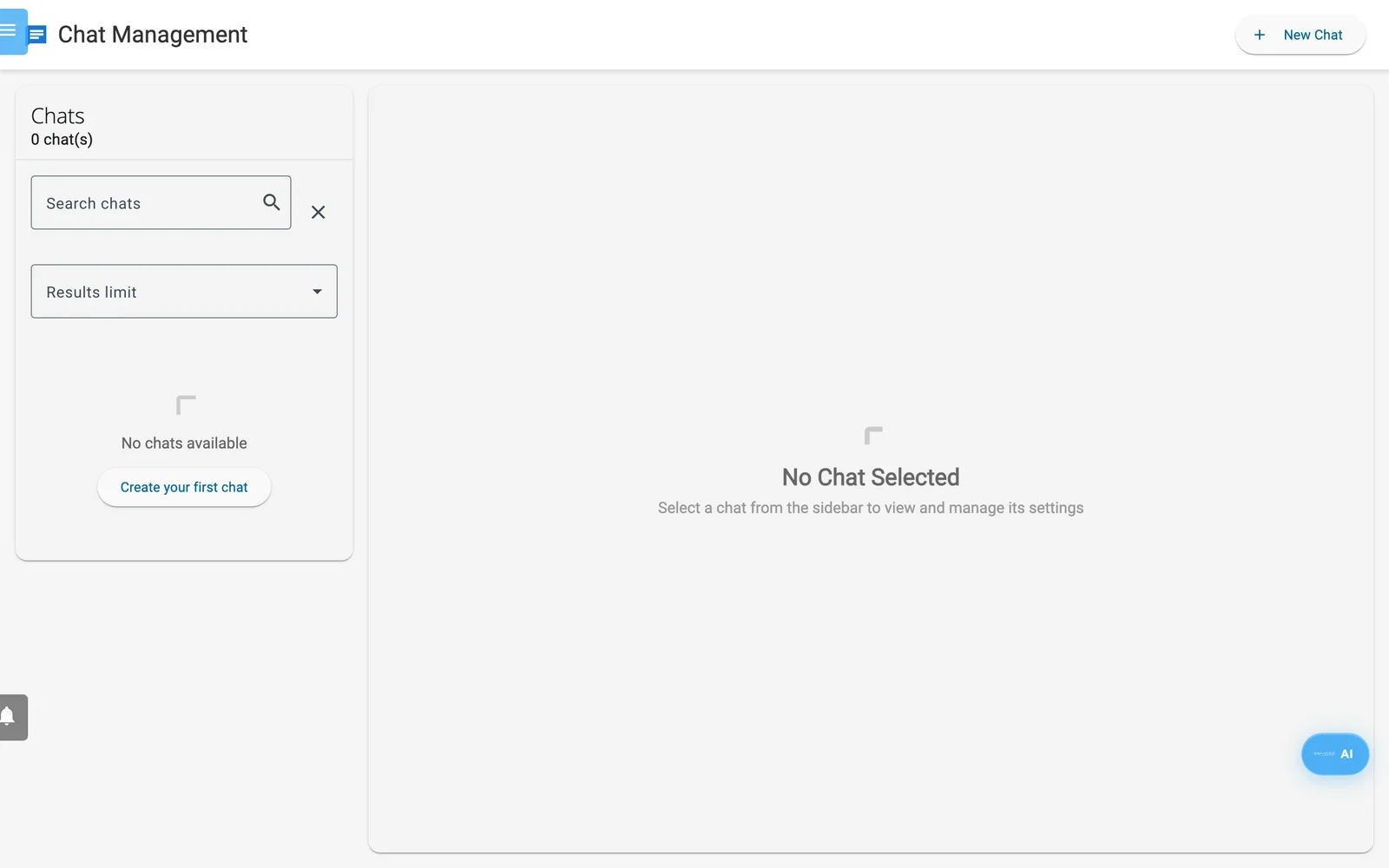
Chat Management before the first chat exists.
- Click Chats in the sidebar.
- Click New Chat. The new chat is named "new".
- In Chat Name, type the name visitors should see, for example "Sales team".
- Open Appearance Settings and click the swatch under Background Color to choose your brand colour.
- Click the three-dots menu at the top of the chat and click Save Chat.
Leave AI Agent Settings alone for now. AI replies are off until you tick Enable AI Auto-Reply, so your team answers every message.
Add the widget to your site
- Click Get Embed Code. A dialog titled Embed Chat Widget opens.
- Click Copy Code.
- Paste the code into your page's HTML, just before the closing
</body>tag, on every page that should show the chat. - Save and publish your site.
Send a test message
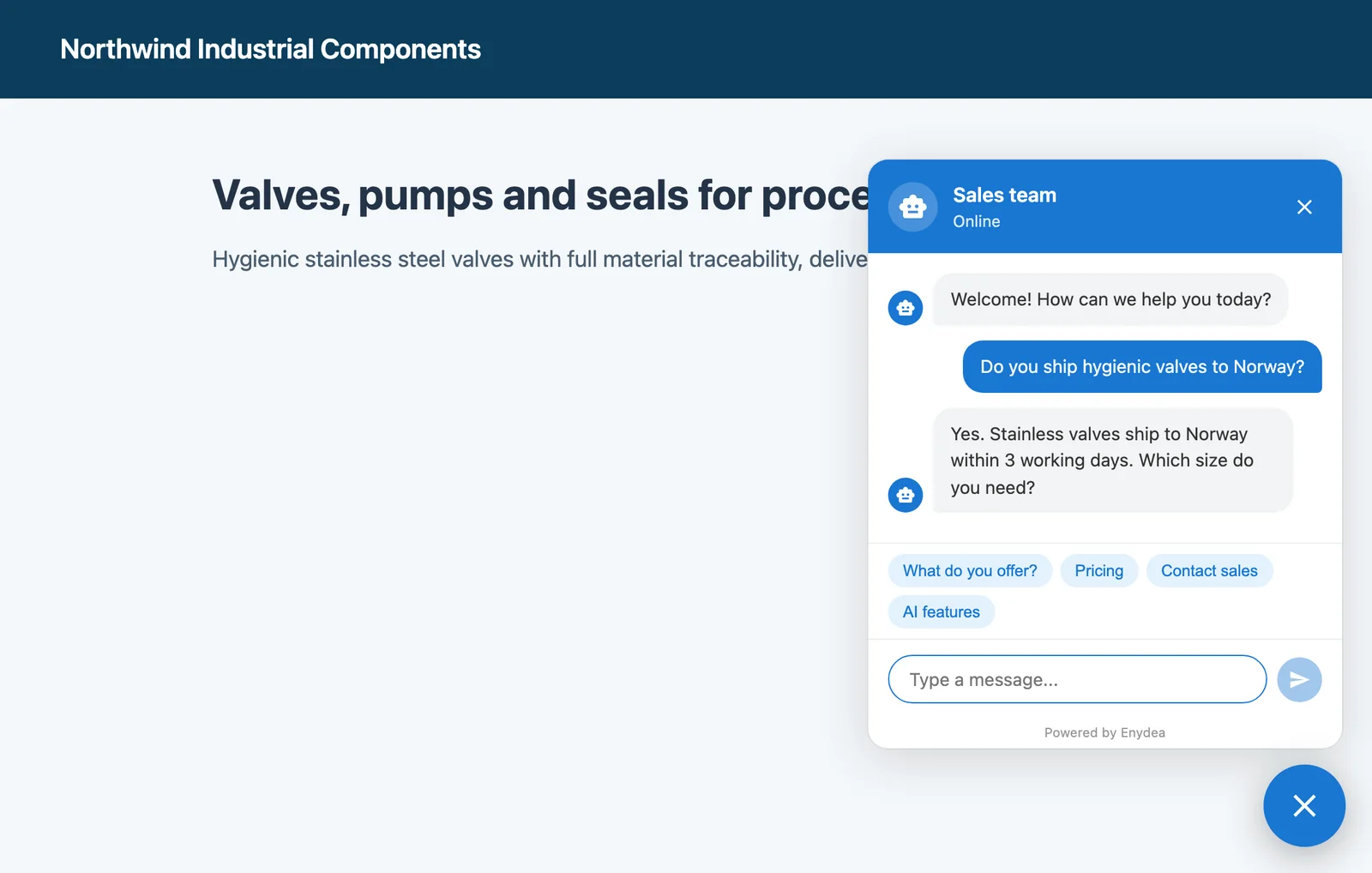
What a visitor sees on your website after your team has replied.
- Open your live website in a private browser window.
- Click the round chat button at the bottom right. A window opens with a welcome message.
- Type a test message and press Enter.
Answer from Enydea
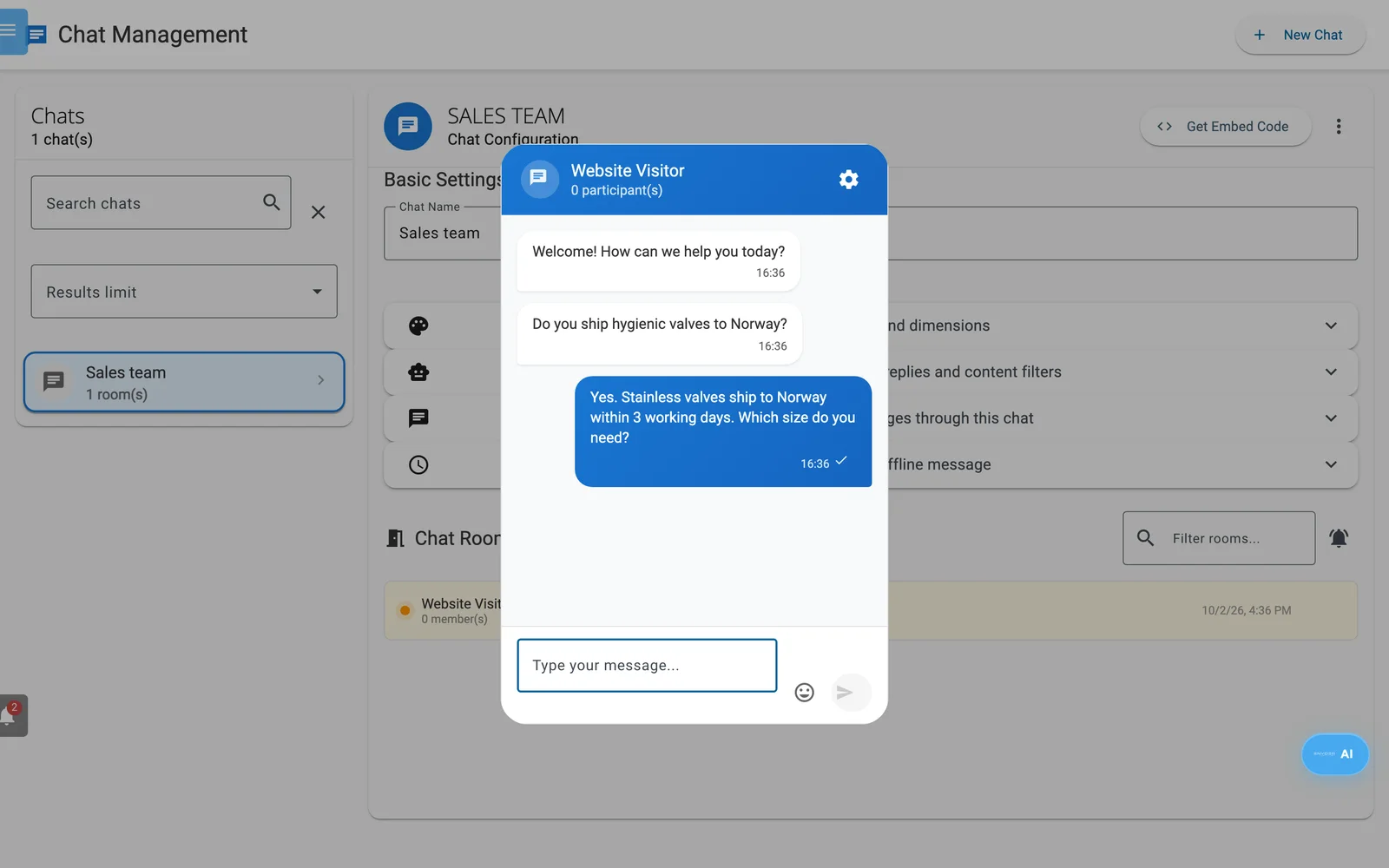
The chat room in Enydea. Your reply is the blue message.
- In Enydea, click Chats and select your chat. Reload the screen if you do not see the new room yet.
- Under Chat Rooms, click the new room. The visitor's message is there.
- Type your reply and press Enter.
- Look at your website again. Your reply appears in the chat window.
Check your work
- A room for your test conversation exists under Chat Rooms.
- Your reply appears in the visitor's window.
- The bell (Notifications) shows a notification for the new conversation, and a click on it opens the chat room. You get it because you created the chat.
- If the window opens but no room ever appears, the visitor sees no error. Check that the code is on the page you tested, and contact support if it is.
Delete your test room with the bin icon when you finish.
Next steps
- Add office hours, an AI agent or WhatsApp (Chats). Read the warning about Include CRM Context before you turn the AI on.
- Leave the Chat widget switch off in Website Tracking. It is a separate bubble that does not create rooms in Chats (Website tracking and consent).
- To receive WhatsApp messages in the same chat, connect WhatsApp first (Social media and WhatsApp).