
Tutorial: Schedule your first social media post
Goal
Schedule a LinkedIn post and check that it is published. This takes about 10 minutes. Enydea does not publish to Pinterest, Instagram or YouTube; the limits of each platform are in Social Media and WhatsApp.
What you need
- A marketing relation selected in Current Account in the sidebar.
- A LinkedIn account you can post from.
Steps
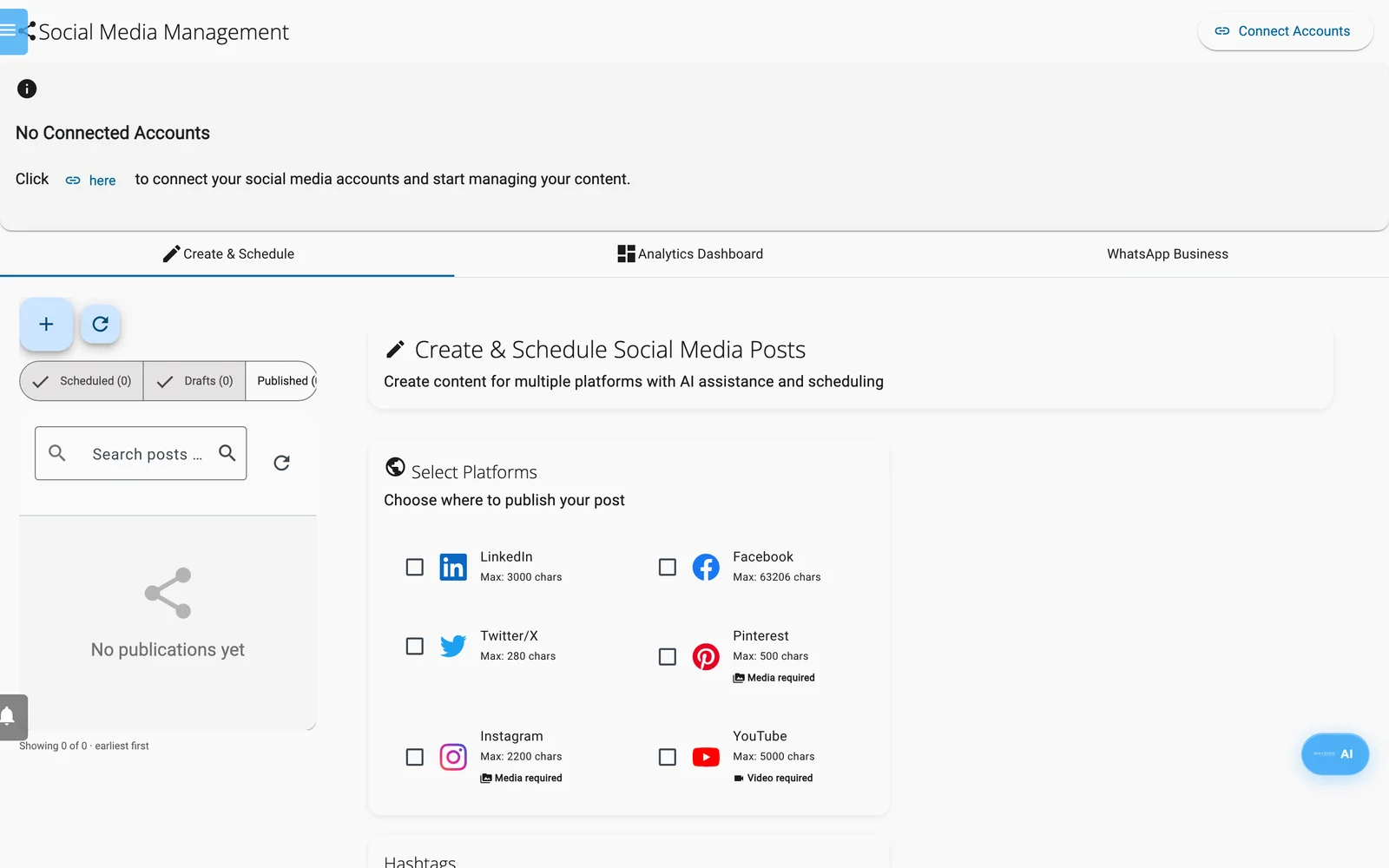
Create & Schedule.
- Open Social Media in the sidebar.
- Select Connect Accounts.
- Under Available to Connect, select Connect next to LinkedIn. Sign in on LinkedIn and approve access. You return to Enydea.
- Select Done. The button now reads 1 Connected.
- On the Create & Schedule tab, select + (New post) above the list.
- Under Select Platforms, tick LinkedIn. Under Select Accounts, make sure your profile is ticked.
- Select Generate AI Content. Wait a few seconds, then read the text and edit it until you are happy.
- Optional: select Add Image and pick one of Enydea's standard pictures. Your own pictures cannot be added in this form. Select AI Hashtags to add hashtags.
- Tick Schedule for later. Pick a Schedule Date and Schedule Time in the future. Or select Set Best Time for a suggested time, and check it. Leave Recurring on No Repeat.
- Look at the preview on the right. It shows the post the way the LinkedIn feed shows it, with a character count.
- Select Schedule Post. A message says the post is scheduled for 1 account.
Tip: To keep the post for later without scheduling it, select Save Draft instead of step 11. The draft is stored in Enydea and listed under Drafts.
Check your work
- In the list on the left, make sure Scheduled is switched on. Your post is there, with its date.
- Select the post. The banner says "Editing a scheduled post". To change the time, edit it and select Save & Schedule.
- After the scheduled time, switch on Published. The post should be there.
- If the post shows Failed, your LinkedIn sign-in may have expired. Select 1 Connected at the top, then Reconnect next to LinkedIn, and use Publish now on the post's row.
- Later, open the Analytics Dashboard tab to see followers, impressions and clicks.
Next steps
- Post your own video or picture through the AI Assistant: Tutorial: Post a video on LinkedIn.
- Learn about company pages, platform limits and WhatsApp in Social Media and WhatsApp.
- See every service Enydea connects to in the Integrations overview.