
Publish a landing page with a lead form
Goal
You build a one-page website with a contact form, publish it at a link you can share, and handle the first lead it collects. This takes about 20 minutes.
What you need
- A relation selected in Current Account in the sidebar. Forms are stored under it.
- A few lines of text for the page: a heading, a short description and a button label.
Steps
Build the form
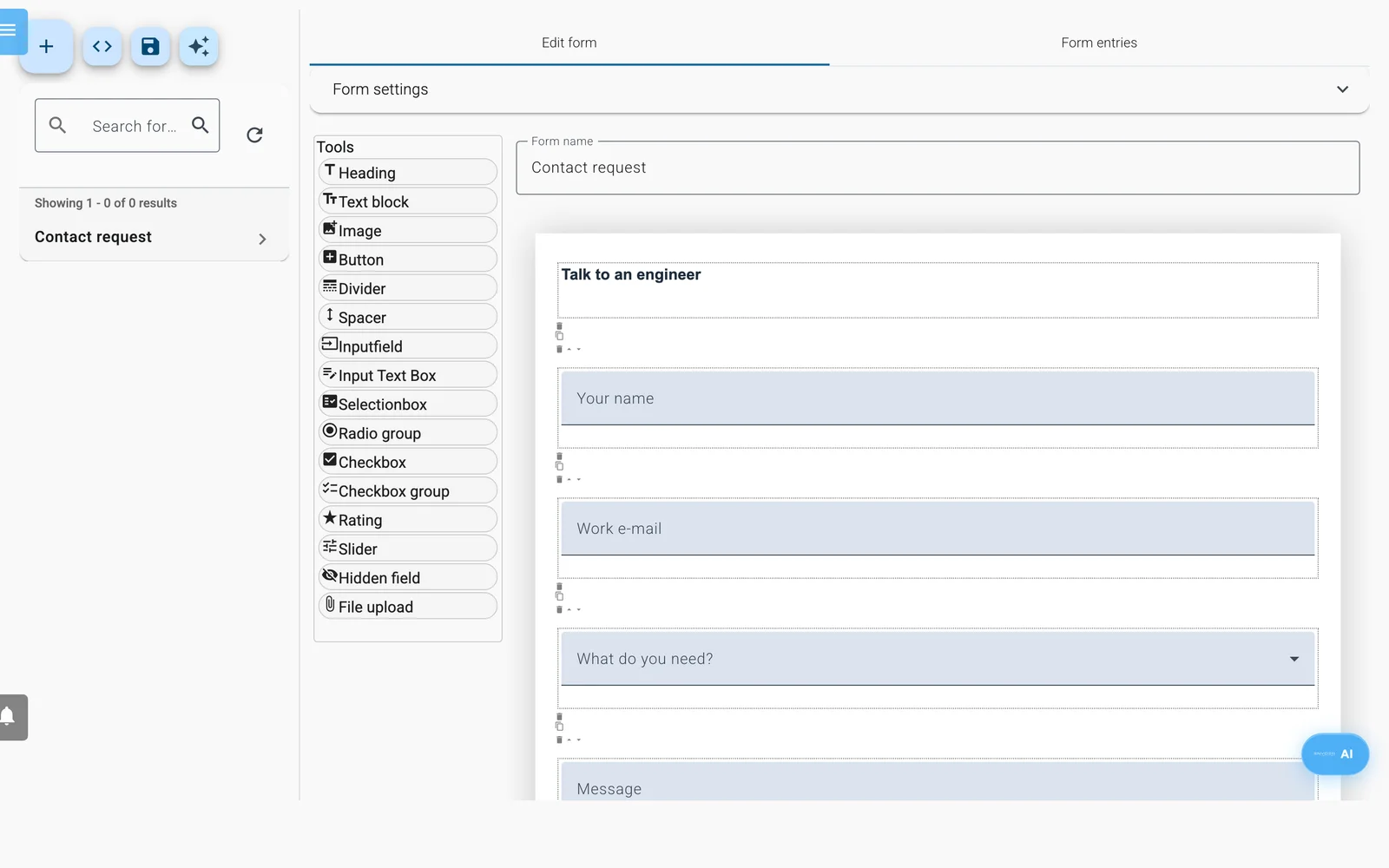
The form builder.
- Click Forms in the sidebar.
- Click the sparkle button (Generate a form with AI).
- Under Describe the form you want, type "A contact form with name, email, company and a message", then click Generate.
- Click the email field. Under Customize Element, check that Input type says email.
- Click Save form.
Build the page
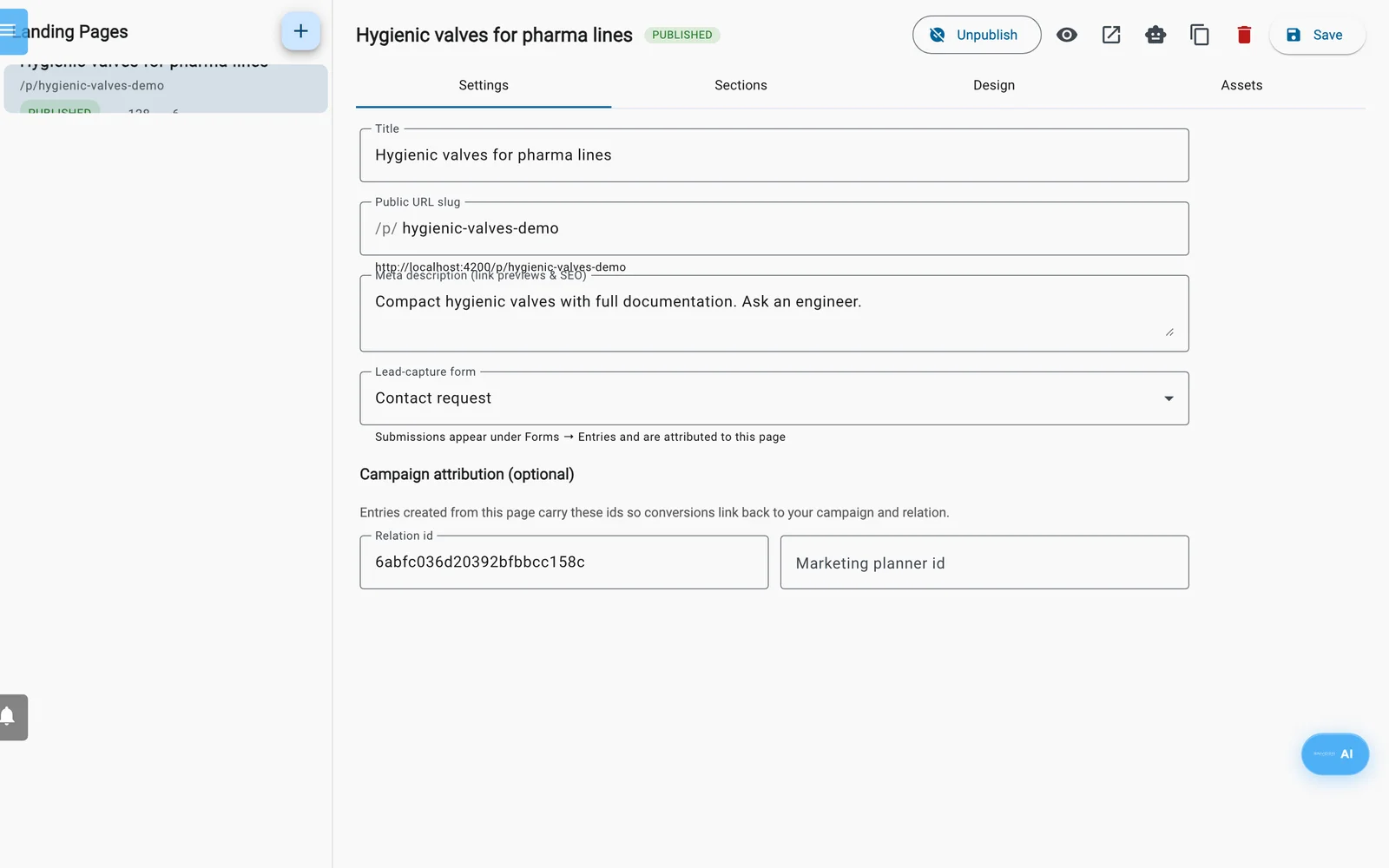
The landing page editor.
- Click Landing Pages in the sidebar, then the + button (New landing page).
- On the Settings tab, change Title.
- Type a short Public URL slug, for example
autumn-offer. Use lowercase letters, numbers and dashes. - Under Lead-capture form, choose the form you just built.
- Write a Meta description (link previews & SEO). People see it when the link is shared.
- On the Sections tab, fill in Heading and Subheading in the hero card.
- In the specs card, add label and value pairs, or click the X to remove the card.
- In the form card, set Section title and Submit button text.
- Click Save.
Preview and publish
- Click the eye icon (Preview (works for drafts)). The draft opens in a new tab. Check the layout. A draft cannot accept submissions.
- Back in Enydea, click Publish. A message shows the public address.
- Click Copy public URL.
Send a test submission
- Open the address in a private browser window.
- Fill in the form with your own email address and click the submit button. The form is replaced by your thank-you message.
Handle the entry
- In Enydea, open Forms, select your form and open the Form entries tab. The new entry has a New badge.
- Click the entry to open Form Entry Details.
- Under Add to CRM, tick Create new relation and Add contact person. Enydea fills the names and email from the entry. Check them and click Save. The entry becomes Processed.
The bell (Notifications) also shows New entry on landing page "..." with your page's name, and a click on it opens the entry. The entry is also listed under Action Items -> Form Submissions. The automatic CRM option of a form does not apply to landing pages, so you add each entry yourself.
Check your work
- Landing Pages lists your page as Published with one submission.
- Form entries shows each value you typed in the right field.
- Relations now contains the new relation.
Delete your test entry and test relation when you finish.
Next steps
- Share the link with campaign tags, for example
https://app.enydea.com/p/autumn-offer?utm_source=newsletter&utm_medium=email. Enydea stores them with each entry. - Published pages load your tracker, so visits show up in your tracking (Website tracking and consent).
- Click Unpublish when the campaign ends.