
Tutorial: create a quote from an opportunity
Goal
You will create an opportunity for a customer, add line items, and download a quote as a PDF. This takes about 10 minutes.
What you need
- A relation for your customer, with the name and address filled in. See Relations (CRM).
- Your own company details in Settings -> Account (step 1).
- An English quote. The quote layout exists only in English.
Steps
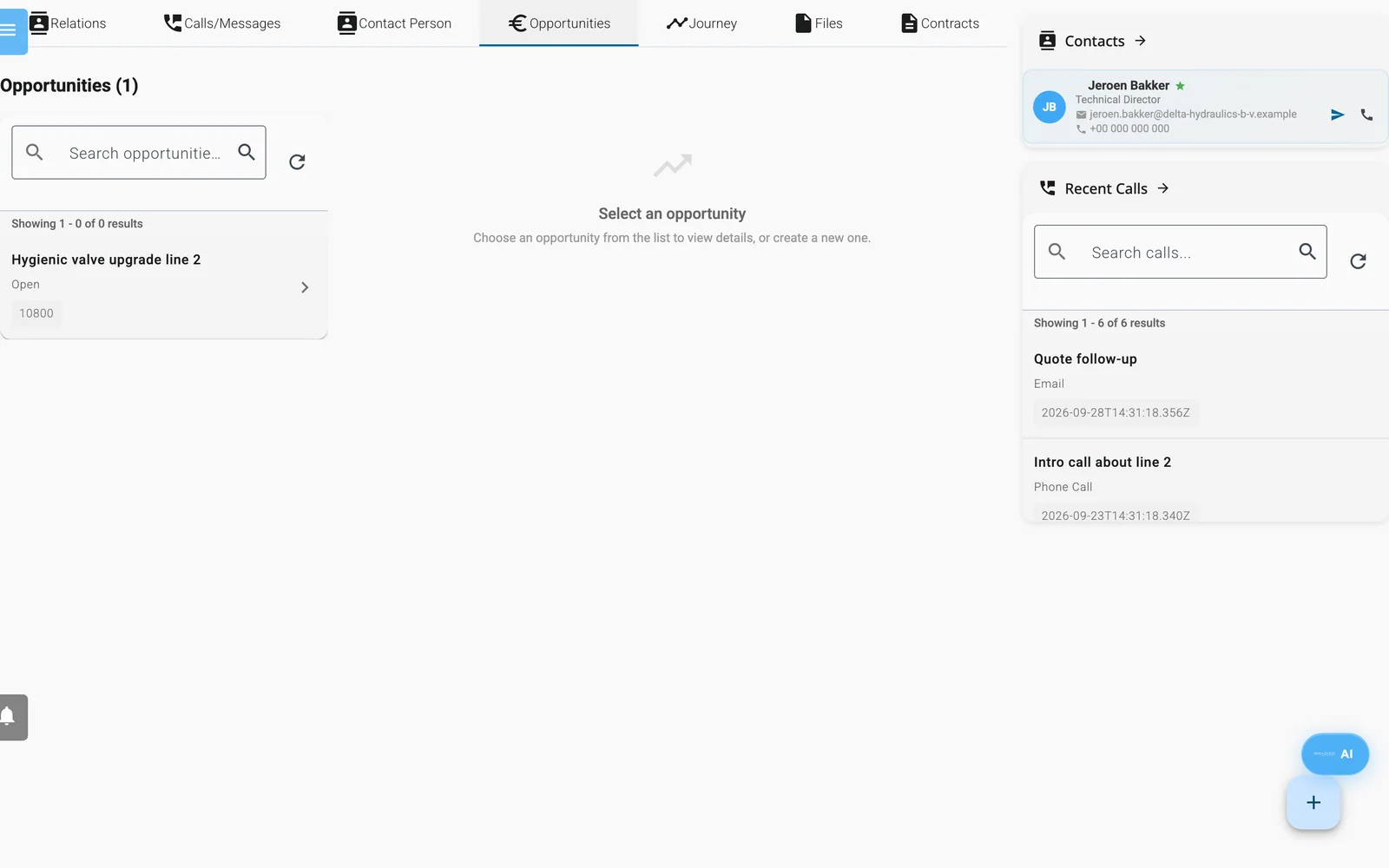
The Opportunities tab of a relation.
- Click the gear icon at the bottom of the side menu to open Settings. Under Company information, fill in Company Name, Billing Address, Billing zipcode, Billing City, Billing Country, Billing Email, SWIFT and IBAN/Bank account. Click Save Changes.
- In the Appearance card of the same page, upload your Company logo. The quote shows it at the top. If you see Set standard Relation to set company logo, pick a marketing relation under Current Account in the side menu first.
- Make sure your company website is filled in. If it is not, open the Setup Wizard from the gear menu on the Dashboard and enter it as Website in the Company Profile step.
- Open Relations and click your customer in the list. Check that Name, address, Zipcode, City and Country are right. The quote prints them. To edit, switch off Locked Mode in the three-dot menu.
- Click the Opportunities tab and click the round + button (Create new Opportunity).
- Change Title to something the customer will recognise. Keep Currency as EUR or choose another. Set Language to English.
- Click Add item. Enter a Description, Qty, VAT % and Price. Repeat for each line. To pick from saved products instead, click Add from Catalog, tick the articles, and click Add to Opportunity.
- Look at Subtotal and VAT under the lines. The Total shown in the form is the amount before VAT.
- Click Save.
- Click Print as Quote. A PDF downloads to your computer.
- Send the PDF to your customer from your own mailbox.
Check your work
Open the PDF. You should see:
- your logo and the customer's name and address;
- a quote number, made from today's date and your Invoice Number, or "DRAFT" if you left it empty;
- your lines with price, quantity and amount;
- Total, the VAT amount and Total amount;
- your bank details and website at the bottom.
If a dialog named Incomplete Company Settings appears, it lists the fields you still need to fill in under step 1 and 3. Fill them in and click Print as Quote again.
If you see Quote Generation Failed, check that Language is English, that the opportunity has at least one line, and that your logo is uploaded.
Next steps
- Learn the catalog and follow-up options in Opportunities and quotes.
- Send the customer a contract to sign. See Contracts and e-signing.