
Beziehungen: Ihr CRM für Unternehmen und Kontakte
Was der Bereich Beziehungen ist
Beziehungen (Relations) ist das CRM von Enydea. Eine Beziehung ist ein Unternehmen oder, wenn Sie Verbraucher/Privatperson/B2C aktivieren, eine Privatperson. Jede Beziehung enthält ihre eigenen Ansprechpartner, Anrufe und Nachrichten, Verkaufschancen, Dateien und Verträge.
Bevor Sie beginnen
- Um Beziehungen zu öffnen, müssen Sie nichts einrichten.
- Die Auswahlmöglichkeiten in Status, Typ und Ihren eigenen Auswahllisten stammen aus Einstellungen -> Konto. Suchen Sie dort nach Statustypen für Beziehungen festlegen, Typen festlegen und Freie Auswahl 1 bis 4.
Eine Beziehung finden
Die Liste steht links. Sie ist nach Lead Score Heiß/Kalt sortiert, höchster Wert zuerst, mit 20 Beziehungen pro Seite.
- Tippen Sie in Beziehungen nach Name, Adresse, Ort oder Land durchsuchen.... Die Suche berücksichtigt auch Bundesland oder Provinz und den Typ.
- Klicken Sie auf das Filtersymbol (Filter öffnen), um Filter zu öffnen. Sie können nach Status, Typ, Marketing-Beziehung, Land, Inhaber, Tags und Benutzerdefiniertes Feld 1 bis 4 filtern.
- Klicken Sie auf Filter anwenden. Mit Alle zurücksetzen beginnen Sie von vorn.
- Klicken Sie auf eine Beziehung, um sie rechts zu öffnen.
Hinweis: Die Filter Status und Typ bieten eine feste Liste (Lead, Interessent, Kunde, Inaktiv sowie Unternehmen, Privatperson, Partner). Sie folgen nicht den Listen, die Sie in den Einstellungen festlegen; eine Beziehung mit Ihrem eigenen Status erscheint daher möglicherweise nicht, wenn Sie danach filtern. Der Filter Tags trifft auf ein einzelnes, vollständiges Tag zu.
Eine Beziehung anlegen
- Klicken Sie auf die runde Schaltfläche + (Neue Beziehung erstellen).
- Bestätigen Sie die Frage Neue Beziehung erstellen.
- Eine leere Beziehung öffnet sich, mit ausgeschaltetem Gesperrter Modus (Locked Mode) und dem Cursor im Feld Name. Geben Sie den Namen ein. Wenn Sie einen Vorschlag auswählen, wird die Adresse ausgefüllt.
- Füllen Sie die übrigen Felder aus.
Hinweis: Enydea speichert die leere Beziehung, sobald Sie bestätigen. Wenn Sie es sich anders überlegen, öffnen Sie das Dreipunktmenü und wählen Löschen.
Eine Beziehung bearbeiten
Es gibt keine Schaltfläche zum Speichern. Enydea speichert, wenn Sie ein Feld verlassen.
Gesperrter Modus ist standardmäßig eingeschaltet und macht die meisten Textfelder schreibgeschützt. Schalten Sie ihn zum Bearbeiten im Dreipunktmenü aus.
Die Karte hat diese Felder:
- Name, Land und das Logo.
- Unter Details: Status, Typ und Ihre eigenen Auswahllisten.
- Adresse, Postleitzahl, Stadt, Bundesland/Provinz, E-Mail, Website, MwSt. und Allgemeine Rufnummer.
- Lead Score Heiß/Kalt, ein Schieberegler, der die Reihenfolge der Liste bestimmt.
- Branche, Quelle, Tags, Beschreibung, Inhaber der Beziehung und Anmerkungen.
Um ein Tag hinzuzufügen, geben Sie es unter Tags ein und drücken Enter. Tags speisen die Filter und Ihre Mailinglisten.
Marketing-Beziehung kennzeichnet eine Beziehung, für die Sie Marketing betreiben, etwa Ihr eigenes Unternehmen. Nur Firmenadmins können das Kästchen aktivieren, und wie viele solche Beziehungen Sie haben können, kann von Ihrem Tarif abhängen. Siehe Preise. Nur Marketing-Beziehungen erscheinen unter Aktuelles Konto (Current Account) im Seitenmenü, und Bildschirme wie Mailings, Soziale Medien und Dateien verlangen, dass Sie dort zuerst eine auswählen.
Firmeninfos abrufen ist eine Schaltfläche auf der Karte. Sie braucht eine Website und einen ausgeschalteten Gesperrter Modus. Enydea liest die Website. Wenn das abgeschlossen ist, wählen Sie aus, was Sie übernehmen möchten, und klicken auf Ausgewählte Änderungen übernehmen.
Das Dreipunktmenü enthält diese Aktionen:
- Logo verwalten: Logo automatisch suchen, Bilddatei hochladen oder eine Bild-URL, dann Logo speichern.
- Buchungslink kopieren: siehe Terminplanung und Buchungslinks.
- Visitenkarte scannen: Laden Sie ein Foto hoch (JPG, PNG oder WEBP) und klicken Sie auf Scannen. Klicken Sie dann auf Im CRM speichern, um eine Beziehung und einen Ansprechpartner anzulegen. Was Sie im Scan-Dialog ändern, wird nicht gespeichert; korrigieren Sie die Beziehung daher anschließend.
Die Registerkarten
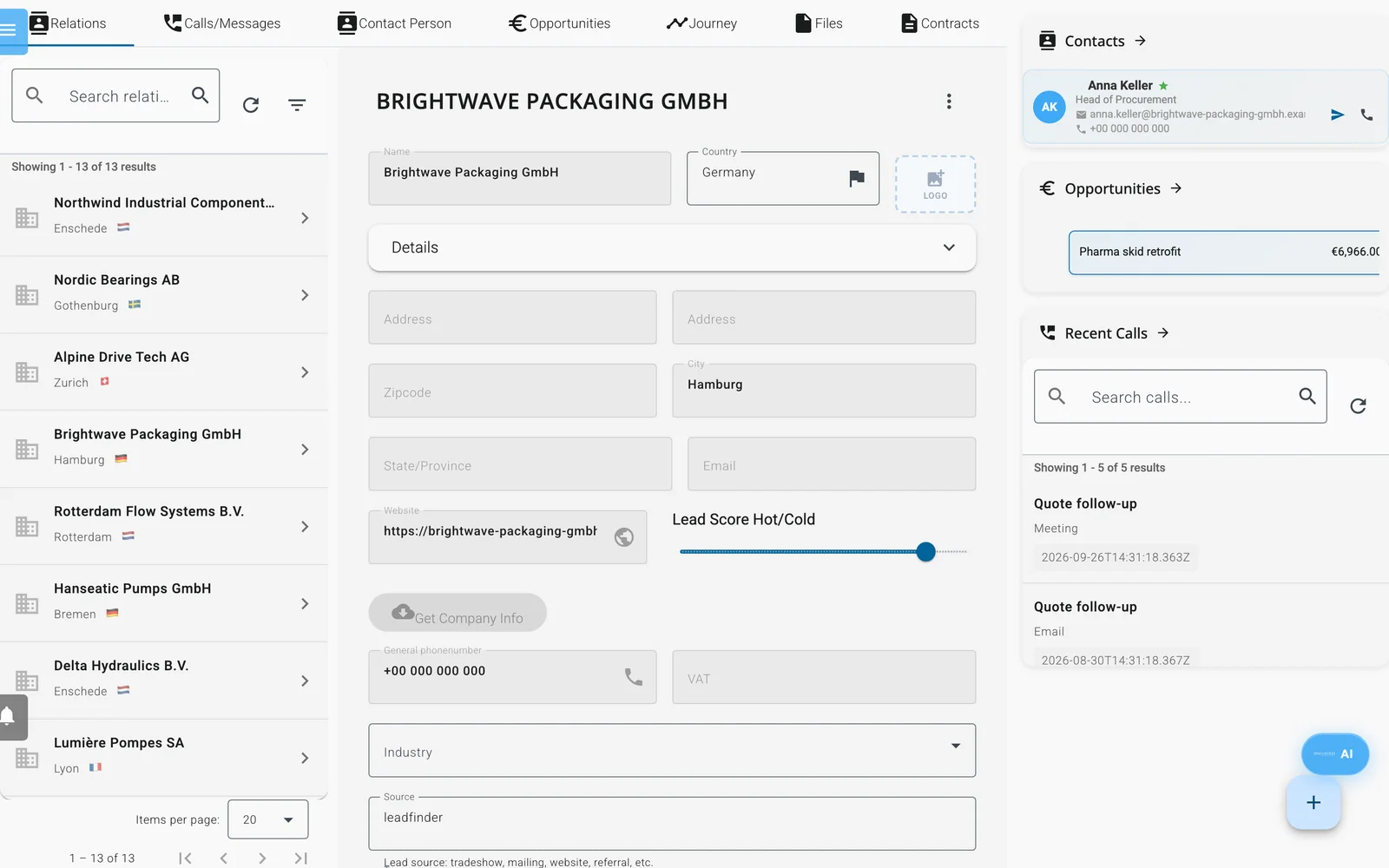
Eine Beziehung unter Beziehungen. Die Registerkarten oben wechseln zwischen Anrufe/Nachrichten, Kontaktperson, Verkaufschancen, Customer Journey, Dateien und Verträge.
Anrufe/Nachrichten
Klicken Sie auf der Registerkarte Anrufe/Nachrichten (Calls/Messages) auf die Schaltfläche + (Neue Aktivität) und wählen Sie Telefonanruf protokollieren, Neue E-Mail, E-Mail aus Vorlage oder Termin protokollieren. Filtern Sie die Liste nach allen Einträgen, E-Mails, Anrufen oder Terminen. Ein Anruf kann Ansprechpartner, Notizen und ein Datum für die Wiedervorlage enthalten.
KI-Gesprächscoach
Wählen Sie einen Telefonanruf, eine Telefonkonferenz oder einen Termin aus, um den KI-Gesprächscoach (AI Call Coach) zu sehen.
- Füllen Sie optional Gesprächsziel (optional) aus.
- Klicken Sie auf Live-Coaching starten. Sie erhalten ein Interessenten-Briefing mit Hintergrund, Vorgeschlagene Gesprächseinstiege und Worauf Sie achten sollten.
- Tippen oder diktieren Sie Notizen unter Notizen / Transkript.
- Klicken Sie auf KI-Vorschläge abrufen. Dafür sind mindestens 10 Zeichen Notizen nötig. Sie erhalten die Abschnitte Zusammenfassung, Jetzt sagen / tun und Nächste Schritte sowie Themen-Chips.
- Klicken Sie auf Gespräch beenden, um die Zusammenfassung zu speichern.
Der Coach hört Ihr Gespräch nicht mit. Er arbeitet mit den Notizen, die Sie eintippen oder diktieren.
Kontaktperson
Diese Registerkarte ist bei B2C-Beziehungen ausgeblendet. Klicken Sie auf + (Kontaktperson erstellen) oder wählen Sie einen Ansprechpartner aus der Liste. Das Formular enthält Anrede, Namen, Status der Kontaktperson, Standardkontakt, Titel, Funktion, Abteilung, E-Mail, Telefonnummern, Instant Messenger und Social-Media-Profile. Klicken Sie auf Speichern, wenn Sie fertig sind.
Ist eine E-Mail-Adresse eingetragen, erhalten Sie Schaltflächen für E-Mail senden (intern), Buchungslink senden, zum Öffnen Ihres eigenen E-Mail-Programms und zum Kopieren der Adresse. Kontakte online suchen und Soziale Medien durchsuchen schlagen Personen und Profile vor, die Sie speichern können.
Verkaufschancen, Customer Journey, Dateien und Verträge
- Verkaufschancen (Opportunities): Verkaufschancen mit Positionen. Siehe Verkaufschancen und Angebote.
- Customer Journey (Journey): Kontaktpunkte wie Website-Besuche und E-Mail-Interaktionen. Die Registerkarte bleibt leer, bis der Website-Tracker und getrackte Mailings Daten liefern.
- Dateien: Dateien, Videos und Szenen, die für diese Beziehung gespeichert sind.
- Verträge (Contracts): Verträge zur elektronischen Unterschrift. Siehe Verträge und elektronische Unterschrift.
Beziehungen, die Enydea für Sie anlegt
- Eine LeadFinder-Suche speichert jedes gefundene Unternehmen mit seiner eigenen Website. Die Karte zeigt Über LeadFinder gefunden mit einem Link zu der Seite, auf der es gefunden wurde. Siehe LeadFinder.
- Ein Marktsignal-Scan fügt Unternehmen mit dem Status lead und den Tags
source:market-signalundsignal-profile:plus Profilname hinzu. Siehe Marktsignale. - Ein Messe-Crawl, der über den KI-Assistenten übernommen wird, fügt Aussteller mit dem Namen der Messe unter Quelle und als Tag hinzu.
Viele Kontakte hinzufügen
Der Bildschirm Beziehungen hat keine Import-Schaltfläche. Welche Wege funktionieren, steht in Tutorial: Kontakte in Ihr CRM importieren. Um eine Gruppe von Beziehungen per E-Mail anzuschreiben, erstellen Sie eine Mailingliste aus dem CRM. Siehe Mailinglisten und Segmente.
Grenzen
- Sie ändern Beziehungen einzeln. Es gibt keinen Bildschirm, auf dem Sie mehrere Beziehungen auswählen und gemeinsam deren Eigentümer oder Status ändern.
- Über das Suchfeld und Filter hinaus gibt es keinen weiteren Suchdialog.