
Postfach: E-Mails lesen, beantworten, mit dem CRM verknüpfen
Was das Postfach tut
Das Postfach (Mailbox) ist ein Posteingang in Enydea. Es zeigt das Postfach, das Sie verbunden haben, damit Sie E-Mails lesen, beantworten und jede Unterhaltung mit einer Beziehung in Ihrem CRM verknüpfen können. Es ist für E-Mails an einzelne Empfänger gedacht. Für Massen-E-Mails nutzen Sie Mailings und Kampagnen.
Bevor Sie beginnen
Verbinden Sie zuerst ein Postfach: Einstellungen (Settings) -> E-Mail-Integration (Email Integration) -> Ihr persönliches Postfach. Siehe Ihr Postfach verbinden. Bis dahin zeigt das Postfach Nicht verbunden – in den Einstellungen einrichten. Ist es verbunden, zeigt der obere Bildschirmrand Verbunden mit Ihrer Adresse. Das Postfach synchronisiert beim Öffnen; das Synchronisierungssymbol (Tooltip: E-Mails synchronisieren) startet die Synchronisierung erneut.
Sich zurechtfinden
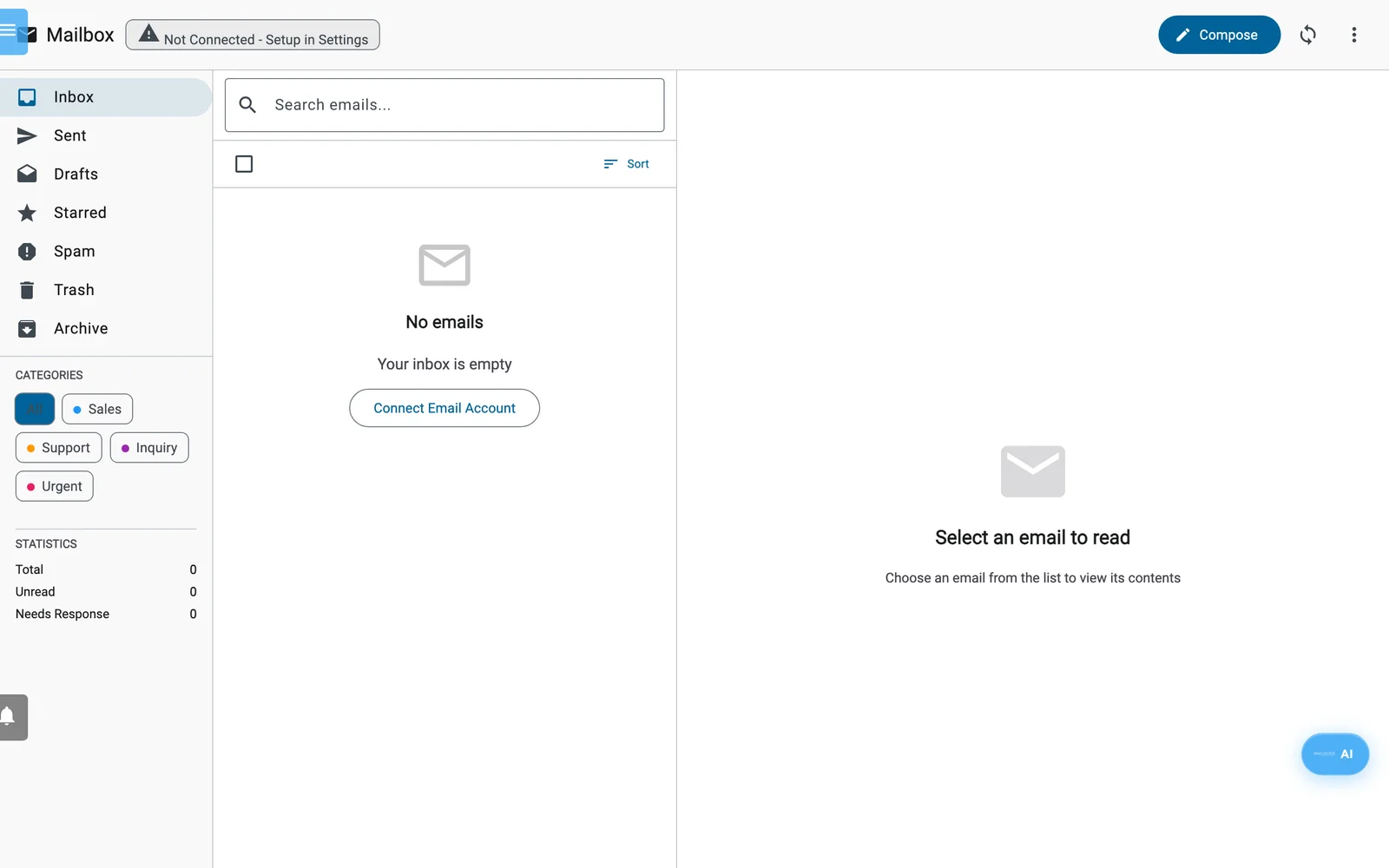
Das Postfach, bevor ein E-Mail-Konto verbunden ist. Verbinden Sie eines unter Einstellungen, E-Mail-Integration (siehe Ihr Postfach verbinden).
- Die Ordner links: Posteingang, Gesendet, Entwürfe, Markiert, Spam, Papierkorb und Archivieren, jeweils mit der Zahl der ungelesenen Nachrichten.
- Kategorien (nur in Ihrem eigenen Postfach): Alle, Vertrieb, Support, Anfrage, Dringend. Statistiken zeigt Gesamt, Ungelesen und Antwort erforderlich.
- E-Mails durchsuchen... durchsucht alle Ordner. Findet die Suche in dem, was Enydea bereits synchronisiert hat, weniger als 10 Nachrichten, durchsucht sie zusätzlich das vollständige Postfach bei Ihrem Anbieter.
- Sortieren bietet Neueste zuerst, Älteste zuerst und Betreff A–Z. Listen zeigen 50 Nachrichten pro Seite.
- Markieren Sie mehrere Nachrichten, um sie gemeinsam als gelesen oder ungelesen zu markieren, mit einem Stern zu versehen, zu archivieren oder zu löschen.
- Abzeichen in einer Zeile zeigen Anhänge, hohe Wichtigkeit, die KI-Kategorie, Antwort nötig, ein Link-Symbol, wenn die Nachricht mit einer Beziehung verknüpft ist, und die Stimmung.
Eine Nachricht lesen und bearbeiten
Klicken Sie auf eine Nachricht, um sie zu öffnen. Die Symbolleiste bietet Antworten, Allen antworten, Weiterleiten, Archivieren und Löschen. Das Menü mit weiteren Optionen enthält Als Spam markieren, Mit Stern markieren, Als „Handlungsbedarf“ markieren oder Als „Informativ“ markieren, In den Posteingang verschieben und Ins Archiv verschieben. Unter der Nachricht sehen Sie Anhänge, die Unterhaltung mit weiteren Nachrichten des Verlaufs und Schlüsselwörter.
Mit einer Nachricht im CRM arbeiten
Diese Schaltflächen befinden sich über der Nachricht:
| Schaltfläche | Was sie tut |
|---|---|
| Mit CRM verknüpfen | Verknüpft die Nachricht mit einer Beziehung. Wählen Sie Vorhandene suchen oder Neu erstellen, um eine neue Beziehung aus der E-Mail zu befüllen, und klicken Sie auf Erstellen & verknüpfen. Nach dem Verknüpfen zeigt die Schaltfläche den Namen der Beziehung; Im CRM öffnen und Verknüpfung aufheben erscheinen. |
| Aufgabe erstellen | Öffnet Wiedervorlage erstellen mit Aufgabentitel, Fälligkeitsdatum und Anmerkungen. Die Aufgabe wird im CRM gespeichert, bei der verknüpften Beziehung, falls es eine gibt. |
| KI-Vorschläge | Zeigt Antwortentwürfe mit einem Übereinstimmungswert. Diesen Vorschlag verwenden öffnet eine Antwort mit dem eingefügten Text. |
| Zu Aktionspunkten hinzufügen | Sammelt frühere Korrespondenz, entwirft eine KI-Antwort, erfasst die Nachricht als Aktionspunkt und markiert sie als beantwortungsbedürftig. |
| Als CRM-Aktivität protokollieren | Sichtbar, sobald die Nachricht verknüpft ist. Speichert sie als E-Mail-Aktivität bei dieser Beziehung. |
Warnung: Zu Aktionspunkten hinzufügen legt eine Beziehung für den Absender an, wenn keine Beziehung diese E-Mail-Adresse hat (Status „contacted“, Typ „prospect“, Quelle „email“). Kontakte aus E-Mails extrahieren (im Menü mit weiteren Optionen oben) tut dasselbe für die Absender Ihrer 200 neuesten Nachrichten im Posteingang, ohne nachzufragen, und lässt Freemail-Domains wie Gmail sowie No-Reply-Adressen aus.
Schreiben und senden
Klicken Sie auf Verfassen oder antworten Sie auf eine Nachricht bzw. leiten Sie sie weiter.
- Ist ein gemeinsames Postfach verbunden, wählen Sie den Absender unter Von. Andernfalls wird Ihre eigene Adresse verwendet.
- Füllen Sie An (das Feld schlägt Ihre Kontakte und Beziehungen vor), Betreff und den Text aus. Fügen Sie über die obere Leiste Cc, Bcc, Anhängen oder Signatur hinzu.
- Optional: Wählen Sie unter Mit CRM-Beziehung verknüpfen (optional) eine Beziehung aus.
- Optional: Nutzen Sie die KI-Zeile. Vorschlagen schreibt Text aus dem Kontext. Verbessern verbessert Grammatik, Ton und Aufbau. Übersetzen bietet Sprachen an, darunter Englisch, Deutsch, Französisch und Niederländisch. Verbessern und Übersetzen brauchen Text im Nachrichtentext. Prüfen Sie den Vorschlag und klicken Sie auf Übernehmen oder Verwerfen.
- Optional: Einfügen fügt Produkte, Dienstleistungen oder Artikel aus Ihrem Katalog ein. Die Schaltfläche erscheint nur, wenn Ihr Katalog Einträge hat.
- Optional: Buchungslink öffnet das Fenster für Buchungslinks; klicken Sie auf Link einfügen, um einen Link einzufügen, über den der Kunde einen Termin wählt. Dafür muss ein Outlook-Kalender verbunden sein. Siehe Terminplanung und Buchungslinks.
- Klicken Sie auf Senden. Senden braucht einen Empfänger und einen Betreff. Mehr -> Entwurf speichern bewahrt die E-Mail für später auf.
E-Mails, die Sie hier senden, werden in Ihrem CRM als E-Mail-Aktivität erfasst, und Enydea fügt Öffnungs- und Klick-Tracking hinzu. Ihre Absendereinstellungen (Absendername, Antwortadresse, Standard-Cc und -Bcc, Fußzeile) gelten für E-Mails, die Sie aus Ihrem eigenen Postfach senden. Ist die Verbindung abgelaufen, bietet eine Meldung Neu verbinden an.
Das gemeinsame Postfach nutzen
Ein Firmenadmin kann ein gemeinsames Office-365-Postfach für das ganze Team verbinden. Sobald es existiert, wechselt eine Dropdown-Liste oben im Postfach zwischen Ihrem eigenen Postfach (eigenes) und dem gemeinsamen (gemeinsam). Das gemeinsame Postfach hat keine Kategorien. Hat Ihr Admin es zum Standard für das Team gemacht, öffnet sich das Postfach mit ihm.
Weitere Aktionen
Visitenkarte scannen im Menü mit weiteren Optionen oben öffnet den Visitenkarten-Scanner (Business Card Scanner), der ein Foto einer Visitenkarte mit KI ausliest.