
Chats: ein Chat-Widget auf Ihrer Website einbinden
Was der Bereich Chats tut
Ein Chat ist eine Chat-Schaltfläche, die Sie auf Ihrer Website platzieren. Sendet ein Besucher eine Nachricht, öffnet Enydea einen Chatroom, den Ihr Team in Enydea beantwortet. Derselbe Chat kann auch WhatsApp-Nachrichten empfangen. Ein KI-Agent kann automatisch antworten; das ist aber optional und standardmäßig ausgeschaltet.
Bevor Sie beginnen
- Wählen Sie in der Seitenleiste unter Aktuelles Konto (Current Account) eine Beziehung aus. Ein Chat wird unter dieser Beziehung gespeichert; ohne Beziehung zeigt Enydea „Keine Beziehung ausgewählt“.
- Um das Widget auf Ihrer Website anzuzeigen, müssen Sie den HTML-Code der Seite bearbeiten oder Ihren Webentwickler darum bitten.
Einen Chat erstellen und den Code abrufen
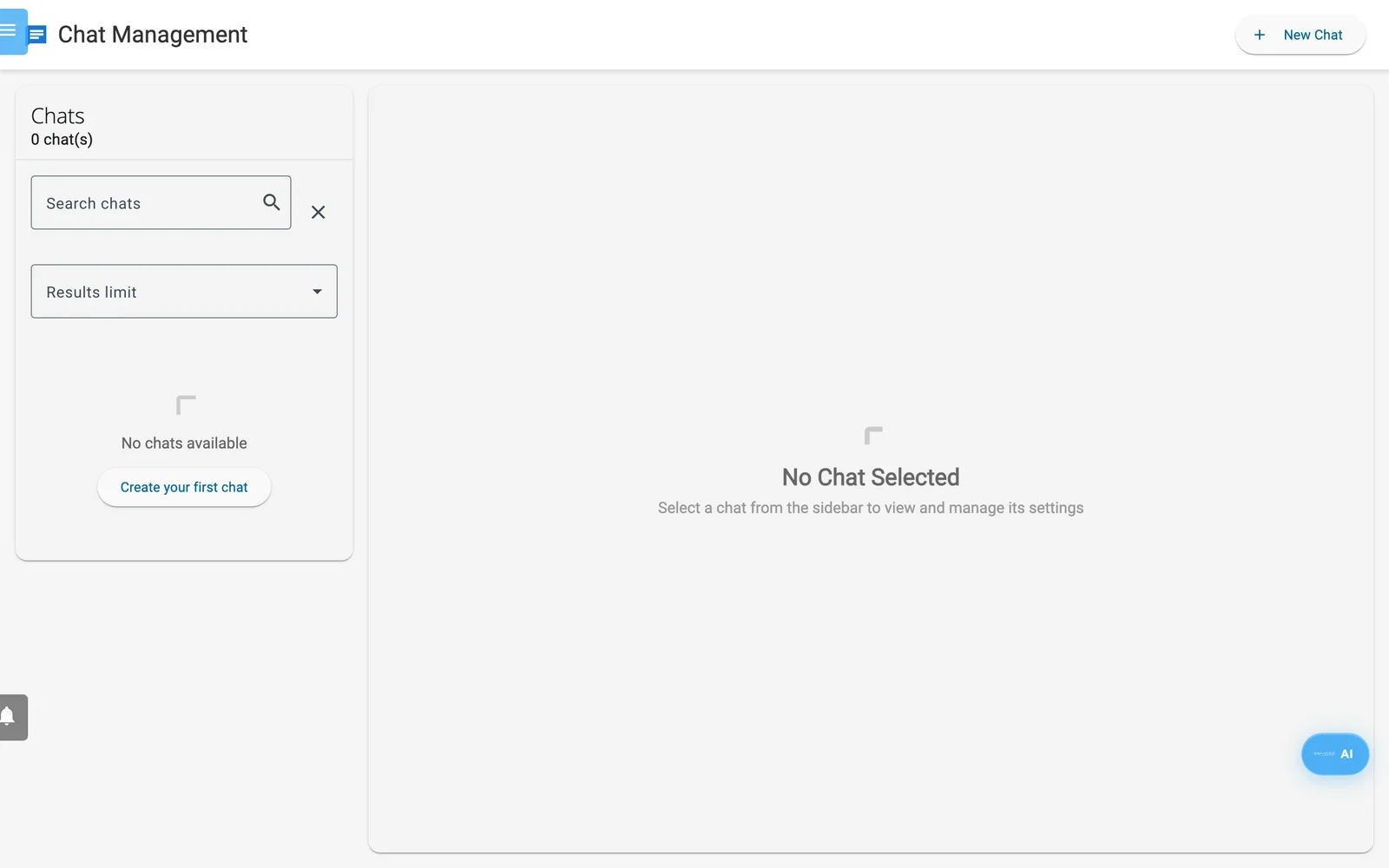
Chat-Verwaltung ohne Chats. Neuer Chat erstellt den ersten.
- Klicken Sie in der Seitenleiste auf Chats.
- Klicken Sie auf Neuer Chat (oder Erstellen Sie Ihren ersten Chat). Der neue Chat heißt „new“.
- Geben Sie unter Chatname Ihren eigenen Namen ein. Besucher sehen ihn als Titel des Chatfensters.
- Klicken Sie auf Einbettungscode abrufen. Ein Dialog mit dem Titel Chat-Widget einbetten öffnet sich.
- Klicken Sie auf Code kopieren.
- Fügen Sie den Code in den HTML-Code Ihrer Seite ein, direkt vor dem schließenden
</body>-Tag, und zwar auf jeder Seite, die den Chat zeigen soll.
Der Code sieht so aus, mit Ihrer eigenen Chat-ID:
<!-- Enydea Chat Widget -->
<script src="https://app.enydea.com/widget/enydea-chat.js"
        data-chat-id="YOUR_CHAT_ID"
        data-name="Your chat name"
        data-color="#1976d2"></script>
data-name und data-color erscheinen, wenn der Chat diese Werte hat. Fügen Sie data-position="left" hinzu, um die Schaltfläche nach unten links zu verschieben. Der Text im Fenster richtet sich nach der lang-Einstellung Ihrer Seite (Englisch, Niederländisch, Deutsch oder Französisch).
Unter Einstellungen zum Erscheinungsbild ist Hintergrundfarbe die Hauptfarbe des Widgets. Textfarbe, Breite, Höhe, Chat-Avatar und Start-Icon gestalten das Chatfenster, das Sie in Enydea sehen. Das Widget auf der Website behält seine eigene Größe und seine eigenen Symbole. Vorschau des Einbettungscodes wird aktualisiert, während Sie die Einstellungen ändern.
Testen Sie den Chat auf Ihrer Live-Website, bevor Sie ihn ankündigen. Senden Sie eine Nachricht von Ihrer Seite. Unter Chatrooms sollte ein neuer Raum erscheinen (laden Sie Chats neu, falls er noch nicht angezeigt wird). Öffnet sich das Fenster, erscheint aber nie ein Raum, sieht der Besucher keinen Fehler; wenden Sie sich in diesem Fall an den Support.
Was Besucher sehen
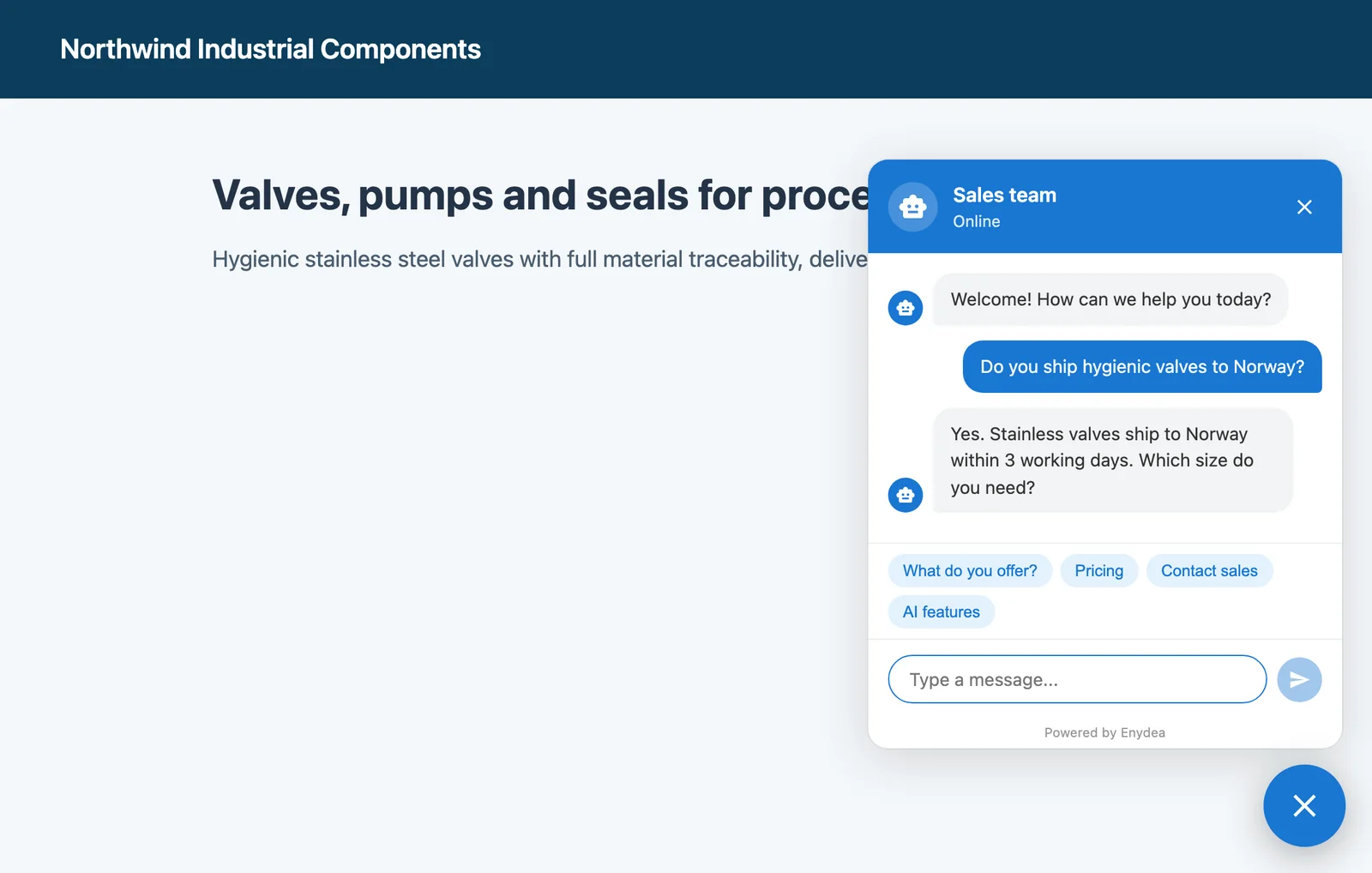
Das Chatfenster auf einer Website.
- Eine runde Schaltfläche unten rechts. Sie öffnet ein Fenster mit Ihrem Chatname, einem Online- oder Offline-Status, einer Begrüßungsnachricht („Welcome! How can we help you today?“) und einem Nachrichtenfeld. Die Begrüßungsnachricht können Sie auf diesem Bildschirm nicht ändern.
- Vier Schnellantwort-Schaltflächen mit festem Wortlaut: „What do you offer?“, „Pricing“, „Contact sales“ und „AI features“ (auf einer deutschsprachigen Seite „Was bieten Sie an?“, „Preise“, „Vertrieb kontaktieren“ und „KI-Funktionen“). Ein Klick sendet diesen Text als Nachricht des Besuchers.
- Ein Link „Powered by Enydea“ (auf einer deutschsprachigen Seite „Bereitgestellt von Enydea“) unten im Fenster.
In Chatrooms antworten
Wählen Sie einen Chat aus, um seine Chatrooms zu sehen: Name des Besuchers, Unternehmen (falls bekannt), Mitglieder und Datum.
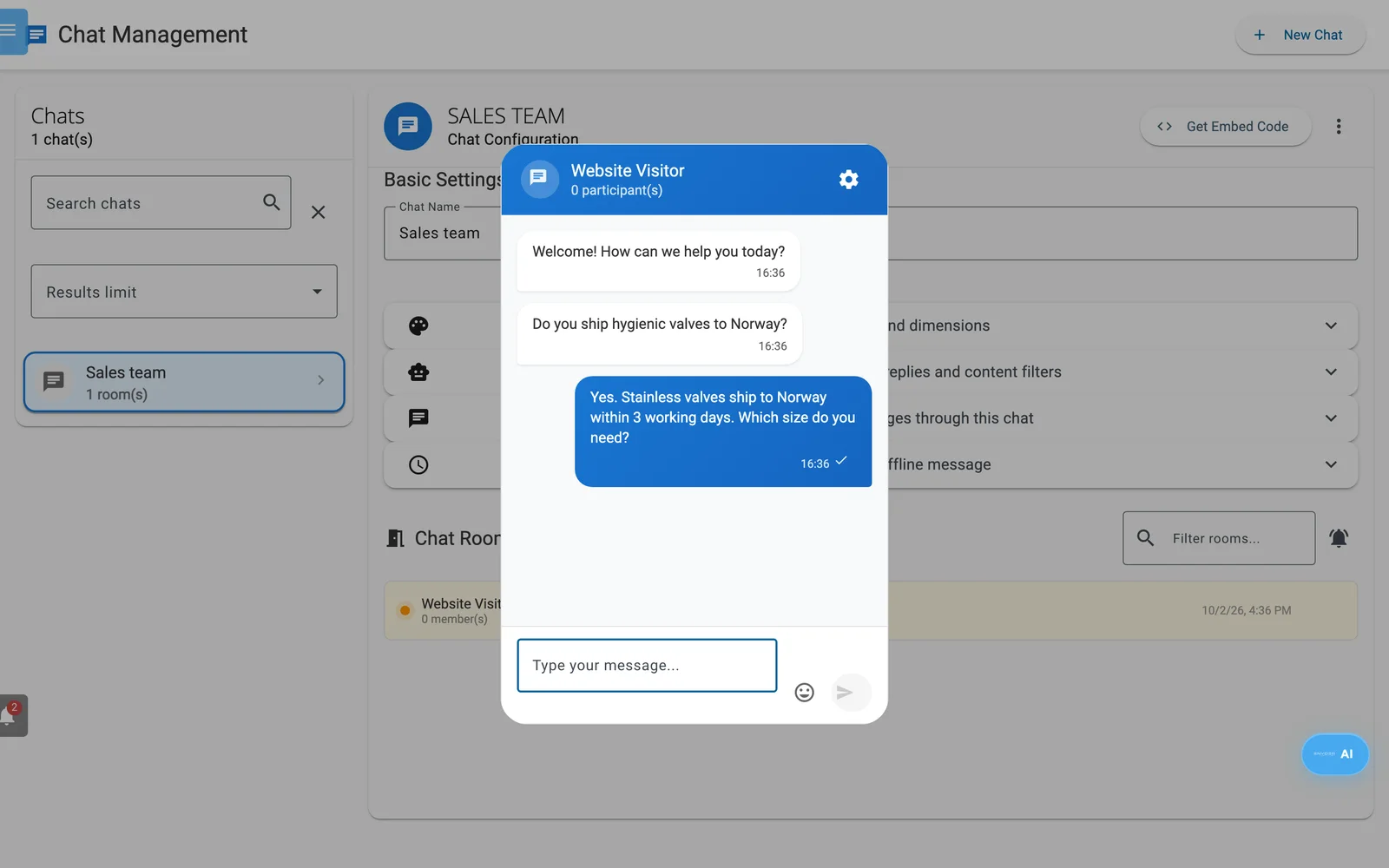
Ein Chatroom, geöffnet aus der Liste Chatrooms.
- Jeder Raum zeigt einen farbigen Punkt („Reaktion erforderlich“), bis ein Teilnehmer für ihn erfasst ist. Eine Antwort erfasst keinen Teilnehmer; rechnen Sie also bei jedem Raum mit dem Punkt. Das Glockensymbol (Nur Räume mit Handlungsbedarf anzeigen) filtert nach dieser Markierung. Räume filtern... durchsucht die Räume, und der Papierkorb löscht einen Raum.
- Klicken Sie auf einen Raum, um ihn zu öffnen, geben Sie Ihre Antwort ein und drücken Sie Enter. Räume, die aus WhatsApp stammen, tragen das Abzeichen WhatsApp.
- Wer den Chat erstellt hat, erhält für jede neue Unterhaltung und jede Besuchernachricht eine Benachrichtigung in der Glocke (Benachrichtigungen). Ein Klick darauf öffnet diesen Chatroom. Wenn Sie unter Einstellungen -> Konto -> Benachrichtigungseinstellungen die Option Chat-Benachrichtigungen aktivieren, kommen Push- oder E-Mail-Benachrichtigungen hinzu, je nachdem, was Sie dort eingestellt haben.
Einstellungen für den KI-Agenten (optional)
Setzen Sie unter KI-Agent-Einstellungen ein Häkchen bei Automatische KI-Antwort aktivieren, damit die KI jede Besuchernachricht beantwortet. Ihr Team sieht weiterhin jede Nachricht und kann im Raum schreiben.
| Feld | Was es tut |
|---|---|
| System-Prompt | Anweisungen für die Persönlichkeit und den Aufgabenbereich der KI |
| Unterstützte Sprachen | Englisch, Niederländisch, Deutsch, Französisch, Spanisch, Portugiesisch, Italienisch. Leer bedeutet: jede Sprache. |
| CRM-Kontext einbeziehen | Erlaubt der KI, Unternehmensdaten, passende CRM-Datensätze und Verkaufschancen zu nutzen. Bei neuen Chats eingeschaltet. |
| Produktkatalog einbeziehen | Erlaubt der KI, Produkte und Dienstleistungen aus Ihrem Katalog zu nutzen. Bei neuen Chats eingeschaltet. |
| Max. Verlauf | Frühere Nachrichten, die die KI liest (20 bei neuen Chats) |
| Max. Antwortlänge | Zeichen. Längere Antworten werden abgeschnitten und enden mit „...“ (500 bei neuen Chats). |
| Antwortverzögerung | Millisekunden, bevor die Antwort erscheint (1500 bei neuen Chats) |
Warnung: KI-Antworten sind öffentlich sichtbar. Ist CRM-Kontext einbeziehen eingeschaltet, kann die KI beim Antworten auf Ihr CRM zurückgreifen. Schalten Sie die Option aus, wenn Ihr CRM Angaben enthält, die Besucher nicht sehen dürfen.
Überschreitet der KI-Dienst die Zeitgrenze oder ist er nicht verfügbar, erhält der Besucher eine Nachricht, dass ein Teammitglied in Kürze antwortet.
Inhaltsfilter
Inhaltsfilter aktivieren erscheint, wenn die automatische KI-Antwort eingeschaltet ist. Bei neuen Chats ist der Filter eingeschaltet. Füllen Sie Gesperrte Wörter (kommagetrennt, Platzhalter mit *), Gesperrte Themen oder Erlaubte Themen (Whitelist) aus. Wenn Sie die Whitelist ausfüllen, werden nur diese Themen beantwortet.
Der Filter wirkt nur auf KI-Antworten. Blockiert er die Nachricht eines Besuchers, antwortet die KI mit einer höflichen Ablehnung. Blockiert er den eigenen Entwurf der KI, wird eine allgemeine Entschuldigung gepostet. Die Nachricht des Besuchers erreicht Ihr Team trotzdem.
Geschäftszeiten
Setzen Sie ein Häkchen bei Geschäftszeiten aktivieren. Legen Sie Öffnungszeit, Schließzeit, Zeitzone und Arbeitstage fest und schreiben Sie eine Offline-Nachricht. Außerhalb dieser Zeiten zeigt das Fenster Ihre Nachricht, und das Nachrichtenfeld ist deaktiviert, sodass Besucher keine Nachricht hinterlassen können. Verweisen Sie im Text auf Ihre E-Mail-Adresse oder Telefonnummer. Leere Felder bedeuten 09:00, 17:00, Europe/Amsterdam und Montag bis Freitag. Das Fenster prüft die Zeiten beim Laden der Seite.
WhatsApp-Integration
Setzen Sie ein Häkchen bei WhatsApp aktivieren und geben Sie Telefonnummer-ID und Business-Konto-ID ein, um WhatsApp-Nachrichten für diese Nummer über diesen Chat zu leiten. Sie erscheinen als Räume mit der Kennzeichnung WhatsApp. Was Sie in einem solchen Raum eingeben, geht über WhatsApp an den Absender zurück, und die automatische KI-Antwort gilt auch für WhatsApp.
Haben Sie WhatsApp über die Registrierung bei Meta unter Soziale Medien (Social Media) -> WhatsApp Business verbunden, abonniert Enydea die Nachrichten Ihres Kontos selbst und füllt diese Felder im ersten Chat dieser Beziehung aus, sofern es ihn gibt (Soziale Medien und WhatsApp). Der Bildschirm zeigt außerdem eine Webhook-Adresse und Anleitungen für Meta, die dieser Weg nicht braucht.
Grenzen
- Ihre Antworten erreichen den Besucher live über eine WebSocket-Verbindung. Blockiert das Netzwerk eines Besuchers WebSockets, sieht er Ihre Antwort, wenn er die Seite neu lädt.
- Der Schalter Chat-Widget unter Einstellungen -> Website-Verfolgung (Website Tracking) ist eine separate, einfachere Chatblase. Er erstellt keine Räume in Chats. Lassen Sie ihn aus, wenn Sie dieses Widget verwenden (Website-Tracking und Einwilligungseinstellungen).