
Dateien: Ihre Mediathek
Was Dateien tut
Dateien (Files) in der linken Seitenleiste listet alles auf, was für die ausgewählte Marketing-Beziehung gespeichert ist: Uploads, gespeicherte KI-Bilder, gerenderte Videos, PDFs und mehr. Es ist derselbe Speicher, den der Rest von Enydea nutzt; eine Datei, die Sie hier hochladen, können Sie also auf anderen Bildschirmen auswählen (siehe „Wo Sie diese Dateien außerdem sehen“ unten).
Bevor Sie beginnen
- Wählen Sie in der Seitenleiste unter Aktuelles Konto (Current Account) eine Marketing-Beziehung aus. Dateien gehören zu einer Beziehung, und Sie sehen nur die Dateien der ausgewählten Beziehung. Ohne Auswahl zeigt die Seite Keine Dateien gefunden und Bitte wählen Sie eine Beziehung aus, um Dateien anzuzeigen. Wählen Sie trotzdem Hochladen, zeigt der Bereich Keine Beziehung ausgewählt.
- Wie Sie eine Beziehung auswählen, lesen Sie unter Beziehungen und CRM.
Dateien finden und sortieren
Die Kopfzeile zeigt den Namen der Beziehung und die Anzahl der Dateien.
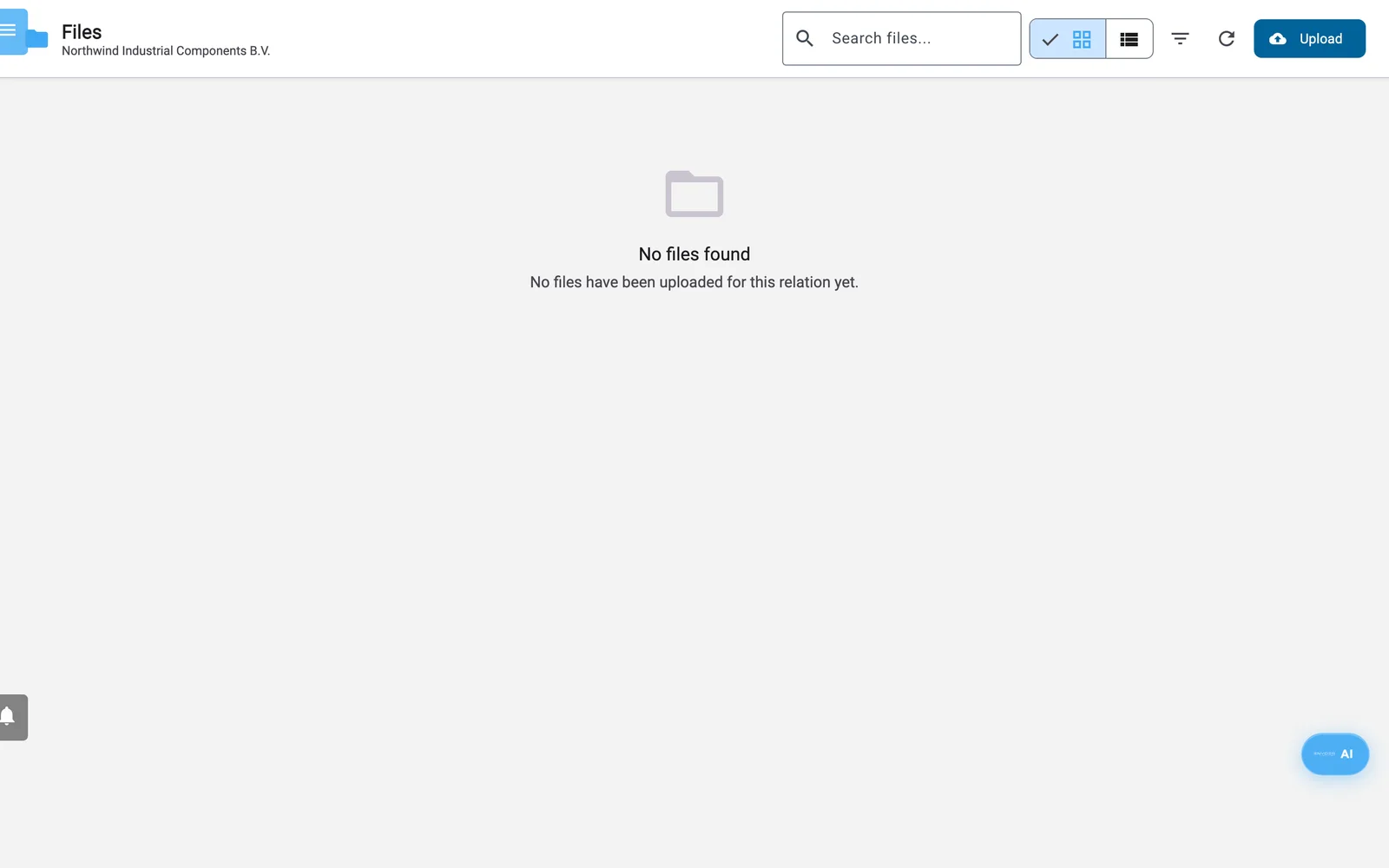
Der Bildschirm Dateien mit einer leeren Mediathek.
- Geben Sie etwas in Dateien durchsuchen... ein, um nach Dateinamen und Dateitypen zu suchen.
- Wechseln Sie zwischen Rasteransicht und Listenansicht. Karten in der Rasteransicht zeigen eine Miniatur, Name, Größe und Datum. Die Liste hat die Spalten Name, Typ, Größe, Datum und Aktionen.
- Wählen Sie das Filtersymbol, um Filter zu öffnen:
| Filter | Auswahl |
|---|---|
| Dateityp | Alle Dateien, Bilder, Videos, Audio, Dokumente, Andere |
| Dateigröße | Beliebige Größe, Klein (< 1 MB), Mittel (1-10 MB), Groß (10-50 MB), Sehr groß (> 50 MB) |
| Hinzugefügt am | Beliebiges Datum, Heute, Diese Woche, Dieser Monat, Letzte 3 Monate, Dieses Jahr |
| Sortieren nach | Neueste zuerst, Älteste zuerst, Name (A-Z), Name (Z-A), Größte zuerst, Kleinste zuerst |
- Filter zurücksetzen setzt sie zurück. Chips über der Liste zeigen, wie viele Dateien jedes Typs auf der aktuellen Seite sind; wählen Sie einen Chip, um nach diesem Typ zu filtern.
- Die Seite zeigt 24 Dateien auf einmal. Mit der Seitennavigation unten ändern Sie dies auf 12, 48 oder 96 und blättern zwischen den Seiten.
- Aktualisieren lädt die Liste neu.
Fehlt eine Datei unter einem Typfilter, setzen Sie Dateityp auf Alle Dateien und suchen Sie nach dem Namen.
Dateien hochladen
- Wählen Sie Hochladen. Der Bereich Dateien hochladen öffnet sich und nennt die Beziehung, zum Beispiel „Dateien für Acme hochladen“.
- Ziehen Sie Dateien in das Feld oder wählen Sie die Schaltfläche, um sie auszuwählen.
- Jede Datei wird hochgeladen, sobald Sie sie hinzufügen. Die Warteschlange zeigt einen Fortschrittsbalken, dann Hochgeladen oder Fehlgeschlagen. Wenn alle Uploads abgeschlossen sind, wird die Liste aktualisiert, und eine Meldung bestätigt den Upload.
Der Bereich zeigt die unterstützten Typen und die maximale Größe von 50 MB pro Datei. Unterstützt werden PNG, JPEG, GIF, WebP, SVG, MP4, WebM, OGG-Video, AVI, MOV, PDF, reiner Text sowie Word- (DOC, DOCX) und Excel-Dateien (XLS, XLSX).
Warnung: Dateien, die Sie hier hochladen, sind nicht als geschützt gekennzeichnet. Jeder, der den Link einer Datei hat, kann sie ohne Anmeldung öffnen. Laden Sie keine vertraulichen Dokumente hoch.
Mit einer Datei arbeiten
Öffnen Sie das Drei-Punkte-Menü auf einer Karte oder in einer Zeile der Listenansicht:
- Vorschau (nur Bilder und Videos) zeigt die Datei in einem Fenster mit Herunterladen und In neuem Tab öffnen.
- Öffnen öffnet die Datei in einem neuen Browsertab. In der Listenansicht bewirkt das Auswählen einer Zeile dasselbe.
- Herunterladen speichert die Datei auf Ihrem Computer.
- URL kopieren kopiert die Adresse der Datei und zeigt „URL in die Zwischenablage kopiert“. Fügen Sie sie dort ein, wo ein Bildschirm nach einer URL fragt, zum Beispiel als Videoadresse auf einer Landingpage. Öffnen Sie die kopierte Adresse zuerst in einem neuen Browsertab, um zu prüfen, ob sich die Datei öffnet.
- Löschen fragt im Fenster Datei löschen nach einer Bestätigung. Das Fenster weist darauf hin, dass sich die Aktion nicht rückgängig machen lässt.
Wo Sie diese Dateien außerdem sehen
- Beziehungen (Relations) -> die Beziehung -> Registerkarte Dateien zeigt dieselben Dateien, gruppiert als Bilddateien, Videodateien, Dateien und Szenen und Videos, mit Suche, Download und Löschen. Siehe Beziehungen und CRM.
- Visualisierung (Visualization) speichert KI-Bilder, PNG-Exporte und gerenderte Videos hier, und ihre Auswahlfenster lesen aus denselben Dateien. Siehe Visualisierung.
- Soziale Medien (Social Media): Die Schaltflächen Bild hinzufügen, Video hinzufügen und Alle Medien durchsuchen im Beitragsformular zeigen diese Dateien nicht; sie bieten nur Enydeas eigene Symbole und Hintergrundbilder. Um Ihr eigenes Bild oder Video zu posten, nutzen Sie hier URL kopieren und geben die Adresse an den KI-Assistenten. Siehe Soziale Medien und WhatsApp.
- Landingpages (Landing Pages) nehmen Video- und Bildadressen an. Nutzen Sie hier URL kopieren und fügen Sie die Adresse ein. Siehe Landingpages.
Gut zu wissen
- Projekte, die Sie in Visualisierung speichern (Szenen, Bildprojekte, Video-Editor-Projekte), werden ebenfalls als Dateien gespeichert und können daher in dieser Liste erscheinen. Sie enthalten Projektdaten, keine Medien. Öffnen Sie sie in Visualisierung.
- Erscheint eine Datei nicht in einem Auswahlfenster, prüfen Sie, ob sie zu der Beziehung gehört, die das Auswahlfenster verwendet.
- Bevor Sie eine Datei löschen, prüfen Sie die Landingpages, Beiträge und Buchungsseiten, die ihren Link verwenden.