
Suivi du site web et paramètres de consentement
Ce que fait le suivi du site web
Une fois un extrait de code ajouté à votre site web, Enydea enregistre les visites et les relie à votre CRM lorsque c’est possible. Il suit les pages vues, les clics, la profondeur de défilement, les interactions avec les formulaires, les téléchargements de fichiers, les paramètres UTM ainsi que l’appareil et le navigateur. Si l’identification des visiteurs est activée, il conserve aussi l’adresse IP du visiteur et en déduit une localisation approximative et une entreprise (voir Identification des visiteurs). Il affiche aussi une bannière de consentement. Avec les paramètres par défaut, rien n’est enregistré tant que le visiteur n’a pas accepté.
Ce que le traceur enregistre et envoie
- Avant que le visiteur réponde à la bannière : la page demande à Enydea vos paramètres de suivi, afin de savoir quelle bannière afficher. C’est la seule requête. Rien n’est écrit dans le navigateur du visiteur et aucun code de session n’existe.
- Après l’acceptation du visiteur : les événements listés ci-dessus, un code de session aléatoire conservé dans l’onglet du navigateur (il prend fin à la fermeture de l’onglet) et le choix du visiteur, conservé dans le navigateur.
- Adresses : les adresses de page sont enregistrées sans leur chaîne de requête, à l’exception des paramètres de campagne (
utm_*,gclid,gbraid,wbraid,fbclid,msclkid,ref,lang). Un référent (referrer) est enregistré uniquement sous la forme du site et du chemin. Les termes de recherche, les jetons et les adresses e-mail présents dans les liens ne sont jamais enregistrés. - Formulaires : uniquement le fait qu’un formulaire a été affiché et envoyé, de quel formulaire il s’agit et combien de champs il comporte. Ce que le visiteur a saisi n’est jamais lu ni enregistré. La seule exception est l’adresse saisie dans la bannière de capture d'e-mails, qui est envoyée parce que le visiteur l’a saisie afin d’être contacté.
- Clics : le texte visible du lien ou du bouton et, pour les liens, son adresse selon la même règle.
- Navigateurs qui envoient Global Privacy Control ou Do Not Track : ces signaux sont traités comme un « non » permanent. Le traceur n’affiche aucune bannière, n’envoie rien et n’enregistre rien, et Enydea ignore tout ce qui arrive malgré tout.
Avant de commencer
- Vous devez pouvoir modifier le HTML de votre site web, ou disposer d’un accès administrateur WordPress.
- Mettez à jour votre politique de confidentialité en fonction de ce que vous activez ici. Cette page décrit ce que fait le traceur. Elle ne constitue pas un conseil juridique.
- Tous les réglages se trouvent sous Paramètres (Settings, l’icône d’engrenage en bas de la barre latérale) -> Suivi du site web (Website Tracking).
Ajouter le code de suivi
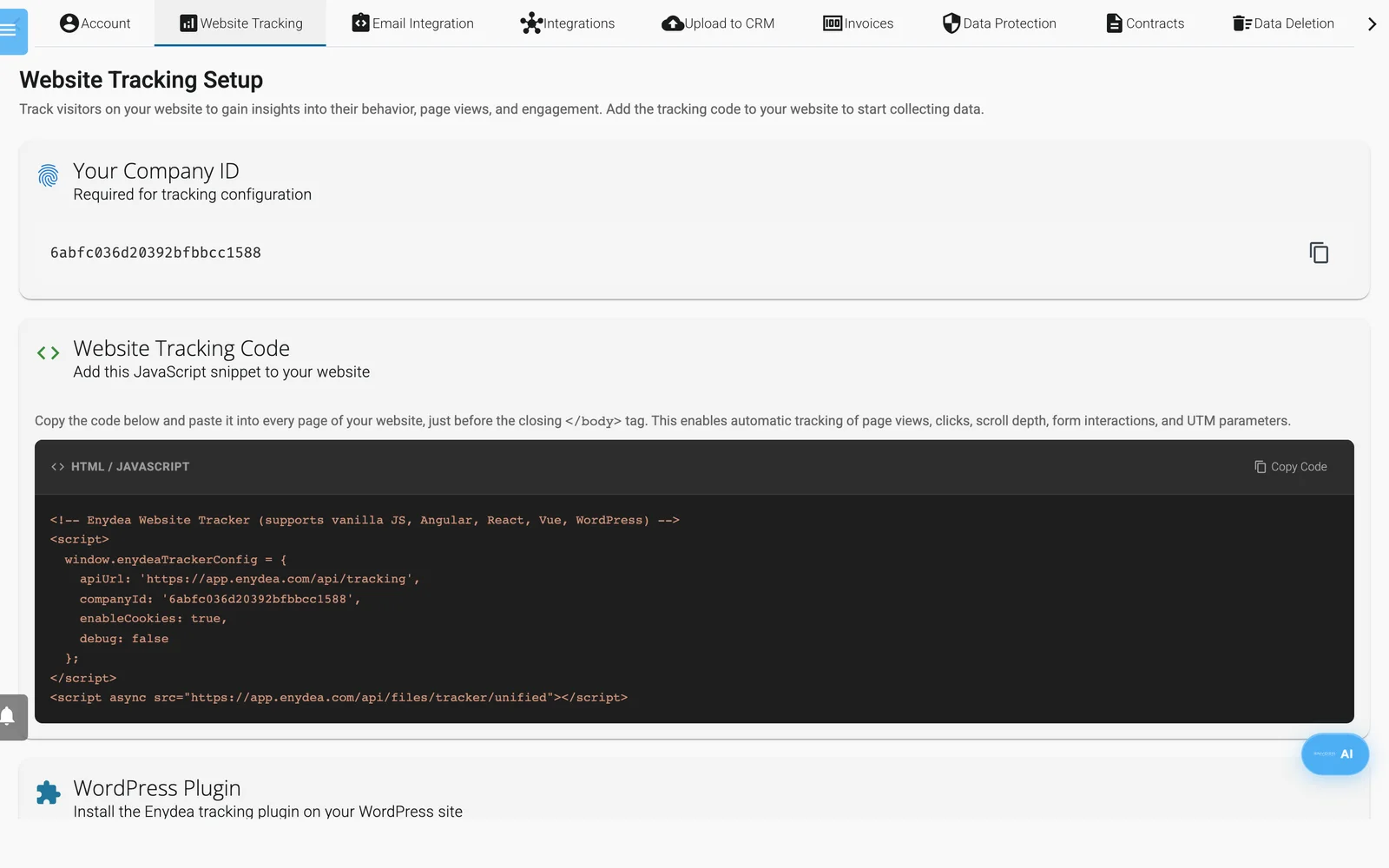
Paramètres, Suivi du site web : copiez le code ici.
- Ouvrez Paramètres -> Suivi du site web.
- Sous Code de suivi du site web (Website Tracking Code), cliquez sur Copier le code. Le code contient déjà votre identifiant d’entreprise (Company ID), qui figure aussi sous Votre identifiant d'entreprise (Your Company ID).
- Collez-le dans chaque page de votre site, juste avant la balise de fermeture
</body>.
Le code ressemble à ceci :
<script>
  window.enydeaTrackerConfig = {
    apiUrl: 'https://app.enydea.com/api/tracking',
    companyId: 'YOUR_COMPANY_ID',
    enableCookies: true,
    debug: false
  };
</script>
<script async src="https://app.enydea.com/api/files/tracker/unified"></script>
Au lieu du premier bloc, vous pouvez placer data-company-id="YOUR_COMPANY_ID" sur la seconde balise script.
Attention : utilisez le code de cet écran. Une adresse de script qui se termine par
assets/js/enydea-tracker.jsne fonctionne pas. Si votre site en contient une, remplacez l’extrait complet.
WordPress
- Cliquez sur Télécharger le plugin WordPress (Download WordPress Plugin). Le fichier ZIP contient déjà votre identifiant d’entreprise.
- Dans WordPress, allez dans Plugins -> Add New -> Upload Plugin, installez le ZIP et activez-le.
- Ouvrez Settings -> Enydea, vérifiez l’identifiant d’entreprise et enregistrez. Le plugin vous indique si la connexion a fonctionné.
Le plugin ne suit pas les administrateurs connectés, sauf si vous décochez Exclude administrators. Debug logging écrit l’activité du traceur dans la console du navigateur.
Choisir ce qui est collecté
Sous Comportement du code de suivi (Tracker behaviour) -> Données collectées, activez ou désactivez : Pages vues, Clics, Profondeur de défilement, Formulaires, Téléchargements, Vidéo et Temps passé sur le site. Ping de temps passé sur le site toutes les (secondes) accepte une valeur de 5 ou plus. Paliers de défilement (%) est une liste de valeurs séparées par des virgules. Cliquez sur Enregistrer. L’écran confirme que les visiteurs reçoivent la modification dans les 5 minutes.
Définir les options de consentement
Sous Comportement du code de suivi -> Consentement :
- Demander le consentement des visiteurs est activé par défaut. Tant que cette option est active et que le visiteur n’a pas accepté, Enydea n’enregistre rien, ne charge aucune de vos intégrations de suivi et indique à Google Consent Mode que le consentement est refusé.
- Texte de la bannière, Lien vers la politique de confidentialité et Thème de la bannière (Clair ou Sombre) définissent la bannière. Le lien vaut d’abord
/privacy: saisissez l’adresse de votre propre politique de confidentialité. Si votre site comporte plusieurs langues, placez{lang}dans le lien, par exemplehttps://example.com/{lang}/privacy: il est remplacé par la langue de la page. - La bannière affiche les boutons Reject et Accept dans la langue de la page : anglais, néerlandais, allemand ou français, et anglais pour toute autre langue. Elle affiche le texte que vous avez rédigé pour cette langue dans Texte de la bannière en néerlandais, Texte de la bannière en allemand ou Texte de la bannière en français. Une langue dont le champ est vide reçoit le Texte de la bannière. Les autres langues peuvent être définies via l’assistant Enydea. Elle ne liste ni les catégories de cookies ni les services que vous utilisez. Nommez-les dans votre propre politique de confidentialité.
- Reject et Accept ont le même aspect. Refuser est aussi simple et aussi visible qu’accepter.
- Le choix du visiteur est conservé dans son navigateur et consigné avec l’adresse de la page (sans chaîne de requête) et l’heure. Un refus ou un retrait est consigné sans code de session.
- Permettre aux visiteurs de retirer leur consentement plus tard et Permettre aux visiteurs de demander la suppression de leurs données sont enregistrés et envoyés avec chaque décision. Voir Laisser les visiteurs changer d’avis.
- Conserver les données des visiteurs pendant (jours) est enregistré avec vos paramètres. Enydea ne supprime pas encore les données de suivi de lui-même, ne comptez donc pas dessus. Voir Durée de conservation des données.
Si vous désactivez Demander le consentement des visiteurs, Enydea enregistre immédiatement et ne charge pas les intégrations ci-dessous. Ne le faites que si votre site possède sa propre bannière de cookies. Global Privacy Control et Do Not Track restent respectés.
Si votre site a sa propre bannière de cookies
Lorsque votre site possède déjà une bannière, laissez-la être la seule. Ajoutez hostManagedConsent: true à la configuration et transmettez le choix du visiteur. Enydea n’affiche alors aucune bannière propre, ne tient aucun registre de consentement qui lui soit propre et n’enregistre rien tant que vous ne transmettez pas 'accept' :
<script>
  window.enydeaTrackerConfig = {
    apiUrl: 'https://app.enydea.com/api/tracking',
    companyId: 'YOUR_COMPANY_ID',
    hostManagedConsent: true,
    consent: 'accept' // or 'reject', or leave it out while the visitor has not chosen
  };
</script>
Quand le visiteur choisit plus tard, appelez window.enydeaTracker.setConsent('accept') ou setConsent('reject'). S’il retire son consentement, appelez window.enydeaTracker.withdrawConsent(). Global Privacy Control et Do Not Track l’emportent toujours sur ce que vous transmettez.
Laisser les visiteurs changer d’avis
La bannière n’a pas de bouton permanent. Ajoutez à votre site un lien qui appelle le traceur, par exemple « Cookie settings » dans le pied de page :
<a href="#" onclick="window.enydeaTracker.openConsentPreferences(); return false;">Cookie settings</a>Cela affiche à nouveau la bannière. Si un visiteur qui avait accepté choisit maintenant Reject, cela vaut retrait du consentement : la collecte s’arrête immédiatement, les données de la session sont supprimées d’Enydea, les données du traceur dans le navigateur sont effacées et le retrait est consigné. Un site qui crée son propre bouton peut appeler window.enydeaTracker.withdrawConsent() (retirer et supprimer), forgetSession() (supprimer uniquement) ou getConsent() ('accept', 'reject' ou rien pour l’instant).
Les balises issues des Intégrations de suivi qui sont déjà chargées sur la page en cours ne peuvent pas en être retirées. On leur indique que le consentement est refusé, et elles ne sont pas chargées sur la page suivante.
Identification des visiteurs
L’identification des visiteurs détermine si le traceur peut reconnaître qui visite le site. Elle couvre :
- l’enregistrement de l’adresse IP du visiteur et des détails de son navigateur avec la visite,
- la recherche d’une localisation approximative, d’un fournisseur d’accès à internet et d’une entreprise à partir de l’adresse IP, ce qui envoie l’adresse à un service externe de recherche d’adresses IP,
- le lien entre une visite et la personne qui a cliqué sur un lien dans l’un de vos mailings, et
- la mise en correspondance d’une visite avec une relation de votre CRM.
Lorsqu’elle est désactivée, rien de tout cela n’a lieu. La visite est quand même comptée, mais uniquement comme session anonyme : pas d’adresse IP, pas de chaîne de navigateur, pas de localisation, pas de mise en correspondance et pas de lien avec un destinataire. Un appel identify() provenant de votre propre site est également ignoré.
Elle est activée pour les entreprises qui n’ont jamais fait de choix, car c’est ainsi que le traceur a toujours fonctionné, et désactivée pour les paramètres de suivi créés via l’assistant Enydea. Pour la modifier, activez ou désactivez Identifier les visiteurs sous Comportement du code de suivi -> Consentement, puis cliquez sur Enregistrer. L’assistant Enydea peut aussi le faire, avec l’accord d’un administrateur de l’entreprise. Si vous l’activez, indiquez-le dans votre politique de confidentialité, y compris le service de recherche d’adresses IP.
Durée de conservation des données
Conserver les données des visiteurs pendant (jours) est enregistré avec vos paramètres, mais Enydea ne supprime pas encore automatiquement les anciennes données de suivi. Ne comptez pas dessus et n'indiquez pas de durée de conservation dans votre politique de confidentialité sur cette base. Ce qui est supprimé aujourd'hui, c'est la session d'un visiteur lorsqu'il retire son consentement. Le registre des choix de consentement est conservé, car il prouve le choix et ne contient aucune adresse IP.
Options supplémentaires
Activez une option sous Options supplémentaires pour la configurer. Activez-en une à la fois et vérifiez-la sur votre site en ligne.
- Widget de chat : une simple bulle de chat avec Position, Couleur de l'en-tête, Texte de l'en-tête, Message d'accueil et Texte indicatif du champ de saisie. Elle est distincte de Chats. Les messages des visiteurs sont enregistrés comme événements de suivi et ne créent pas de conversations dans Chats. Pour des conversations en direct, utilisez Chats.
- Bannière de capture d'e-mails : une bannière d’inscription avec Position, Texte du bouton et Texte de la bannière. L’adresse saisie par le visiteur est enregistrée avec la visite. C’est le seul endroit où quelque chose que le visiteur a saisi est envoyé, et cela n’est envoyé qu’après le consentement.
- Sondages : une fenêtre surgissante avec une question fixe en anglais, "How likely are you to recommend this website?", à laquelle on répond de 0 à 10. Vous définissez Afficher après (secondes), Position, Fréquence et si elle s’affiche aussi lorsque le visiteur s’apprête à quitter la page.
- Scoring des leads : des points par action (page vue, clic, clic sur un numéro de téléphone, palier de défilement, envoi de formulaire, téléchargement, lecture de vidéo, chat lancé). Un champ vide utilise la valeur standard affichée à l’intérieur.
- Journalisation de débogage écrit les décisions du traceur dans la console du navigateur.
Intégrations de suivi
Saisissez les identifiants sous Intégrations de suivi (Tracking Integrations). Les champs s’enregistrent lorsque vous les quittez, ou cliquez sur Enregistrer la configuration du suivi. Un identifiant au mauvais format affiche un avertissement et n’est pas chargé. Une erreur fréquente consiste à saisir un numéro de compte dans le champ Google Tag Manager.
| Service | Format de l’identifiant | Chargé par le traceur |
|---|---|---|
| Google Analytics 4 | G-XXXXXXXXXX | Oui |
| Google Ads | AW-XXXXXXXXXX | Oui |
| Google Tag Manager | GTM-XXXXXXX | Oui |
| Meta / Facebook Pixel | Identifiant du pixel | Oui |
| LinkedIn Insight Tag | Identifiant partenaire | Oui |
| Hotjar | Identifiant du site | Oui |
| TikTok Pixel, Pinterest Tag, HubSpot | Identifiants | Non |
« Oui » signifie chargé après l’acceptation du visiteur. TikTok, Pinterest, HubSpot et les Scripts de suivi personnalisés (Custom Tracking Scripts) sont enregistrés mais pas exécutés. Pour utiliser ces outils, ajoutez-les dans votre conteneur Google Tag Manager, qu’Enydea charge après le consentement.
Suivi des e-mails
Les mailings envoyés depuis Enydea intègrent le suivi des ouvertures et des clics sur les liens, avec paramètres UTM et attribution de campagne. Aucune configuration supplémentaire n’est nécessaire.
Où apparaissent les données
- Tableau de bord (Dashboard) : cliquez sur Ajouter des composants au tableau de bord (Add Dashboard Components) -> Ajouter le suivi unifié pour les sessions et pages vues par jour.
- Relations -> une relation -> onglet Parcours client (Journey) : premier et dernier contact, visites du site web et interactions avec les e-mails. Enydea associe une visite à une relation lorsqu’il le peut, par exemple lorsque le visiteur est arrivé par un lien de l’un de vos mailings. Toutes les visites ne sont pas associées. L’onglet affiche "Aucun événement de parcours pour le moment" tant qu’il n’y a pas de données.
Les pages d’atterrissage créées dans Enydea chargent automatiquement le traceur (Pages d’atterrissage).