
Google Ads et Publicité : créer et suivre des campagnes
Ce que fait Publicité
Publicité (Advertising), dans la barre latérale gauche, regroupe vos comptes publicitaires. Google Ads est la seule plateforme dotée d’un générateur de campagne dans Enydea. Les cartes Facebook / Instagram, LinkedIn et Pinterest ne font qu’ouvrir Réseaux sociaux, où vous connectez ces comptes. Enydea ne peut pas créer de campagnes publicitaires Facebook, LinkedIn, Pinterest ou TikTok.
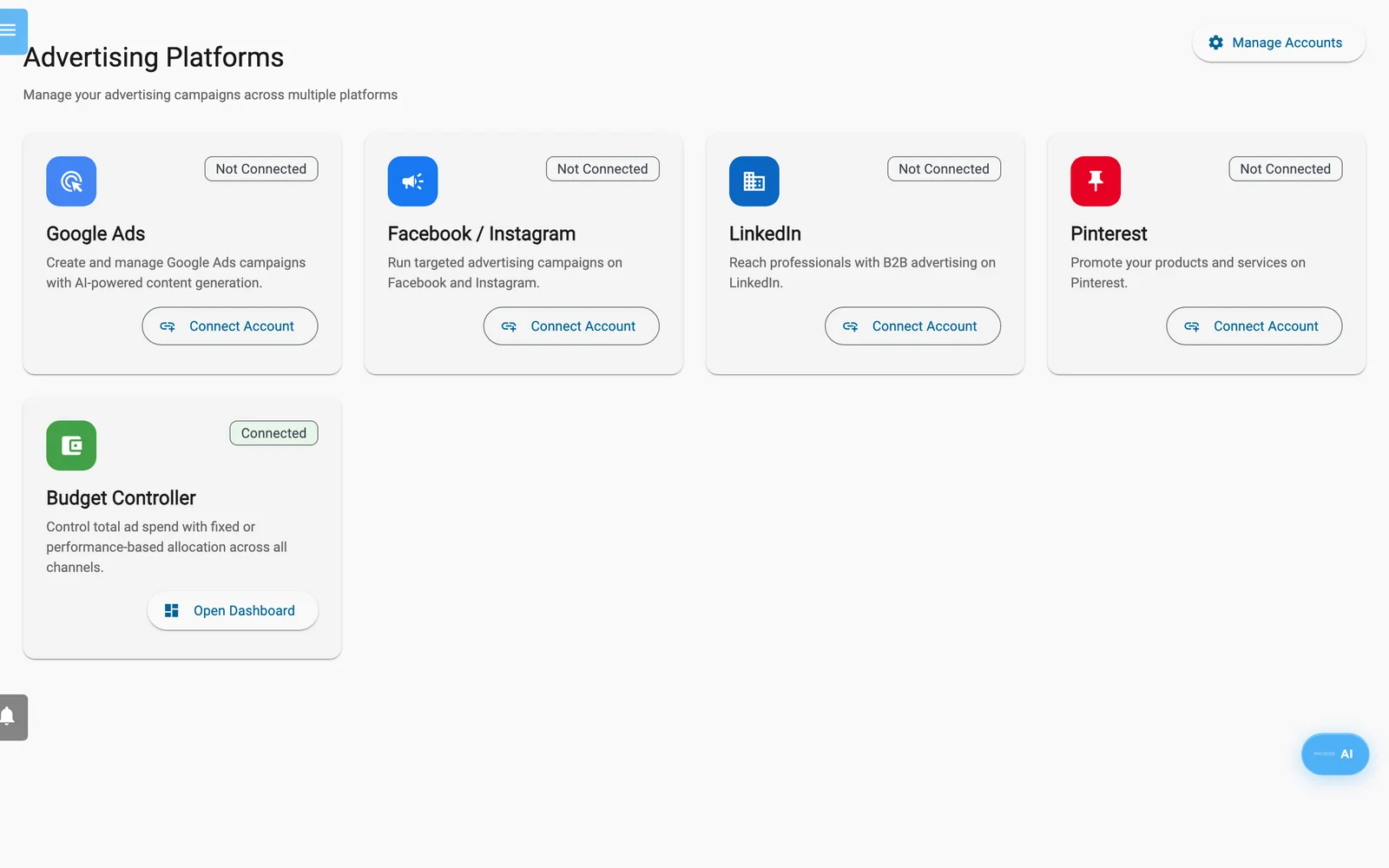
Advertising Platforms. Les plateformes connectées sont signalées ; le Budget Controller ouvre son propre tableau de bord.
Attention : Enydea agit sur votre vrai compte Google Ads. Activer une campagne, modifier un budget ou appliquer un plan budgétaire peut y dépenser de l’argent réel. Activer et Mettre en pause agissent immédiatement, sans confirmation. Les budgets sont appliqués dans la devise de votre compte Google Ads, quelle que soit la devise affichée par un champ.
Avant de commencer
- Un compte Google Ads auquel vous pouvez vous connecter, avec son numéro client (customer ID).
- Une relation marketing sélectionnée dans Compte actuel (Current Account), dans la barre latérale. La connexion Google Ads appartient à cette relation.
- Facultatif : un ID de compte Google Merchant Center pour les campagnes Shopping ou Performance Max.
Connecter Google Ads
- Ouvrez Publicité, puis sélectionnez Gérer les comptes.
- Dans la section Google Ads, sélectionnez Se connecter avec Google.
- Connectez-vous à Google et autorisez l’accès.
- De retour dans Enydea, choisissez le compte dans Sélectionner un compte Google Ads.
Si un compte affiche Aucun ID client, sélectionnez Sélectionner un client et choisissez-en un. L’icône de crayon (Modifier l'ID client) le modifie, au format 123-456-7890. Sélectionnez une ligne pour en faire le compte Actif. Tout déconnecter supprime les connexions Google Ads de cette relation.
Lorsqu’un compte est connecté, Configurer la balise de suivi ouvre Configurer le suivi du site web (Configure Website Tracking). Saisissez l’ID de conversion Google Ads (du type AW-XXXXXXXXXX) et sélectionnez Enregistrer et activer le suivi. La balise ne se charge sur votre site web qu’une fois que les visiteurs ont donné leur consentement marketing. Voir Suivi du site web et paramètres de consentement. Les sections LinkedIn et Pinterest proposent la même invite (Configurer l'Insight Tag, Configurer la balise Pinterest). Votre site web charge le LinkedIn Insight Tag. Un ID de Pinterest Tag est enregistré, mais n’est pas chargé.
Budget Controller
Contrôleur de budget répartit un budget mensuel unique entre plusieurs canaux.
- Sélectionnez Nouveau budget. Saisissez un Nom, un Budget mensuel total et une Devise.
- Choisissez % fixe, activez des canaux et définissez un pourcentage par canal. Le total ne peut pas dépasser 100 %.
- Sélectionnez le budget, puis Prévisualiser la répartition pour voir les montants mensuels et quotidiens. Le montant quotidien est le montant mensuel divisé par 30.
- Appliquer aux plateformes vous demande de confirmer.
Ce que fait Appliquer aux plateformes :
- Google Ads : uniquement pour un canal qui a une valeur dans ID du compte Google Ads. Pour chaque campagne activée de ce compte, Enydea fixe le budget quotidien à une part égale du montant quotidien du canal. Cela écrase les budgets que vous aviez définis.
- Facebook / Instagram et LinkedIn : les montants sont stockés uniquement dans Enydea. Rien n’est envoyé à Meta ni à LinkedIn. Facebook peut tout de même afficher Appliqué.
Le champ ID du compte Google Ads attend l’identifiant qu’Enydea stocke pour votre connexion Google Ads. Le numéro client de la page des comptes (123-456-7890) est un autre nombre, et aucun écran n’affiche l’identifiant stocké. Si Google Ads affiche Erreur, ne supposez pas que quoi que ce soit a été appliqué. Pour maîtriser les dépenses, définissez les budgets campagne par campagne dans le détail de la campagne.
Le mode Dynamique (performances) et Appliquer automatiquement les répartitions à chaque période de réallocation figurent dans le formulaire, mais l’aperçu et l’application n’utilisent que les pourcentages, et rien ne s’exécute selon un planning.
Écrans Google Ads
Ouvrez Google Ads sur la page Publicité, ou Tableau de bord dans la section du compte.
Dashboard
Le tableau de bord liste les campagnes avec leurs dépenses, clics, conversions et budget quotidien, avec les filtres Tous, Actif, En pause et Brouillon. Synchroniser importe les campagnes et les statistiques depuis Google Ads, y compris les campagnes créées en dehors d’Enydea. Les icônes de lecture et de pause activent ou mettent en pause une campagne immédiatement. Des boutons ouvrent Nouvelle campagne, Analyse IA, Vérification des composants, Configuration auto par IA, Reciblage, Hub des agents IA et Paramètres du compte.
Assistant de configuration
L’assistant se trouve à l’adresse https://app.enydea.com/google-ads/onboarding. Il demande Informations sur l'entreprise, Objectifs, Ciblage et Budget, puis propose Configuration intelligente par IA ou Configuration manuelle. Appliquer et créer la campagne ne fait qu’ouvrir le générateur de campagne avec vos réponses. Rien n’est encore créé dans Google Ads.
Générateur de campagne
Sélectionnez Nouvelle campagne. Les onglets sont Paramètres de la campagne, Contenu de l'annonce et Aperçu et lancement.
- Dans Paramètres de la campagne, définissez le nom, le Type de campagne (Search, Performance Max, Display, Shopping ou Video), le Budget quotidien, la Stratégie d'enchères, les Pays ciblés et les Langues ciblées. Conseiller de campagne IA suggère un type, une stratégie d’enchères et un budget. Générer des mots-clés avec l'IA suggère des mots clés.
- Dans Contenu de l'annonce, générez des titres (30 caractères au maximum) et des descriptions (90 au maximum), puis sélectionnez ceux que vous voulez.
- Dans Aperçu et lancement, vérifiez le récapitulatif et sélectionnez Créer la campagne.
Créer la campagne crée dans Google Ads la campagne, son budget et son ciblage par pays et par langue, avec le statut PAUSED. Enregistrer comme brouillon ne fait que revenir au tableau de bord et n’enregistre rien. Enydea ne crée pas les annonces elles-mêmes dans Google Ads. Les titres et les descriptions restent dans Enydea.
Détail de la campagne
Sélectionnez une campagne pour la mettre en pause (Mettre en pause) ou l’activer (Activer), ouvrir Analyse ou Extensions, voir ses performances sur Aujourd'hui, 7 jours, 30 jours ou 90 jours, et modifier le budget quotidien sous Budget et enchères (cela met à jour Google Ads). Nouveau groupe d'annonces ajoute un groupe d’annonces avec un nom, un CPC max. et un statut. Les campagnes Shopping et Performance Max affichent aussi Groupes de produits et filtres.
Vérification des composants
Vérification des composants est une liste de contrôle pour les titres et les descriptions. Choisissez une Campagne et une Langue du contenu, utilisez si vous le souhaitez Générer des composants IA, puis approuvez, rejetez ou signalez dans En attente de vérification, Approuvé et Problèmes. Vos décisions ne sont pas enregistrées et rien n’est envoyé à Google Ads.
Configuration auto par IA (Performance Max)
- Saisissez votre URL du site web et sélectionnez Prévisualiser les produits.
- Choisissez les Canaux publicitaires et les options. Les canaux déterminent uniquement les formats d’image générés.
- Sélectionnez Lancer la configuration de campagne par IA. Une fois l’opération terminée, sélectionnez Créer une campagne Google Ads, renseignez le nom, le budget et les pays, puis sélectionnez Créer la campagne.
Cela crée une campagne Performance Max en pause, avec un groupe d’assets vide. Ajoutez les images générées dans Google Ads. Lorsqu’une tâche de configuration se termine, Synchroniser automatiquement les nouveaux produits (activé par défaut, voir Hub des agents IA) ajoute aussi les noms des produits et des services sous forme d’extraits structurés à chaque campagne activée du compte connecté.
Autres écrans
| Écran | Ce qu’il fait |
|---|---|
| Produits Merchant Center | Accessible depuis une campagne Shopping ou Performance Max (Voir les produits). Saisissez l’ID du compte Merchant Center, utilisez Charger les produits ou Synchroniser depuis Merchant Center, et cochez Dans la campagne. La coche est enregistrée dans Enydea. |
| Analyse IA | Analyse des performances par IA compare les campagnes et rédige des classements, des conseils budgétaires et des astuces. |
| Conseiller en stratégie globale | À l’adresse https://app.enydea.com/google-ads/strategy. Aucun écran n’y mène. Générer la stratégie rédige un plan. |
| Reciblage | Nouvelle audience construit un segment CRM à partir de règles. Synchroniser avec les plateformes envoie à Google Ads Customer Match les adresses e-mail hachées (et les numéros de téléphone, lorsqu’ils sont enregistrés) des relations CRM correspondantes. La synchronisation Facebook nécessite un ID de compte publicitaire Facebook qu’aucun écran d’Enydea ne demande : elle se termine donc par une erreur. |
| Extensions | Accessible depuis le détail de la campagne. Ajoute dans Google Ads des actions de conversion, des liens annexes, des accroches, des extensions d’appel et des extraits. |
| Hub des agents IA | Rapport de performances nocturne à 2 h du matin par e-mail, Surveillance horaire du budget avec un seuil d’alerte, l’option Mettre automatiquement la campagne en pause lorsque 100 % du budget est dépassé, et Synchroniser automatiquement les nouveaux produits. Générer le rapport maintenant en envoie un. Les alertes apparaissent sous Alertes de l'agent. |
Remarque : Un compte Google Ads connecté exécute le rapport nocturne et la surveillance du budget avec les réglages par défaut, même si vous n’ouvrez jamais Hub des agents IA. La mise en pause automatique est désactivée par défaut.
Pages associées
Un parcours complet figure dans le Tutoriel : créer et suivre une campagne Google Ads. Pour poser des questions sur les dépenses dans le chat, voir Assistant IA et agents.